Set up XRAI on RayNeo X2
Install XRAI on RayNeo X2 glasses from a computer, then pair them with the XRAI app on your phone.
On RayNeo X2 the XRAI app runs on the glasses. Your phone pairs with them using a code and becomes the remote control.
1. Install XRAI on the glasses
You need a Mac or PC with Google Chrome or Microsoft Edge.
- Connect the glasses to the computer with their cable.
- In Chrome or Edge, open link.xrai.glass/ar-one.
- Click Connect, choose the glasses in the window that opens, and click Connect again. The page shows the glasses' details.
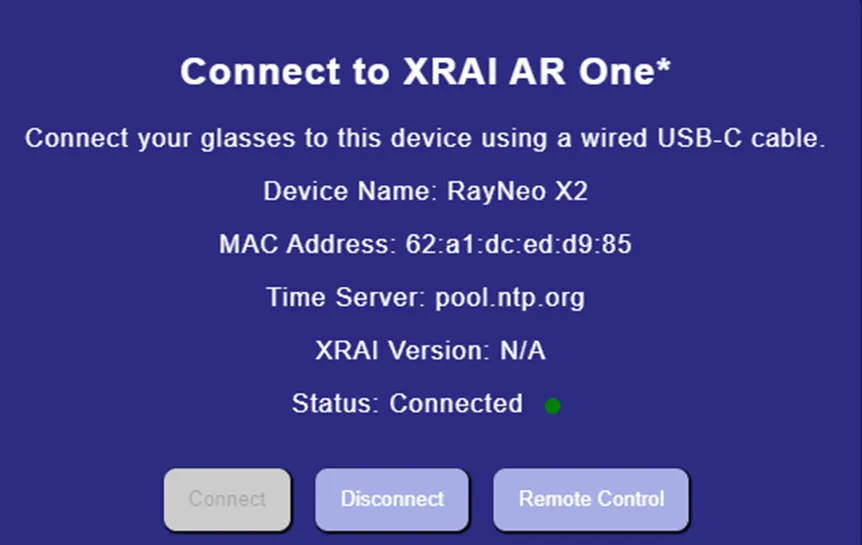
- If the glasses aren't on Wi-Fi yet, connect them on this page.
- Click Update at the bottom of the page and wait for the glasses to restart.
2. Open XRAI on the glasses
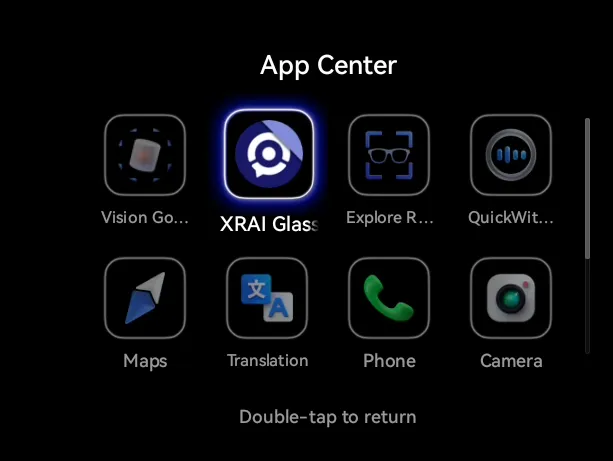
- Swipe along the right arm to open App Center.
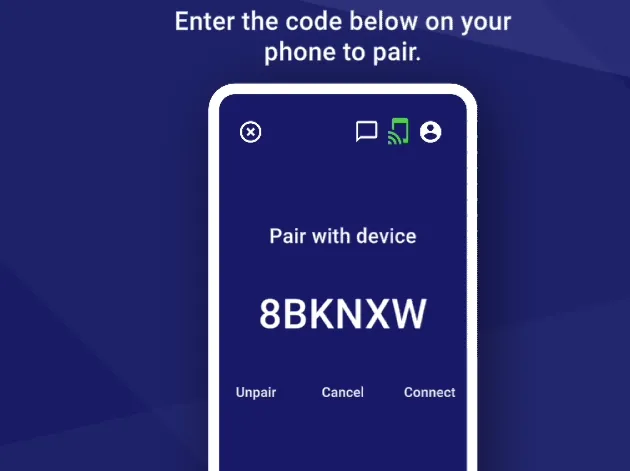
- Swipe to XRAI Glass and tap to open it. The glasses show a pairing code.
3. Pair your phone
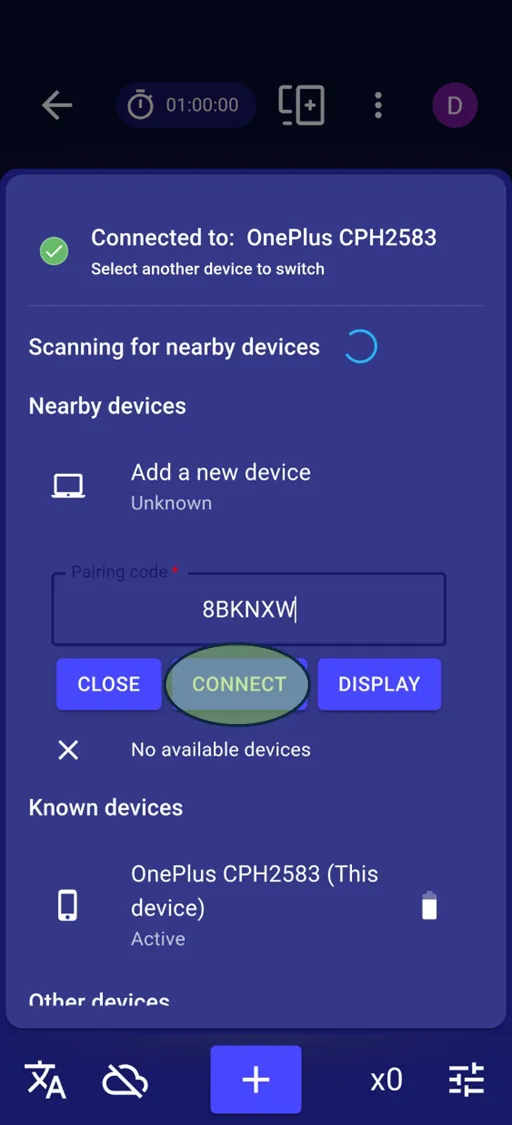
- In the XRAI app on your phone, tap your picture → Devices → Add a new device.
- Type the code from the glasses and tap Connect. Pairing takes up to 30 seconds; the screen goes dark briefly while your phone connects to the app in the glasses.
- Tap Enable Audio Recording, then tap the right arm of the glasses to accept.
- Tap Enable Device Discovery, then tap the right arm again to accept.
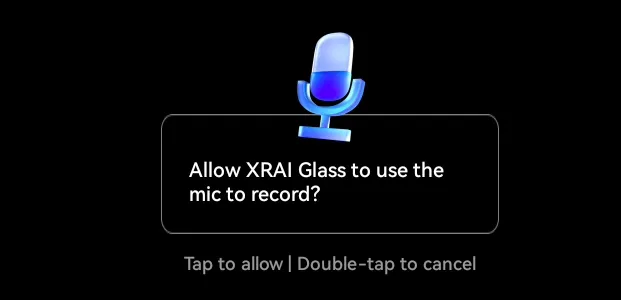
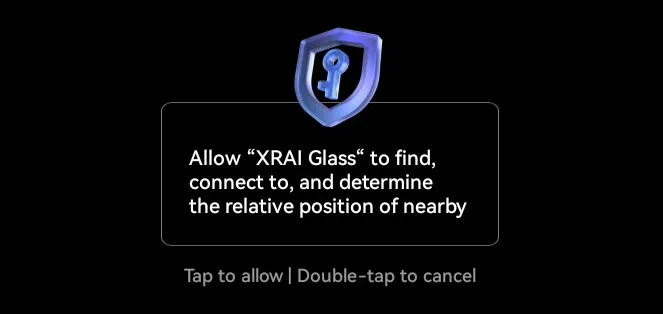
- Tap Continue, then AR subtitles, then + to start captioning.
Microphones
The X2 microphones listen mainly to the person in front of you. To change this, tap your picture → Settings and scroll to Rayneo mic. Default picks up voices all round you; Translation listens forward only. Camcorder and Voice assistant are tuned for recording video and for speaking to the glasses.
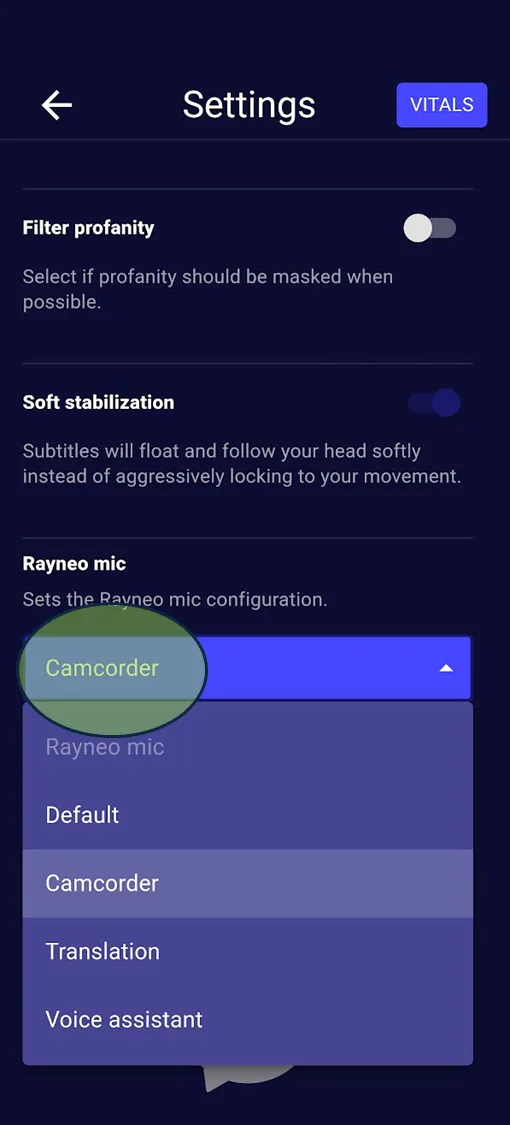
To disconnect, tap your picture → Devices and disconnect the glasses.