Set up XRAI with XREAL glasses
Install the XREAL version of the XRAI app on an Android phone and show captions in XREAL Air glasses.
XREAL glasses work with Android phones through the XREAL version of the XRAI app, which you install from inside the XRAI app.
What you need
- XREAL Air, Air 2 or Air 2 Pro glasses and their cable
- An Android phone with Android 11 or later and a USB-C port that outputs video
- The XRAI app from Google Play, signed in
Leave the glasses unplugged until step 5. On a Samsung phone, first turn off DeX: see Samsung phones: turn off DeX.
Install
- Install XREAL's Control Glasses app. If your phone says your browser isn't allowed to install apps, tap Settings, allow it, and go back.
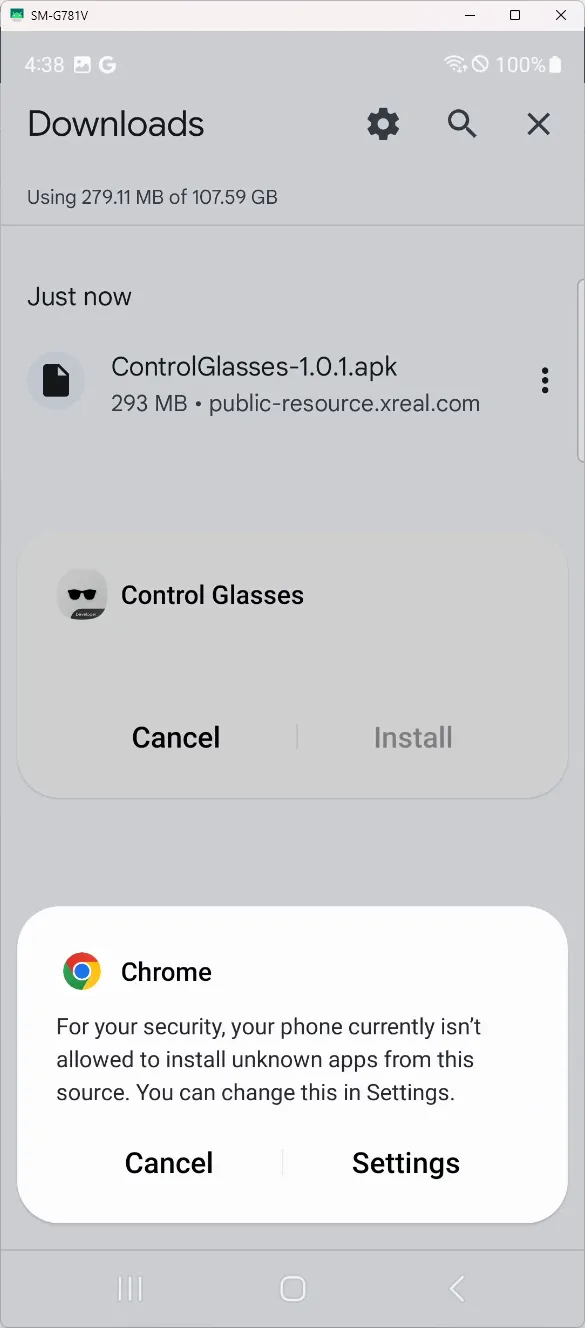
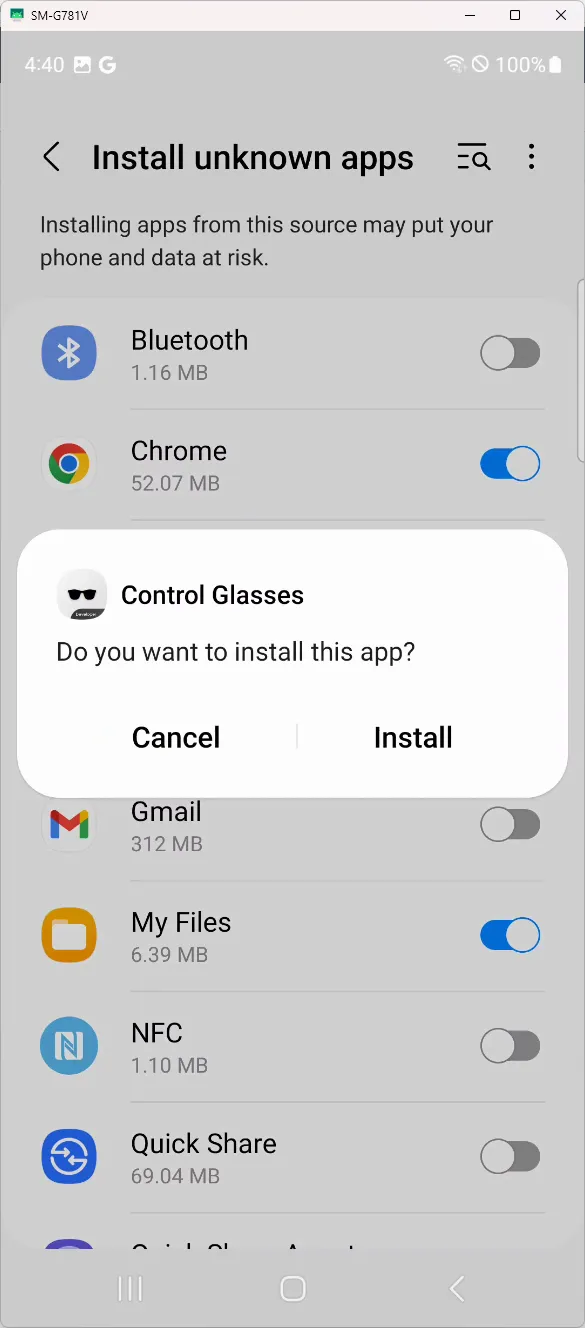
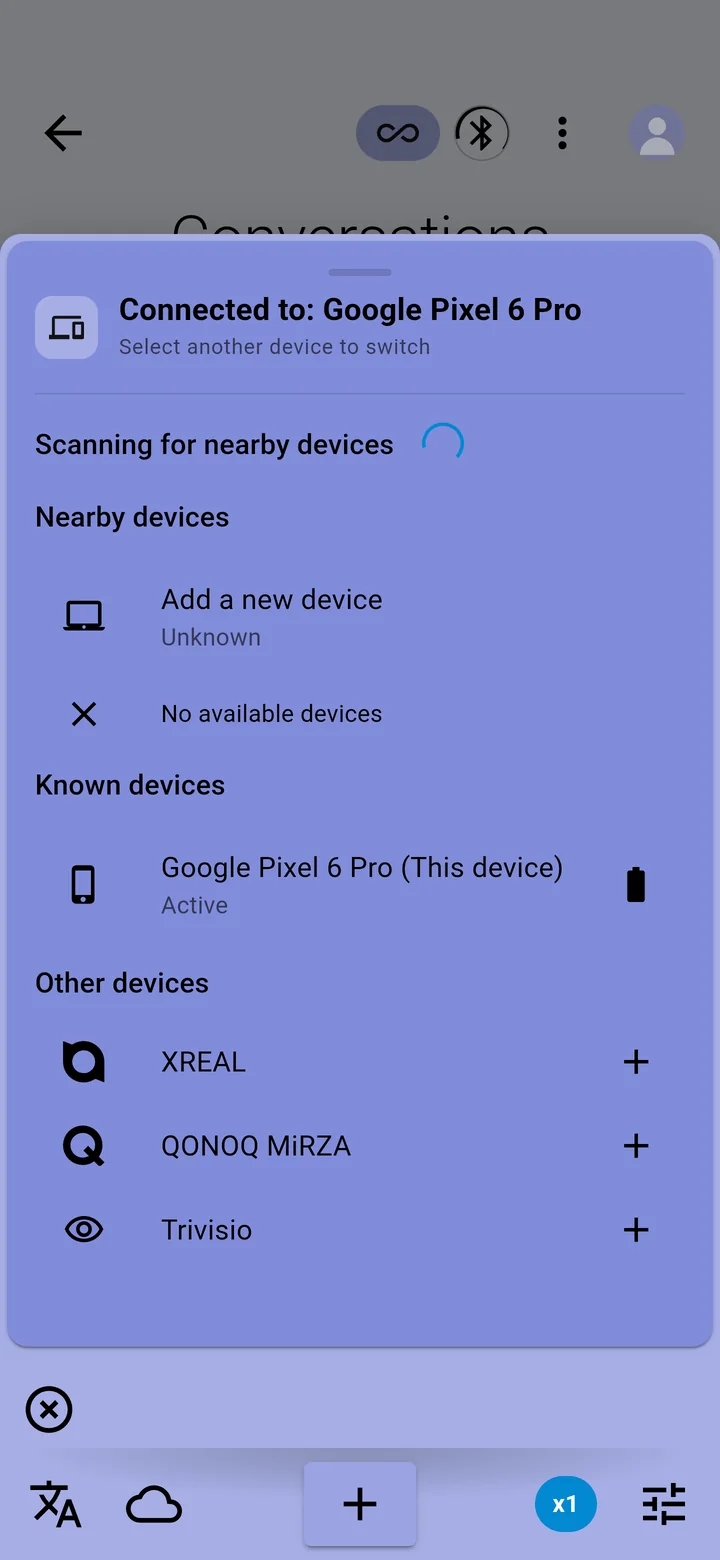
- In the XRAI app, tap your picture → Devices. Under Other devices, tap + next to XREAL.
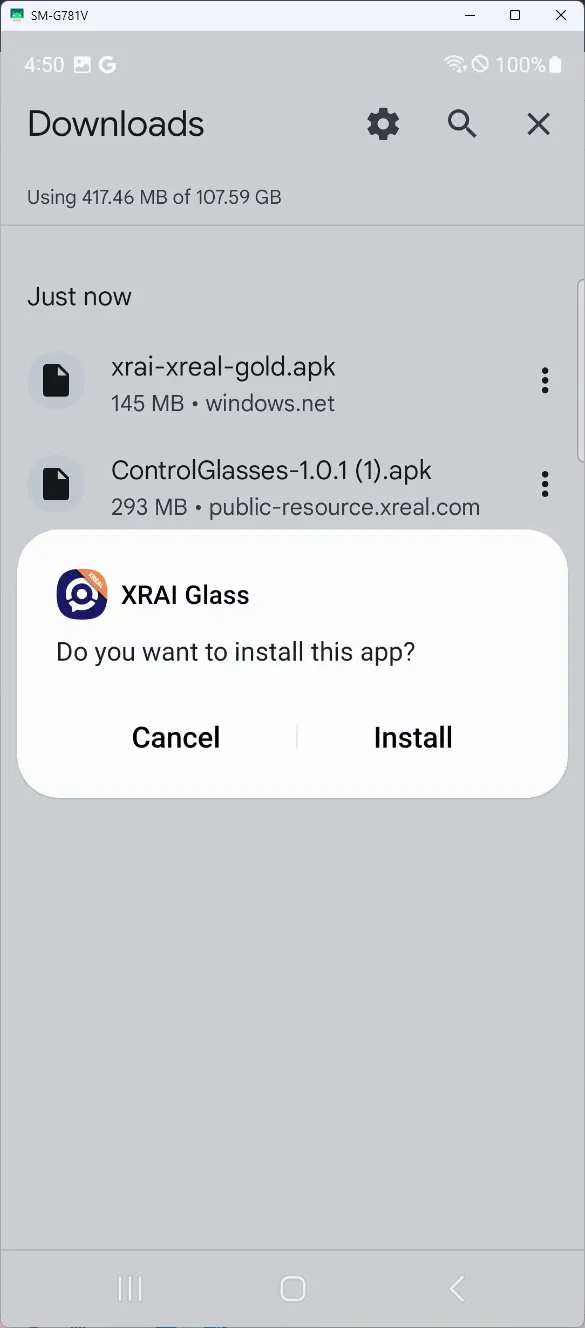
- When the download finishes, tap Open, then Install. If the button has gone, open your phone's Downloads and tap xrai-xreal-gold.apk.
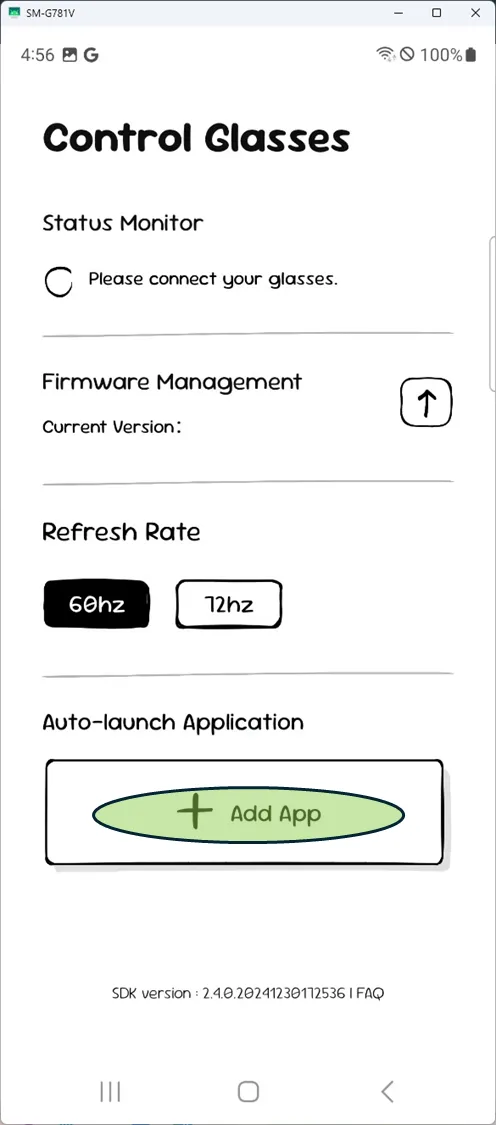
- Open Control Glasses, allow the permissions it asks for, tap Add App under Auto-launch Application, and choose XRAI Glass.
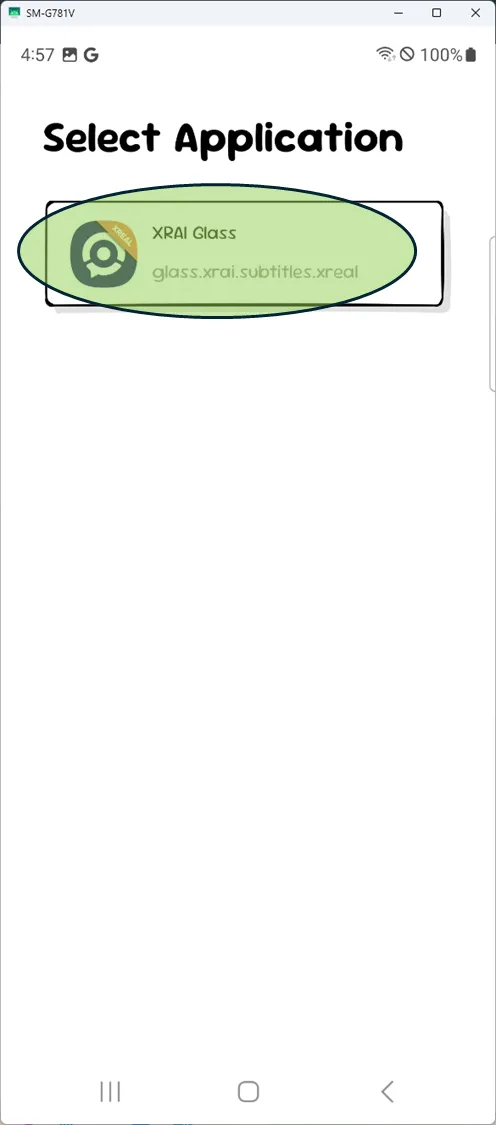
- Plug in the glasses. The XREAL version of the XRAI app opens. Sign in with the same account as before.
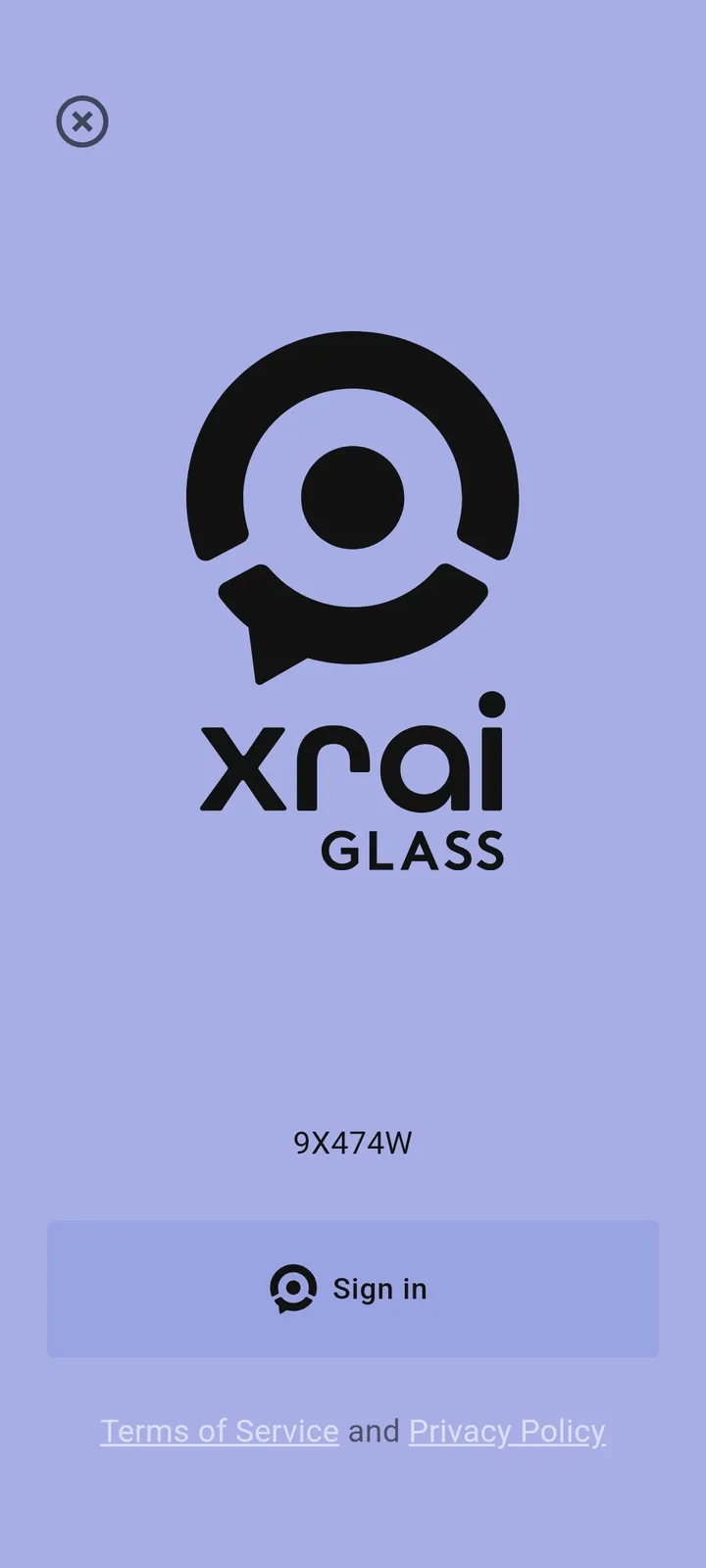
- Tap AR subtitles, put on the glasses, and tap + to start.
To change how captions sit in your view, see AR subtitles and screen mirroring.