
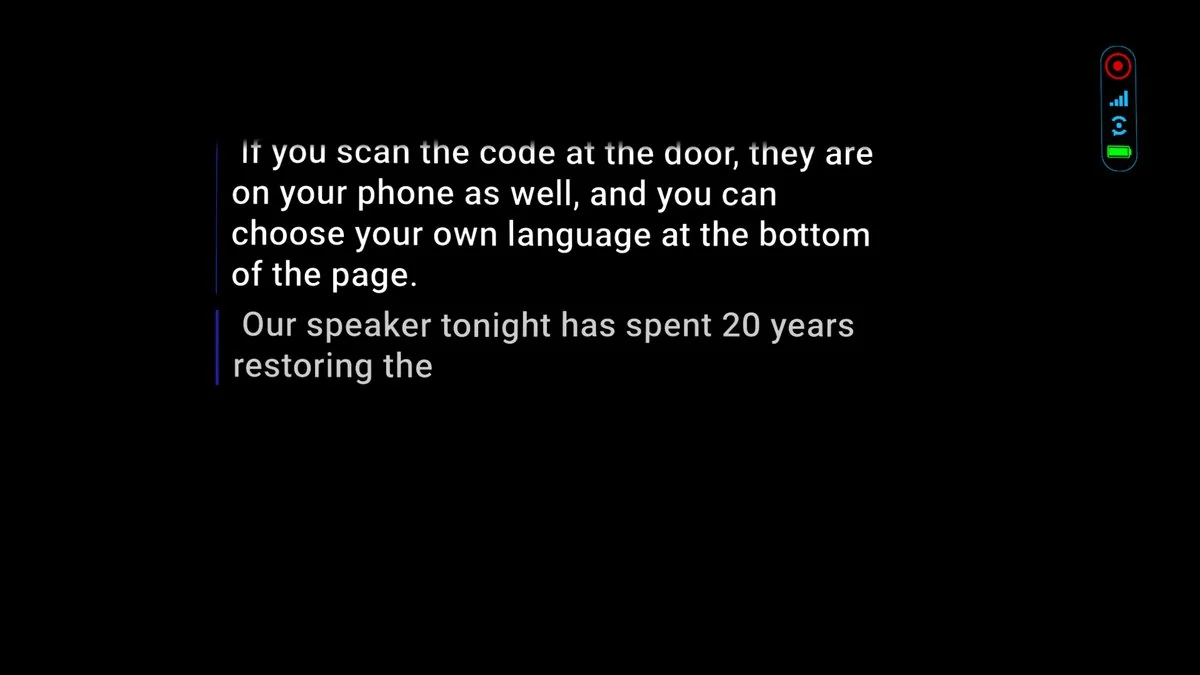
The captions appear in the glasses. The screen in your hand has the controls, and every change applies to your glasses only. Put the glasses on like ordinary glasses and keep the cable to the screen connected.
Start the captions
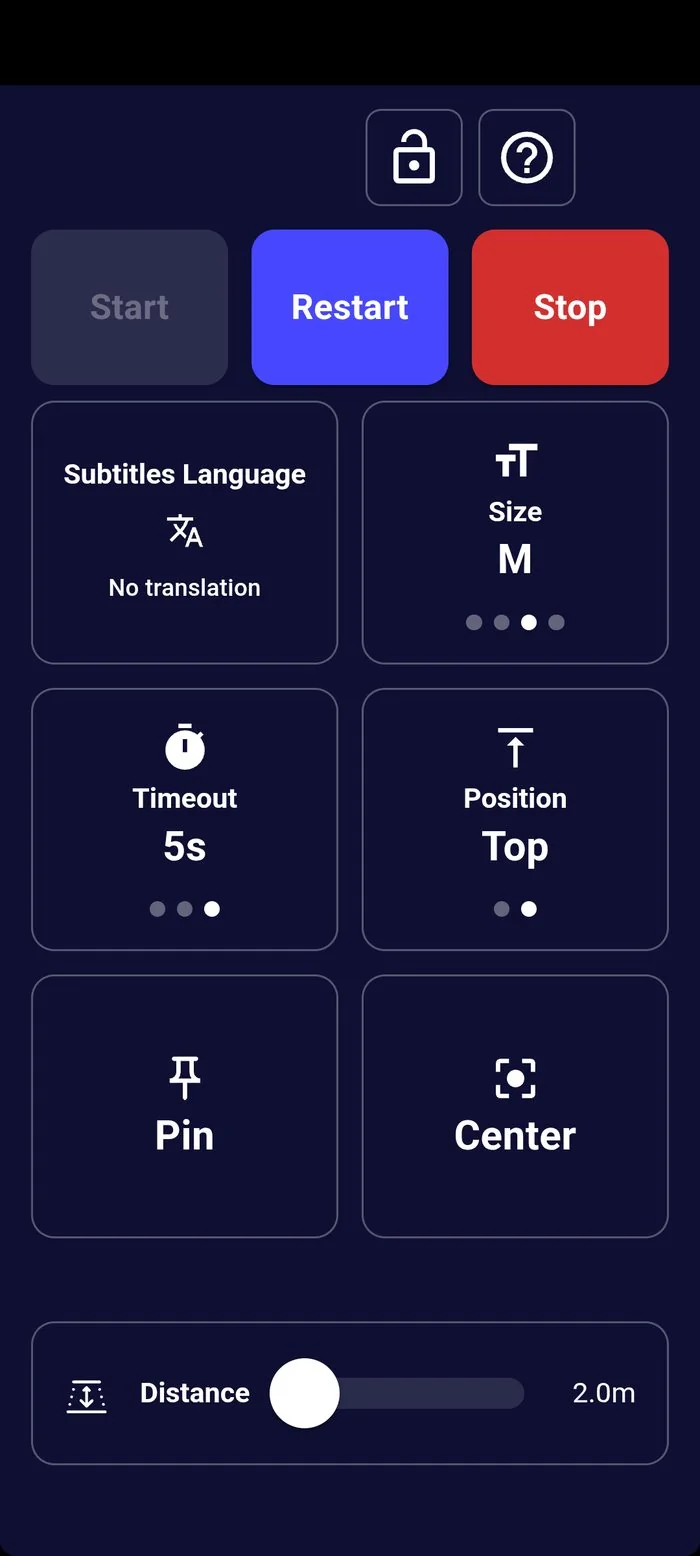
- Start starts the captions. If Start is grey, they are already running.
- Restart stops the captions and starts them again. Use it if they stop or fall behind.
- Stop stops them. Press Start to begin again.
Captions appear when someone speaks. Before the performance there may be nothing to show.
Choose your language
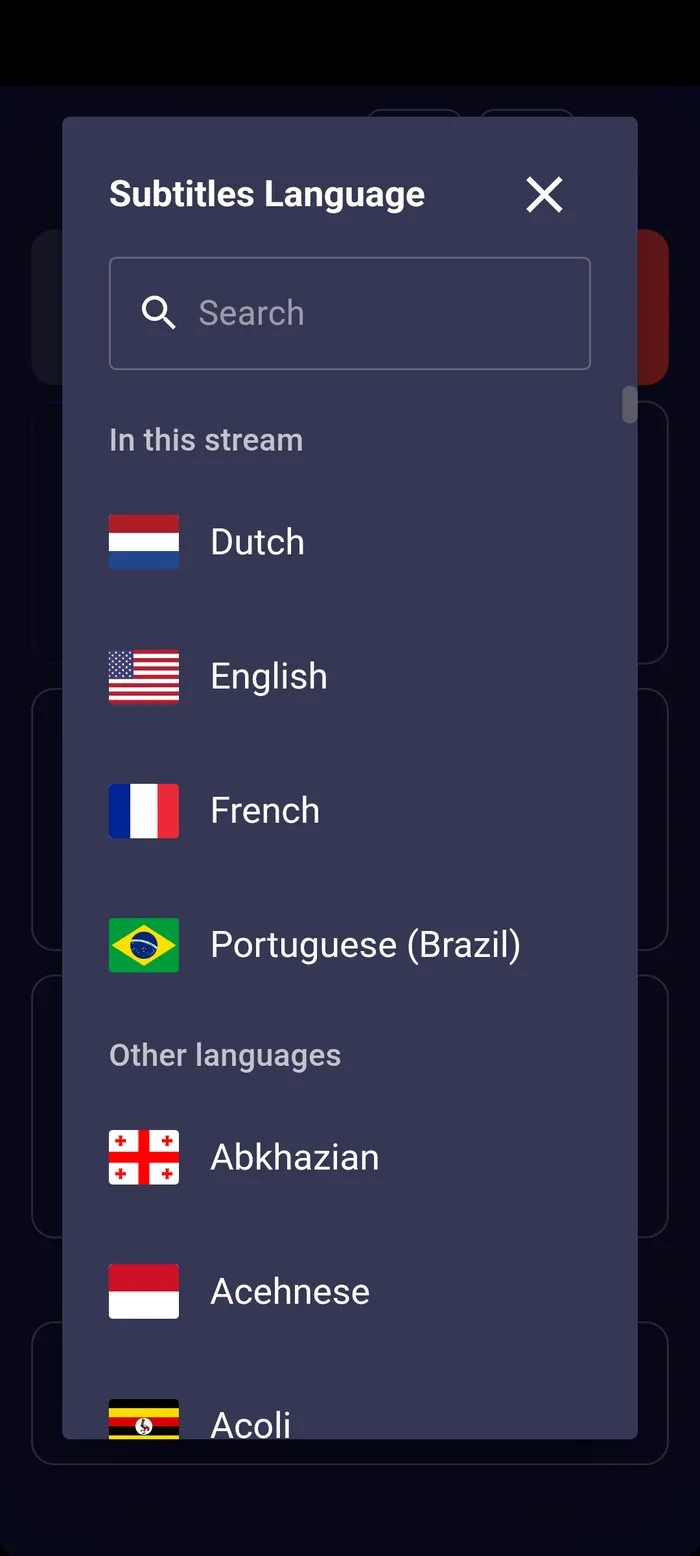
- Tap Subtitles Language. The tile shows the language you are reading now.
- Choose a language. The languages in this stream are listed first: these are the ones the theatre provides. Other languages follow, and the device translates them. Type in Search to find one quickly.
- New captions arrive in the language you chose, and the screen's own labels change to it too.
Size, position and timing
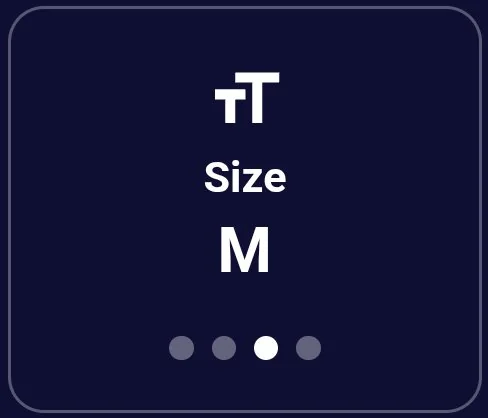
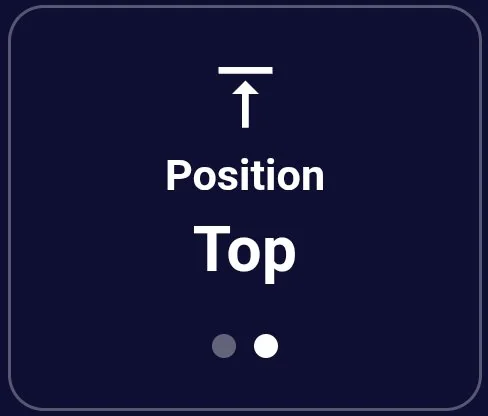
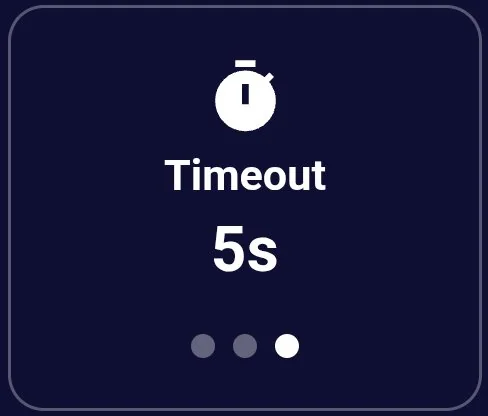
Tap a tile to move to its next setting; the dots show where you are.
| Tile | What it does |
|---|---|
| Size | XS, S, M or L. Larger text shows fewer words on each line. |
| Position | Top or Bottom: where the captions sit in your view. |
| Timeout | How long a caption stays after it is finished: 3 or 5 seconds, or Off to keep each caption until the next one replaces it. |
| Pin | Leaves the captions where they are, so they stay in place when you turn your head. Tap again to let them follow you. |
| Center | Brings the captions back to the middle of your view, for example after turning in your seat. |
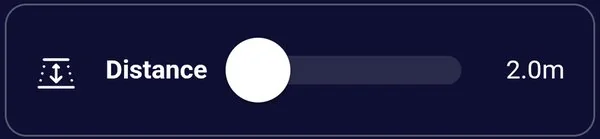
| Distance | Drag the slider to move the captions nearer or further away. Choose the distance that is easiest to focus on. |


If something isn't working
The help button lists the common problems. If they don't help, ask a member of staff.
| Problem | What to do |
|---|---|
| Captions have stopped appearing | Press Restart. Captions usually return within a few seconds. |
| The glasses are dark or blank | Check the glasses are connected to the screen, then press Restart. If they stay dark, take the glasses off and put them back on. |
| Captions are in the wrong language | Tap Subtitles Language and choose your language again. |
| Text is too small or too large | Tap Size to move through the sizes. |
| Captions lag behind the performance | A short delay is normal. If it grows to more than a few seconds, press Restart. |
| The tiles have disappeared | The screen is locked. Tap the padlock at the top. |
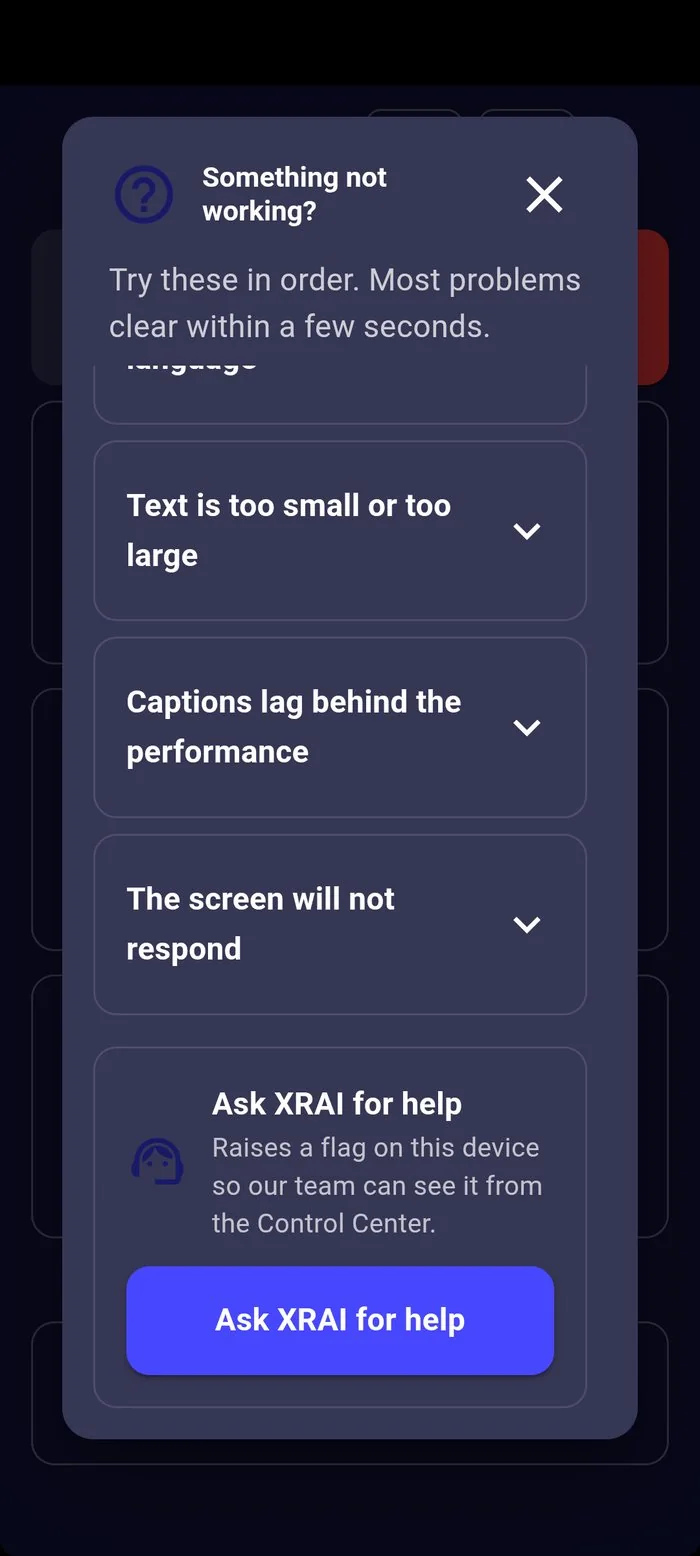
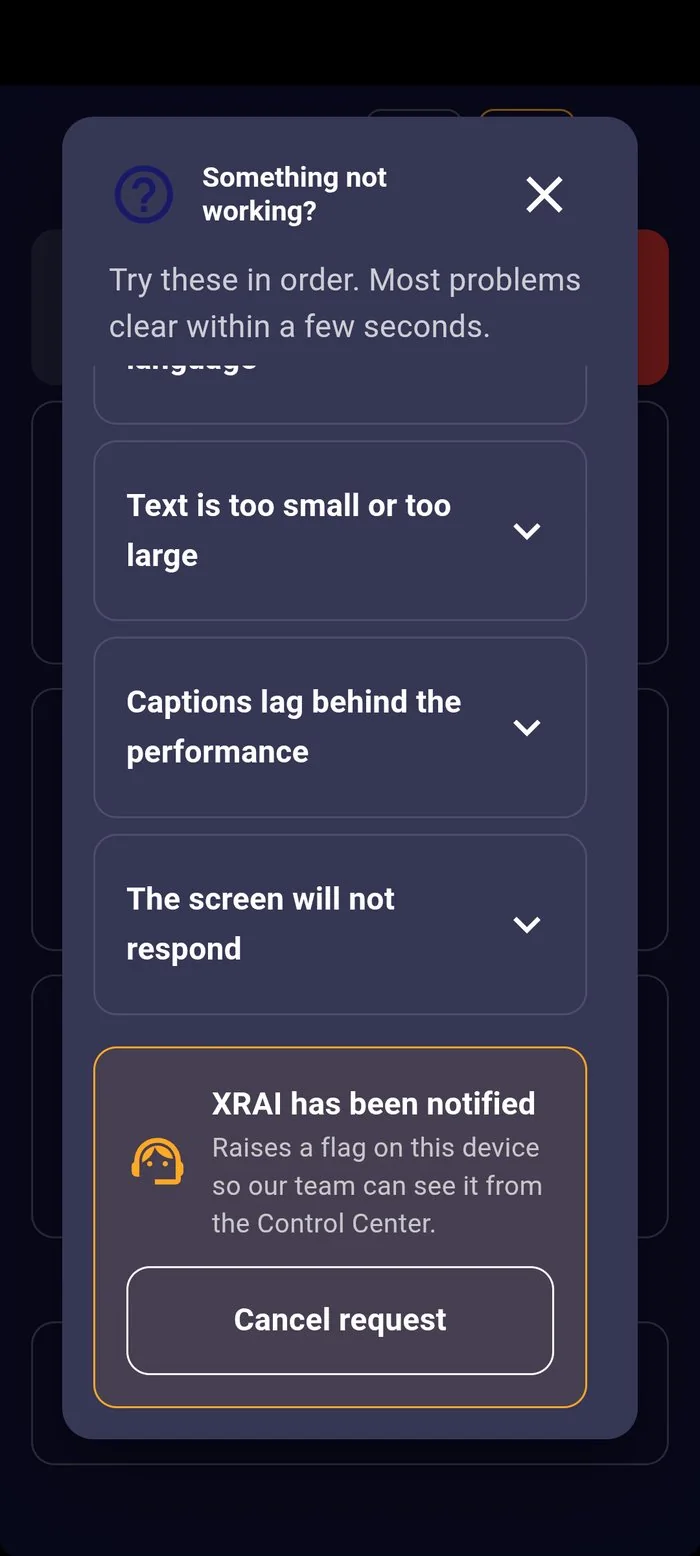
At the bottom of the help list, Ask XRAI for help turns the help button into an orange headset so staff can see you need help. Cancel request turns it back.