Pair your AR2 with the XRAI app
Connect the XRAI AR2 to the XRAI app for the first time, on iPhone or Android.
You pair the glasses once. After that the app connects to them by itself whenever they are switched on and nearby.
Before you start
- Charge the glasses, then hold the power button for 1 second to switch them on.
- Turn on Bluetooth on your phone.
- Install the XRAI app and sign in. See Install the XRAI app and sign in.
Pair the glasses
- Open the XRAI app with the glasses switched on next to your phone. When the app finds them it shows Glasses found.
- Tap Connect.
- Your phone asks to pair with a device called GLASSES- followed by four digits. Tap Pair. The four digits are unique to your glasses, so you can check you are pairing the right pair.
- On Android, allow the app to run in the background when asked, then use the back arrow to return to the app. This keeps the captions running when the screen is off.
- Android may also ask for access to contacts or call logs. The app does not need these, so you can deny them.
When the glasses are connected the Bluetooth icon at the top of the conversation screen turns blue. Tap + to start captioning; the icon turns green while the glasses are captioning.
If Glasses found doesn't appear
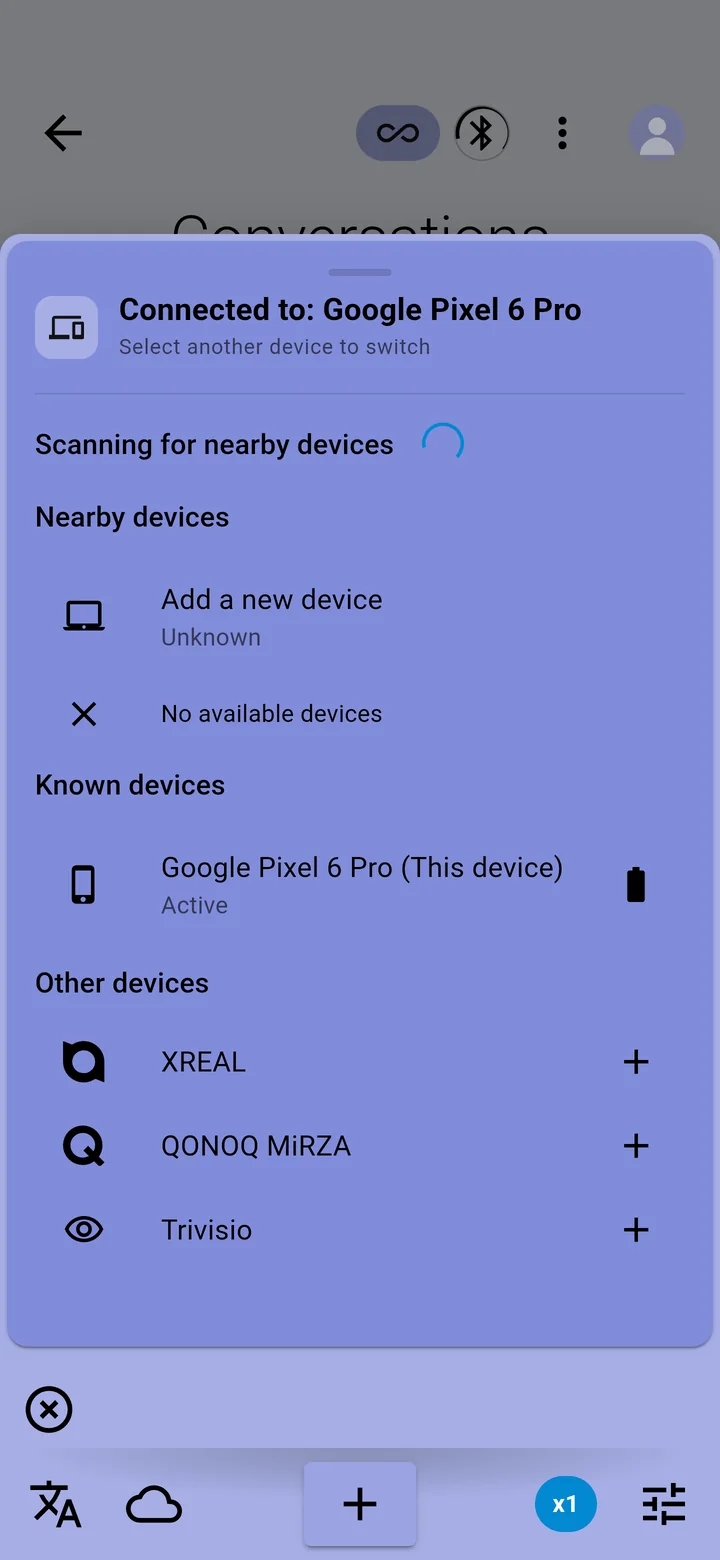
- Tap the Bluetooth icon at the top of the conversation screen. The app searches for glasses for 30 seconds and shows a spinner while it does.
- Or tap your picture in the top-right corner, then Devices. Your glasses appear under Nearby devices: tap the + next to them.
Still not found? On iPhone, open Settings → XRAI Glass and check Bluetooth is on. Then see Reset and re-pair your AR2.