
The AR2 Firmware Updater runs on a Mac or a Windows PC with Bluetooth and Wi-Fi. Use it if updating from the app keeps failing, or if your phone can't join the glasses' Wi-Fi.
Download for Mac Download for Windows
- Install the updater and open it. It downloads the latest firmware first.
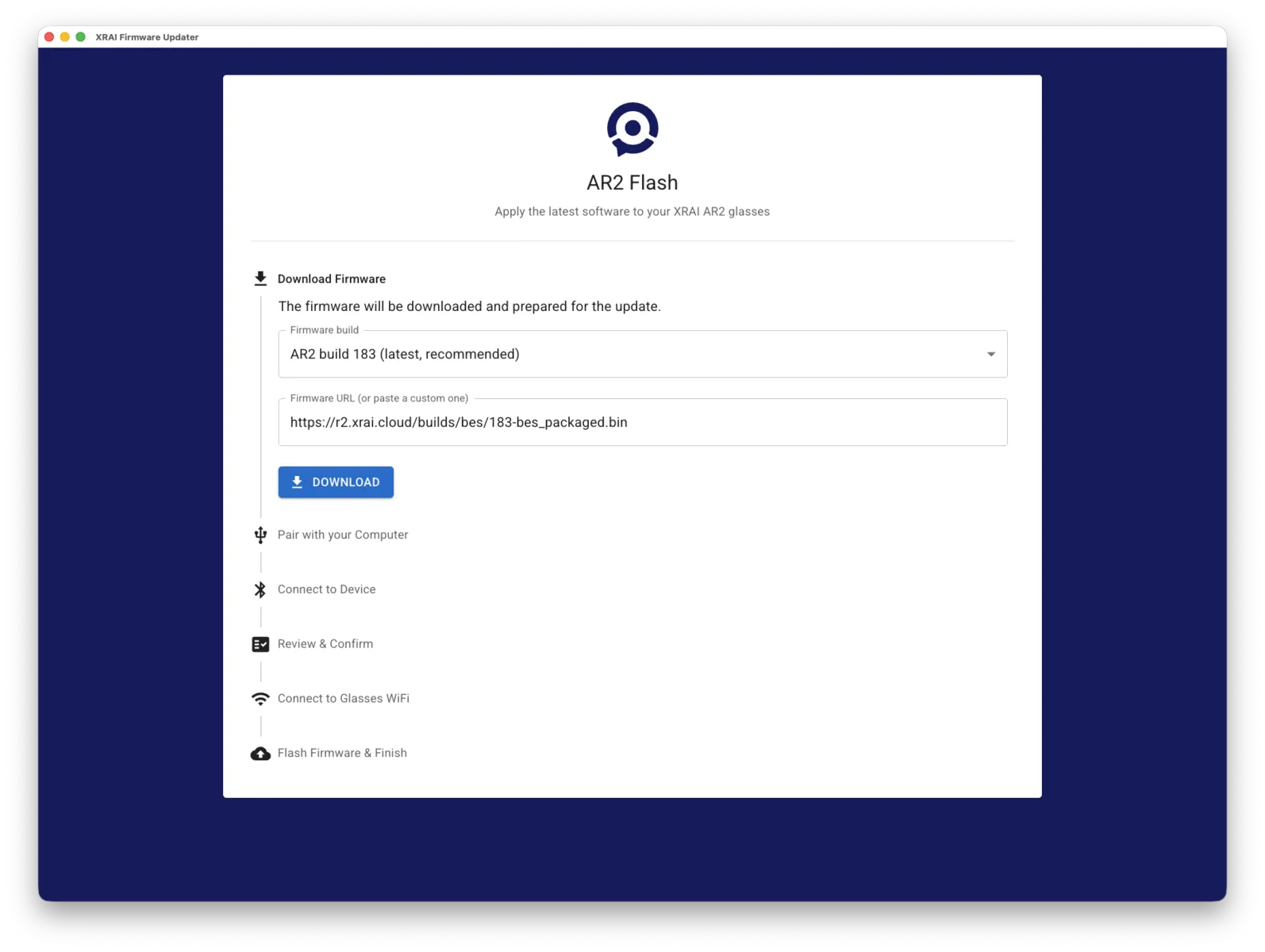
- Turn off Bluetooth on your phone, so the phone doesn't connect to the glasses during the update. Then select I have done this.
- Switch on the glasses and pair them with the computer when the updater asks.
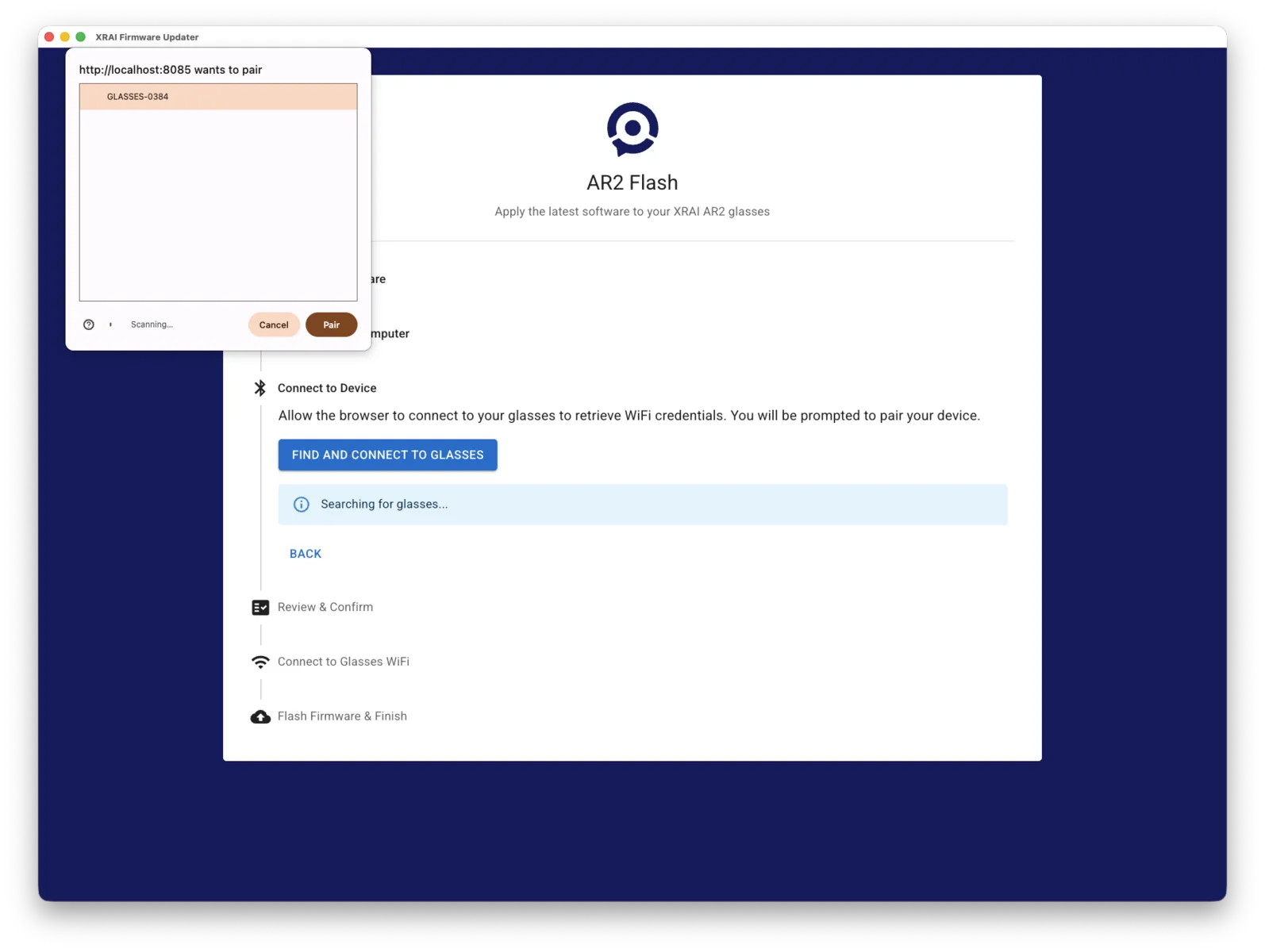
- Check the details and select Continue.
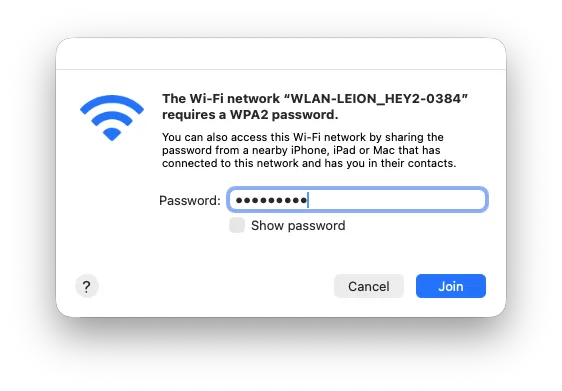
- Join the glasses' Wi-Fi network from your computer's Wi-Fi menu. Its name starts WLAN-LEION_HEY2; use the password the updater shows.
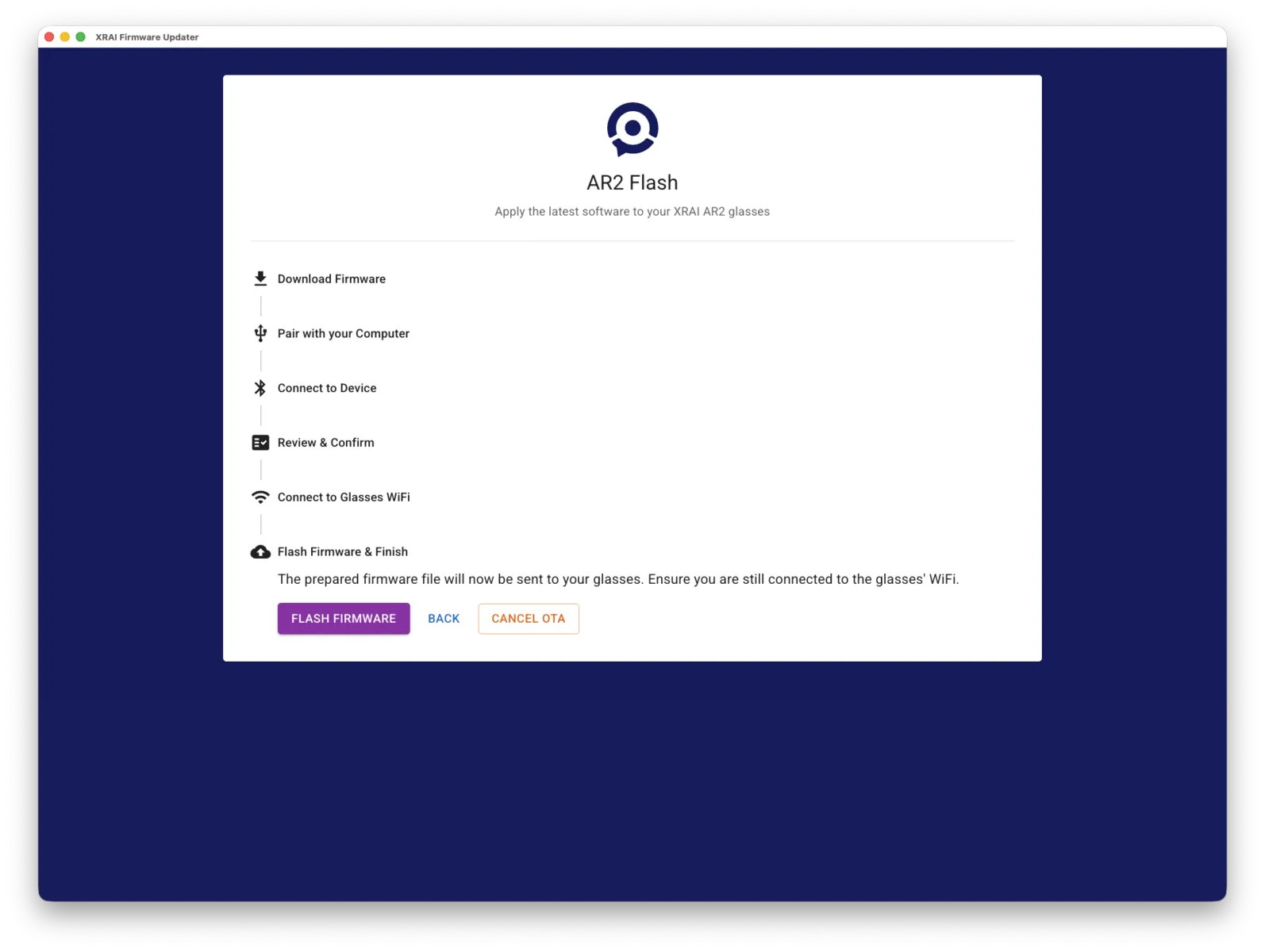
- Select Flash firmware and wait. Keep the glasses switched on and close to the computer until the updater says it has finished.
- Turn Bluetooth back on on your phone and open the XRAI app. Tap Connect when it finds your glasses.