The conversation screen
A guide to the buttons and icons on the XRAI app's main screen: conversations, languages, AI engines, minutes and settings.
The conversation screen lists your saved conversations and holds every control you need while captioning.
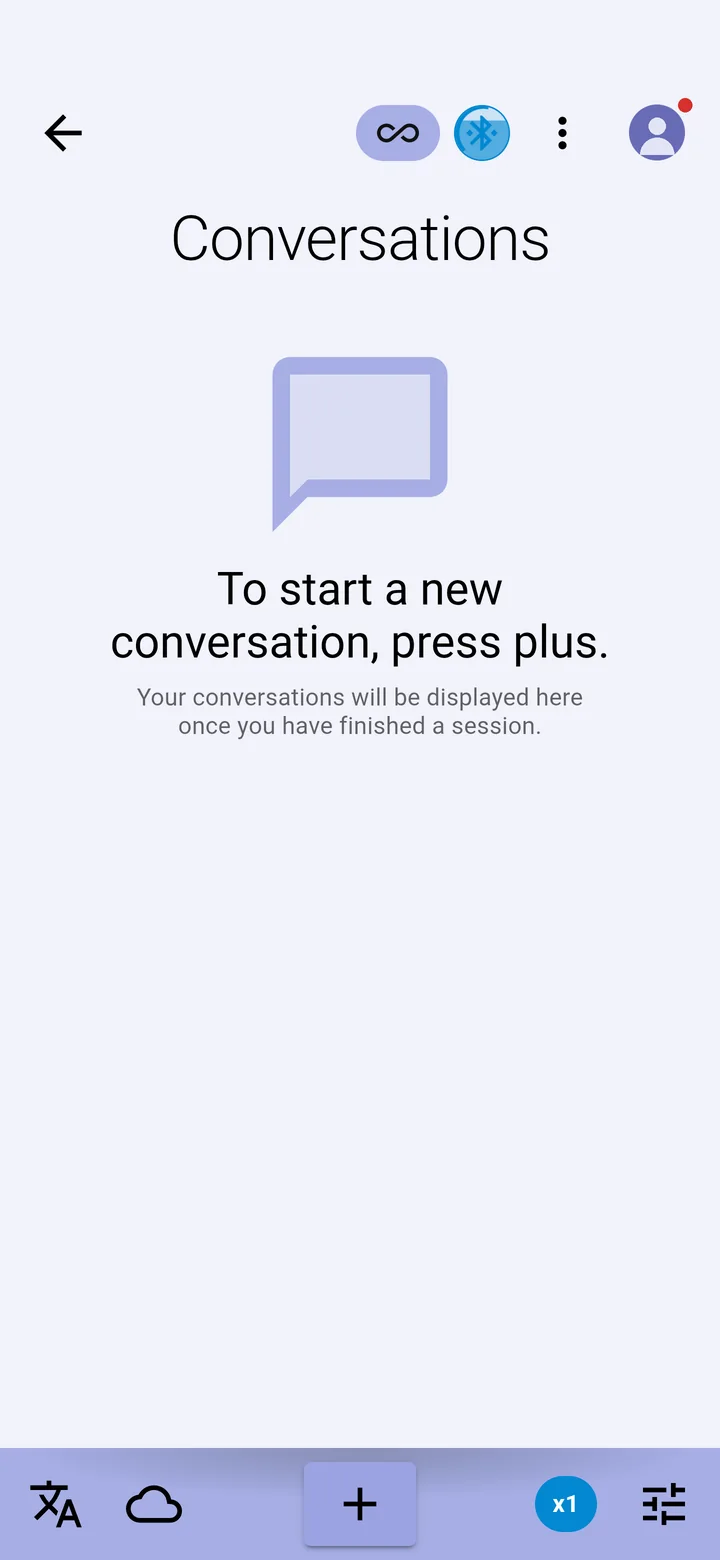
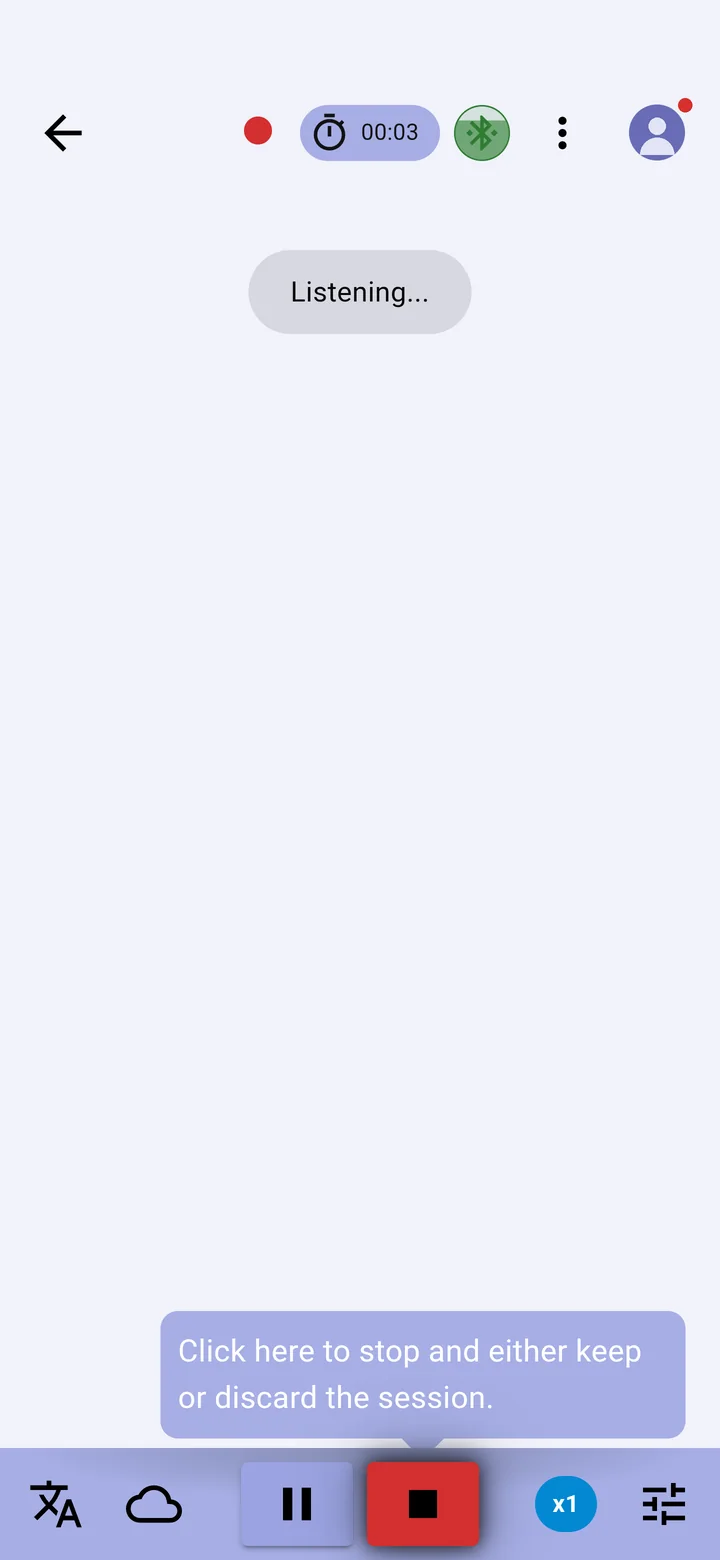
Along the top
| Control | What it does |
|---|---|
| Back arrow | Goes to the home screen |
| Time | ∞ when your plan has no time limit; a timer during a conversation; or the minutes you have left, shown in red under 5 minutes |
| Streams | Join a live XRAI Stream at a venue near you |
| Bluetooth | The state of your XRAI glasses. See What the Bluetooth icon shows. |
| ⋮ | Manage Conversations, to delete several at once |
| Your picture | Profile, Purchase, Devices, Pro minutes and Settings. A red dot means an app or glasses update is waiting. |
Along the bottom
| Control | What it does |
|---|---|
| Languages | Choose the spoken language and the subtitle language. See Choose languages and translate. |
| Cloud | Tap for AI Engine Priority. Hold to switch between online and offline captioning. See AI engines. |
| + | Starts a new conversation. While it runs, Pause and Stop take its place. |
| Rate | Free, or how fast Pro minutes are being used (x1, x1.5…). Tap for your minutes. See Pro minutes. |
| Settings | Caption and app settings. See Caption and app settings. |