Offline captioning runs on your phone. It works without an internet connection, uses no Pro minutes, and your audio never leaves the phone. It is less accurate than cloud captioning and covers fewer languages.
Switch to offline
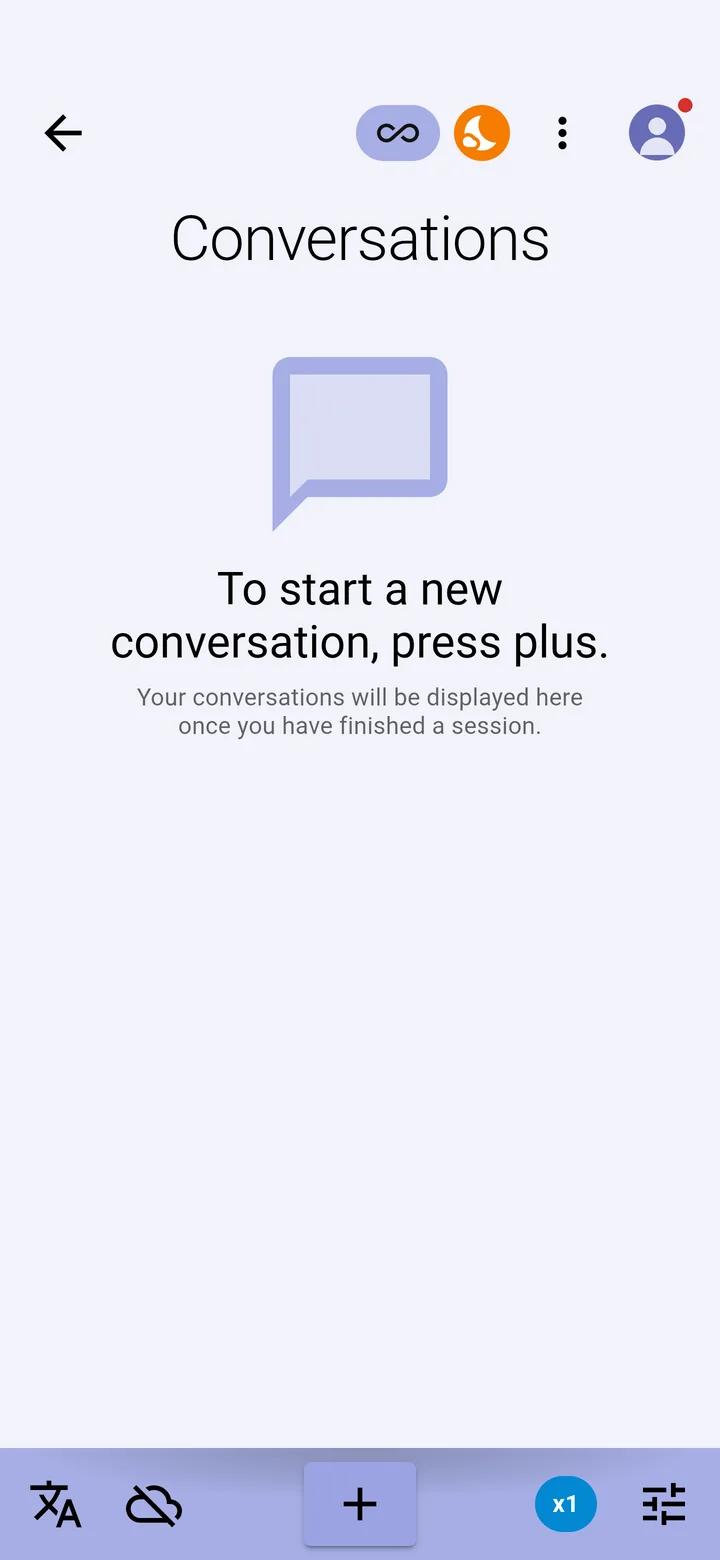
Hold the cloud icon at the bottom of the conversation screen. When the app is offline the icon shows a cloud with a line through it. Hold it again to go back online.
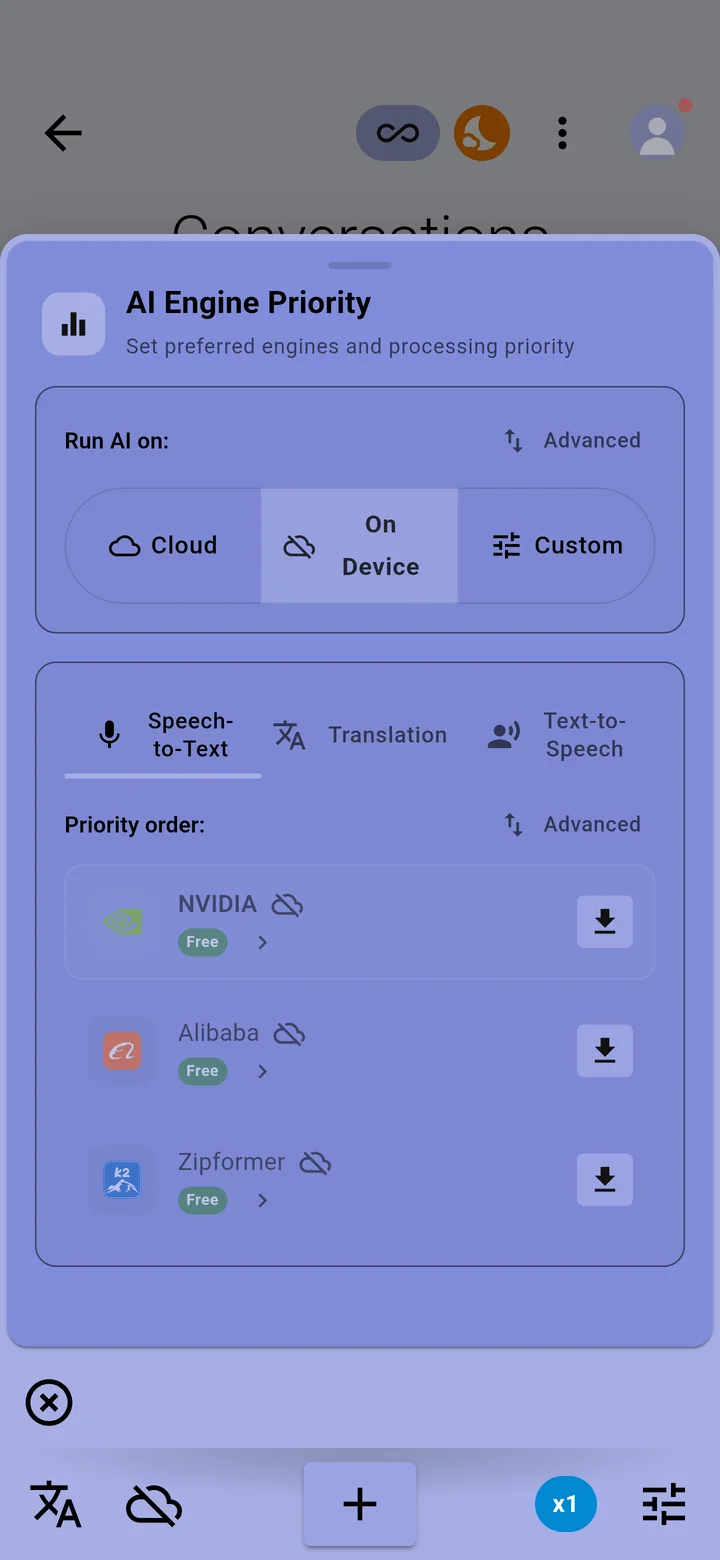
Or tap the cloud icon to open AI Engine Priority and choose the on-device button, the cloud with a line through it, under Run AI on. The list below then shows the engines on your phone.
iPhone and iPad
Offline captioning on iPhone and iPad uses Apple's on-device speech recognition, so it needs Apple's dictation turned on.
- Open Settings → General → Keyboard and turn on Enable Dictation. If the app still asks you to enable Siri and Dictation, turn on Siri in Settings → Siri as well.
- Open Settings → XRAI Glass and check Speech Recognition and Microphone are allowed.
- In the XRAI app, hold the cloud icon to go offline.
The languages you can caption offline are the ones Apple supports on your iPhone. Older iPhones support fewer; if the app says on-device speech isn't supported on this device, use a cloud engine instead.
Android
Android phones caption offline with speech models that download to the phone the first time you use them:
| Engine | Languages |
|---|---|
| NVIDIA (Parakeet) | 25 European languages, including English, French, German, Spanish and Italian; no speaker identification |
| Alibaba (SenseVoice) | More than 50 languages |
| Zipformer | English; ready to use with no download |
- Connect to Wi-Fi: the models are large downloads.
- Tap the cloud icon, choose the on-device button under Run AI on, and tap the download button next to the engine you want.
- Wait for the download to finish before you go offline. Until it has, the app shows that the engine is being prepared.
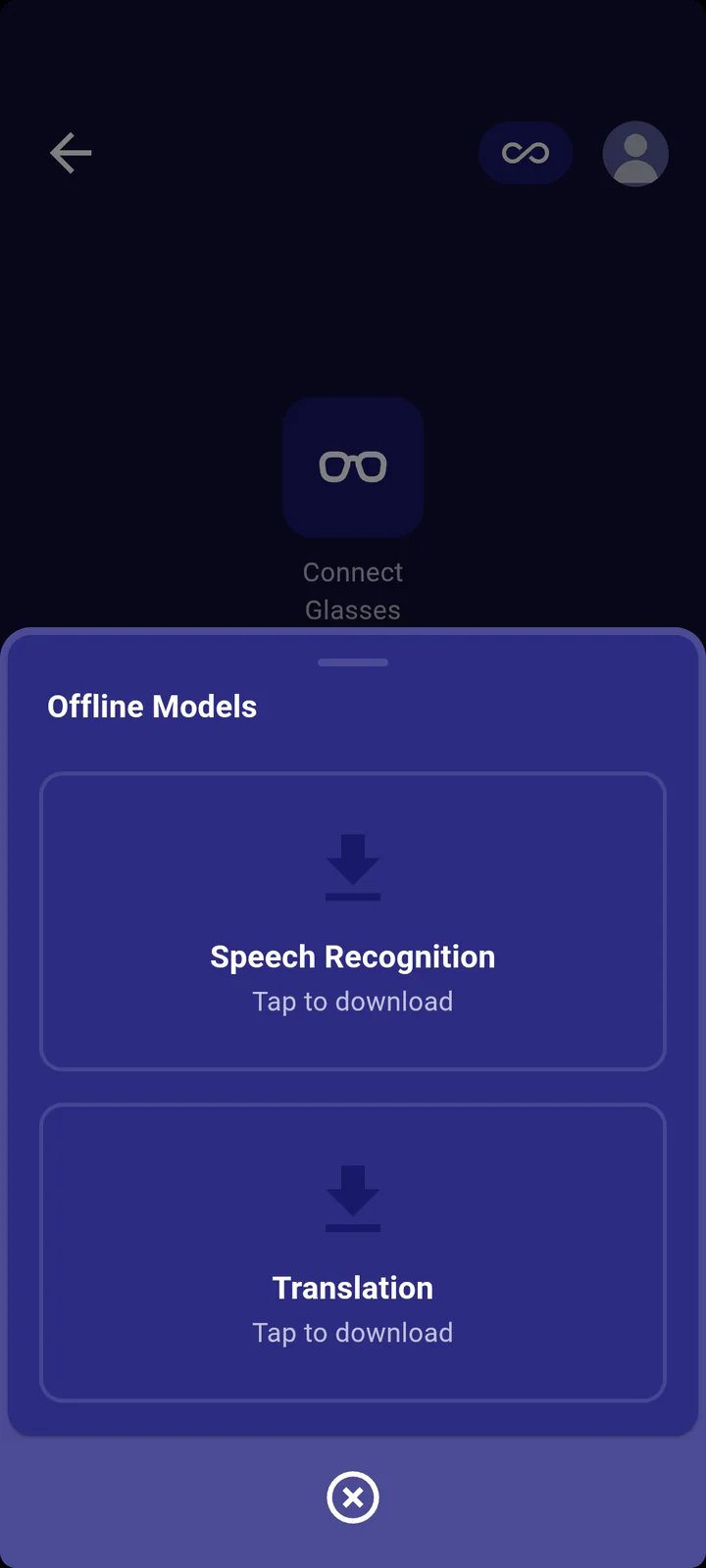
In basic mode
Tap Online to switch to offline. Downloads opens Offline Models, where you can download speech recognition and translation for use offline. See Switch to basic mode.