
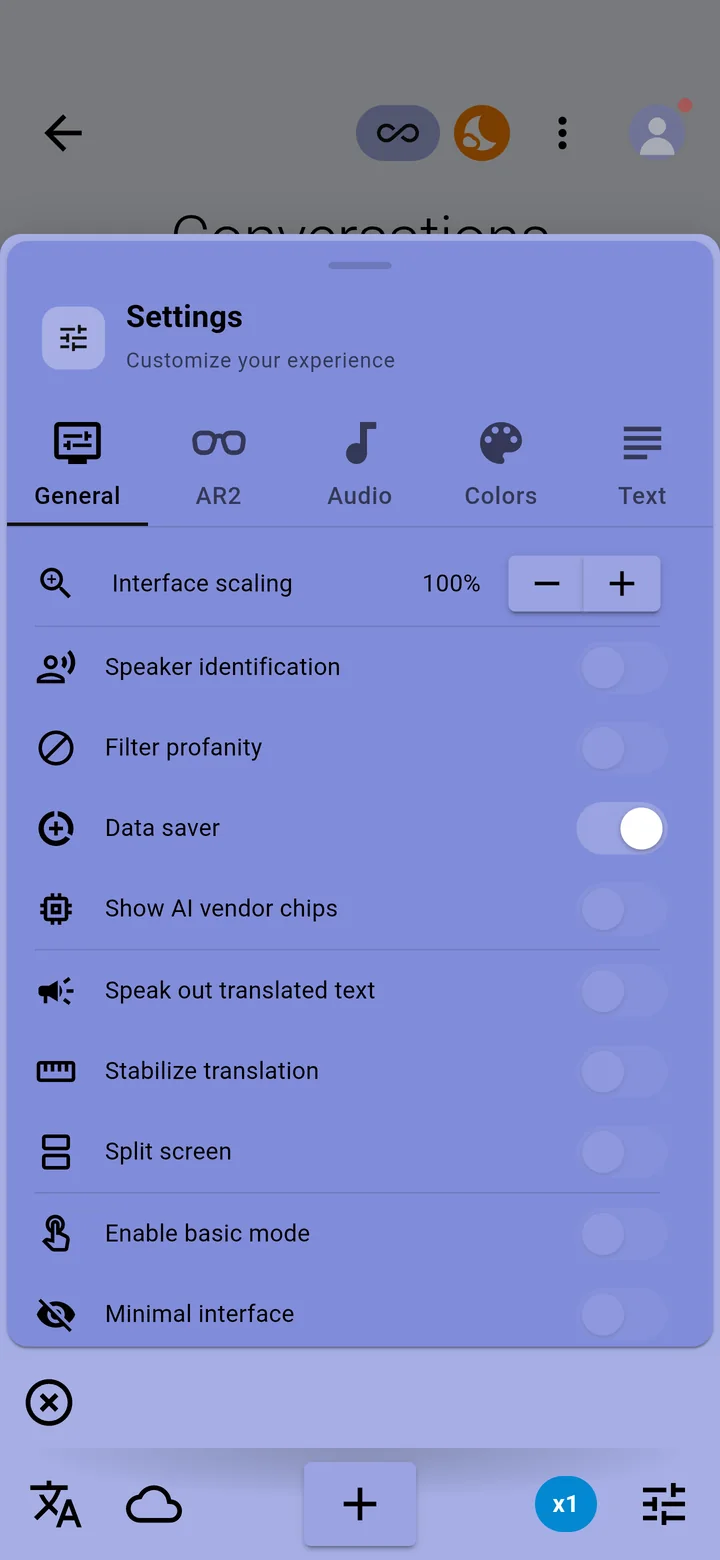
Tap the settings icon in the bottom-right corner of the conversation screen. The panel has a tab for each kind of setting, and changes apply straight away.
General
- Interface scaling makes the whole app larger or smaller.
- Speaker identification labels captions by speaker. See Speaker identification.
- Filter profanity masks swear words where it can.
- Data saver uses less mobile data.
- Speak out translated text reads translations aloud.
- Stabilize translation keeps translations steadier while you read them.
- Split screen shows the captions twice, one copy upside down for the person opposite you.
- Enable basic mode switches to a simpler layout with larger controls.
AR2
Settings for captions in XRAI AR2 glasses. The tab appears once the app has found your glasses. See Caption size, brightness and position.
Audio
The microphone, noise handling and when a caption is split. See Choose the microphone.
Colors
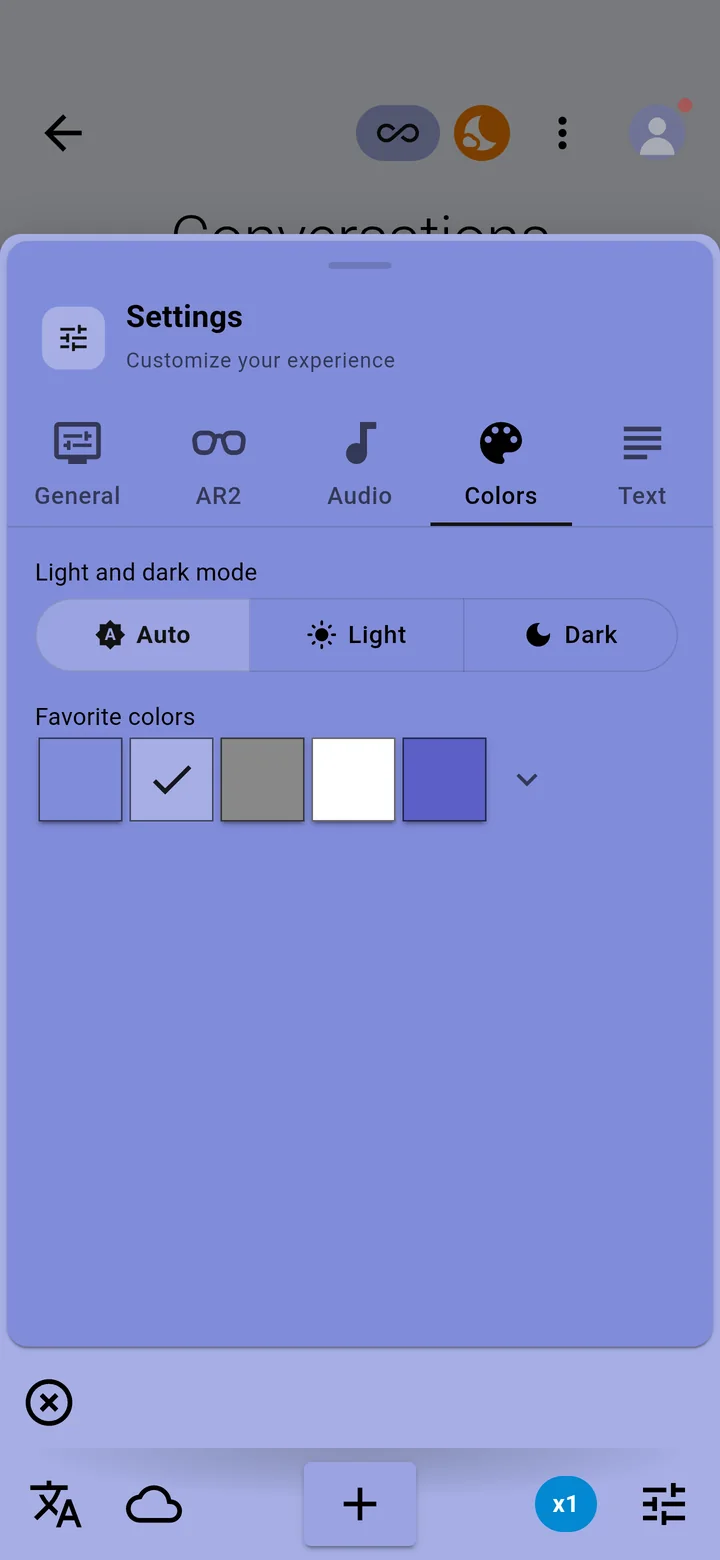
Light and dark mode: Auto follows your phone; Light and Dark stay fixed. Favorite colors changes the colour theme of the whole app.
Text
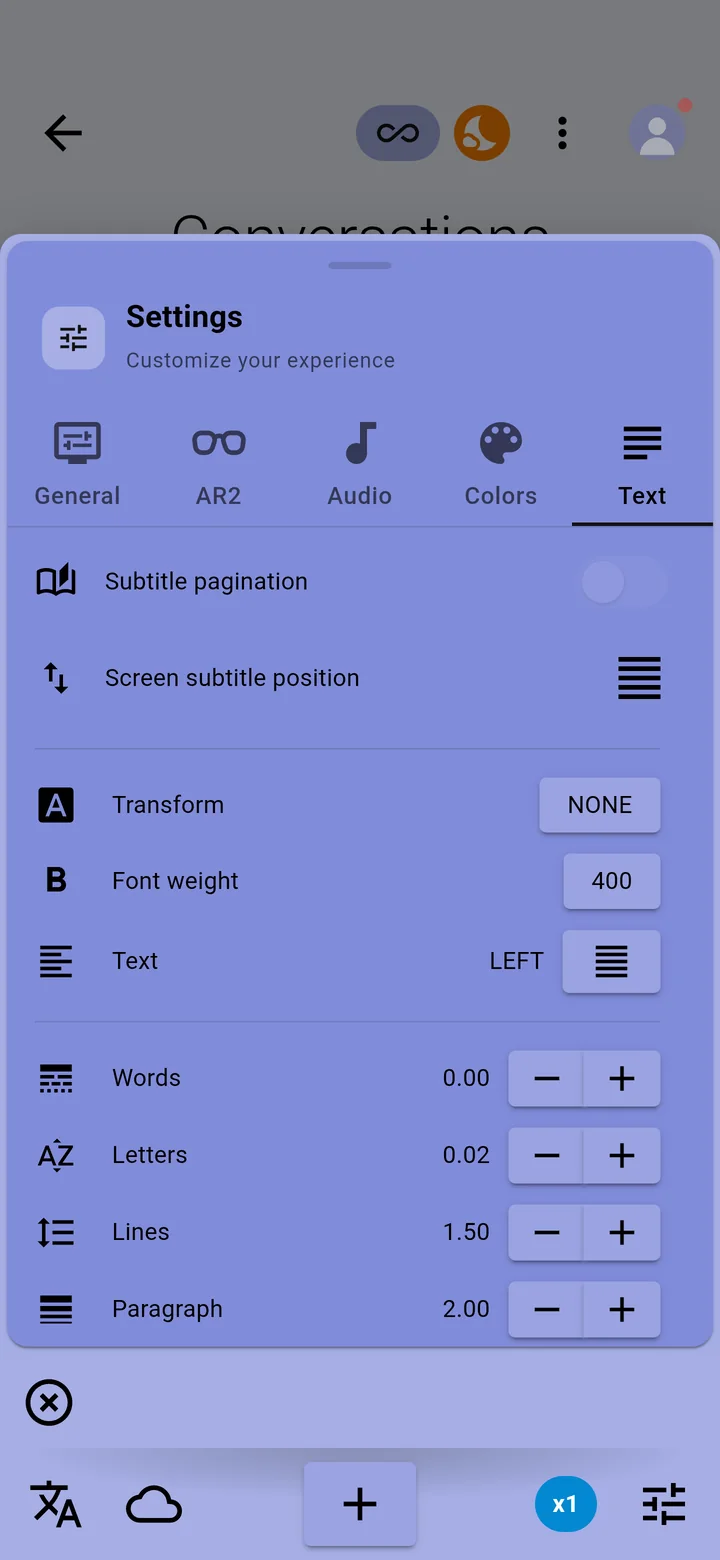
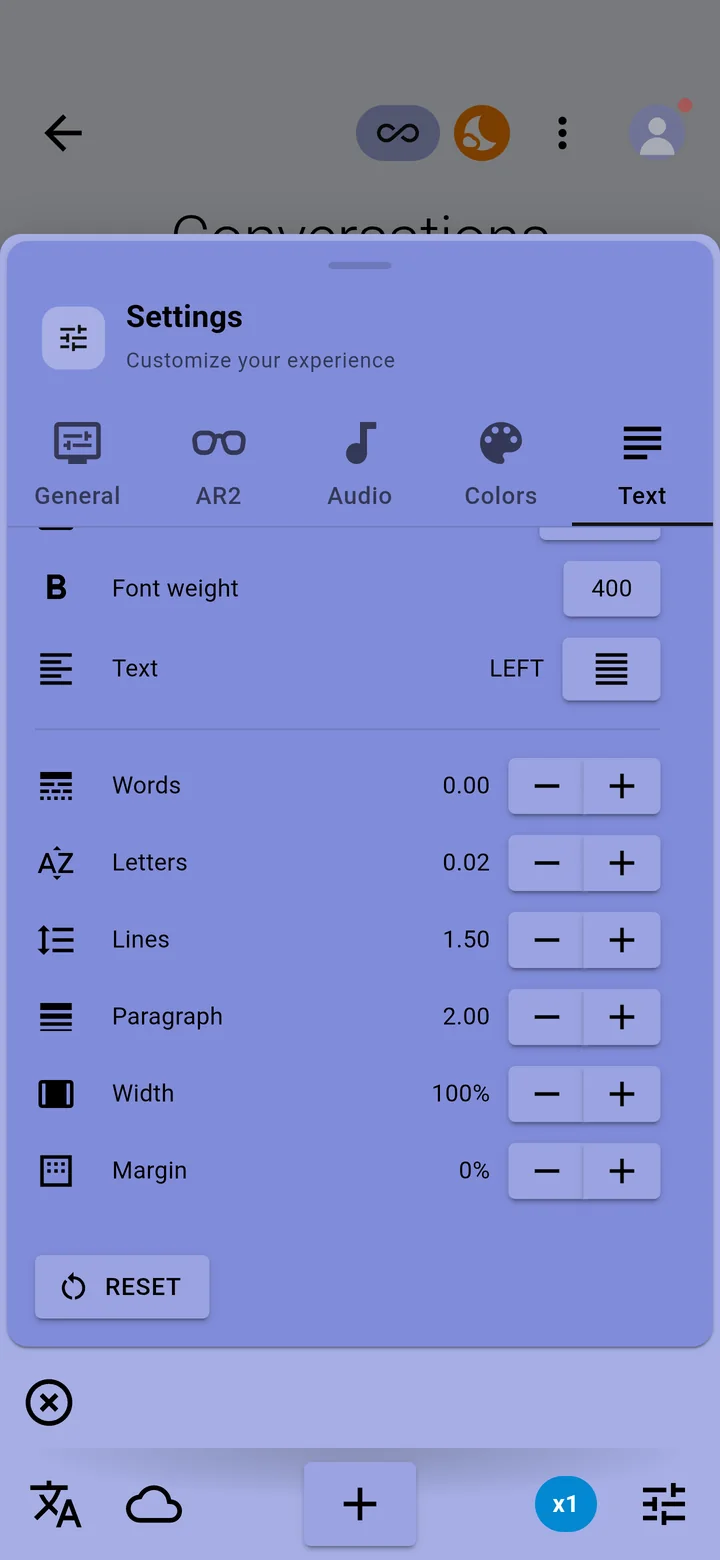
How captions are laid out on your phone: Subtitle pagination (a page at a time rather than scrolling), Screen subtitle position, Transform (capitals), Font weight, alignment, and the spacing between Words, Letters, Lines and paragraphs, with the caption Width and Margin. Reset puts them back.
If your settings look different from these, the app may be in basic mode. Tap your picture, then Advanced Mode, to switch back.