
Captions in the glasses have their own settings, separate from the captions on your phone.
- On the conversation screen, tap the settings icon in the bottom-right corner.
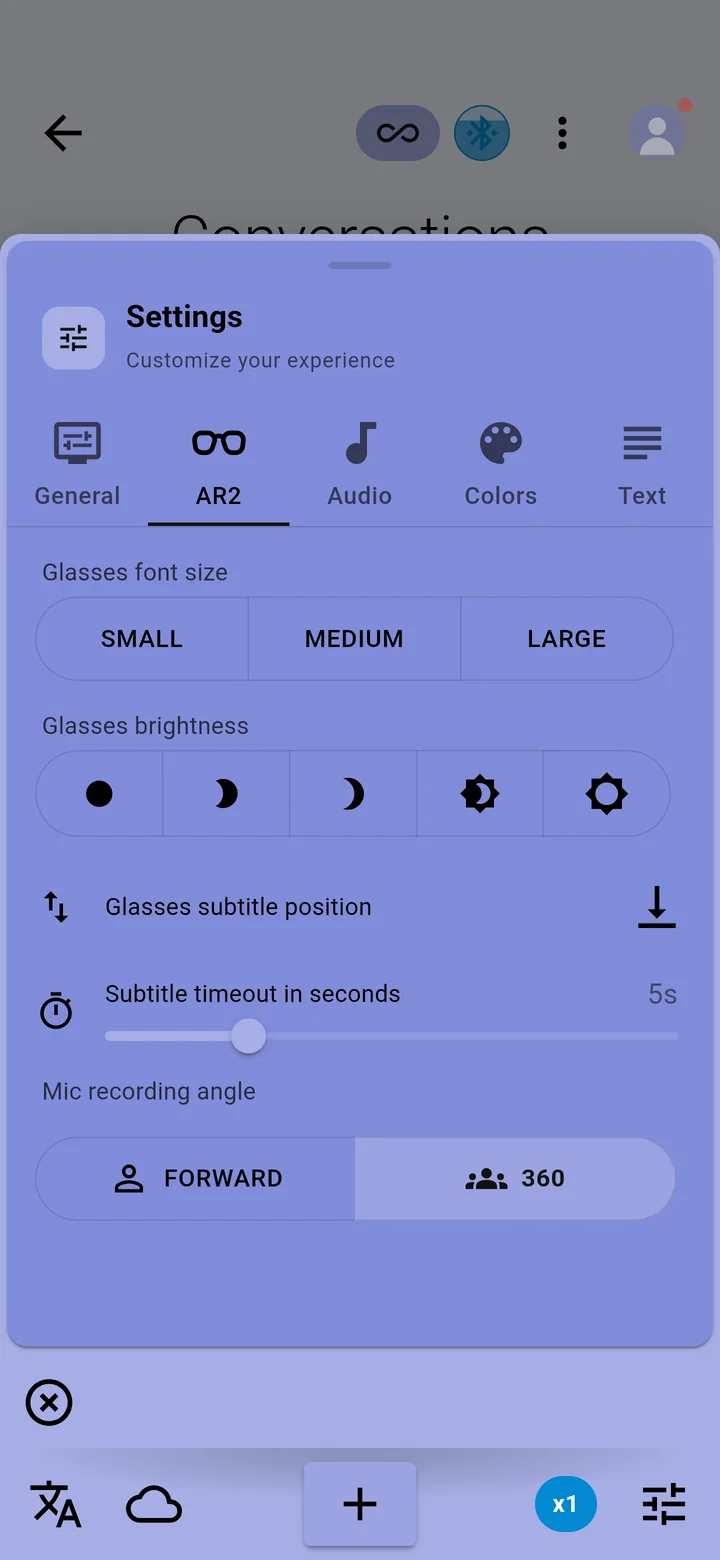
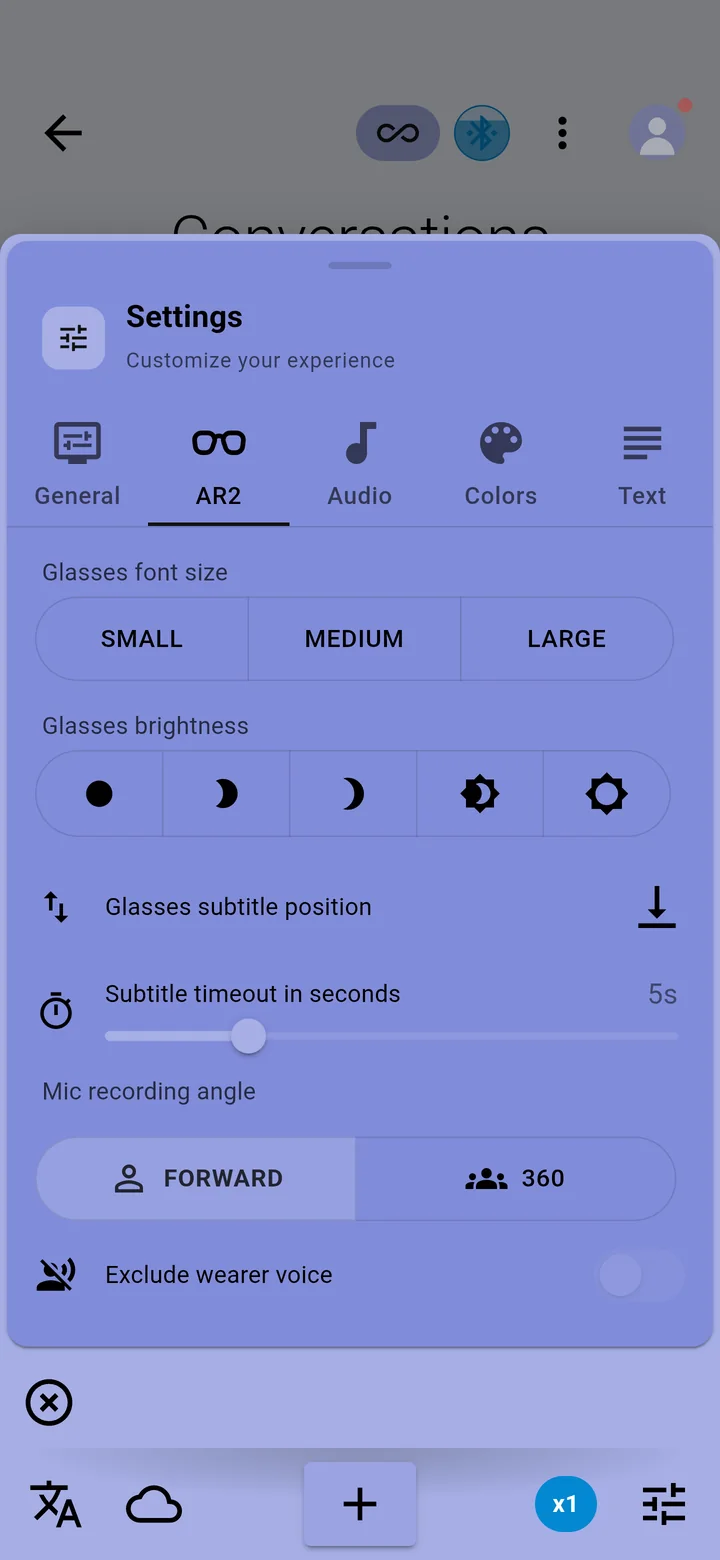
- Open the AR2 tab. It appears once the app has found your glasses.
- Change any of the settings below. They apply to the glasses straight away.
| Setting | What it does |
|---|---|
| Glasses font size | Small, Medium or Large. Larger text shows fewer words on each line. |
| Glasses brightness | Five levels, from dim to brightest. Brighter is easier to read outdoors and uses more battery. |
| Glasses subtitle position | Where captions sit in your view. Tap to move them between the bottom, the top and the centre. |
| Subtitle timeout in seconds | How long a caption stays before it clears, from 0 to 20 seconds. |
| Mic recording angle | 360 listens all round you; Forward listens to the person in front of you. |
| Exclude wearer voice | Appears when Forward is chosen. Leaves your own voice out of the captions. |
The app sends these settings to the glasses each time they connect, so set them here rather than on the glasses.