
The Settings page holds the app's less frequently changed settings. For the settings you change during a conversation, use the settings panel on the conversation screen instead: see Caption and app settings.
Tap your picture, then Settings. Type in Search settings to find any setting by name.
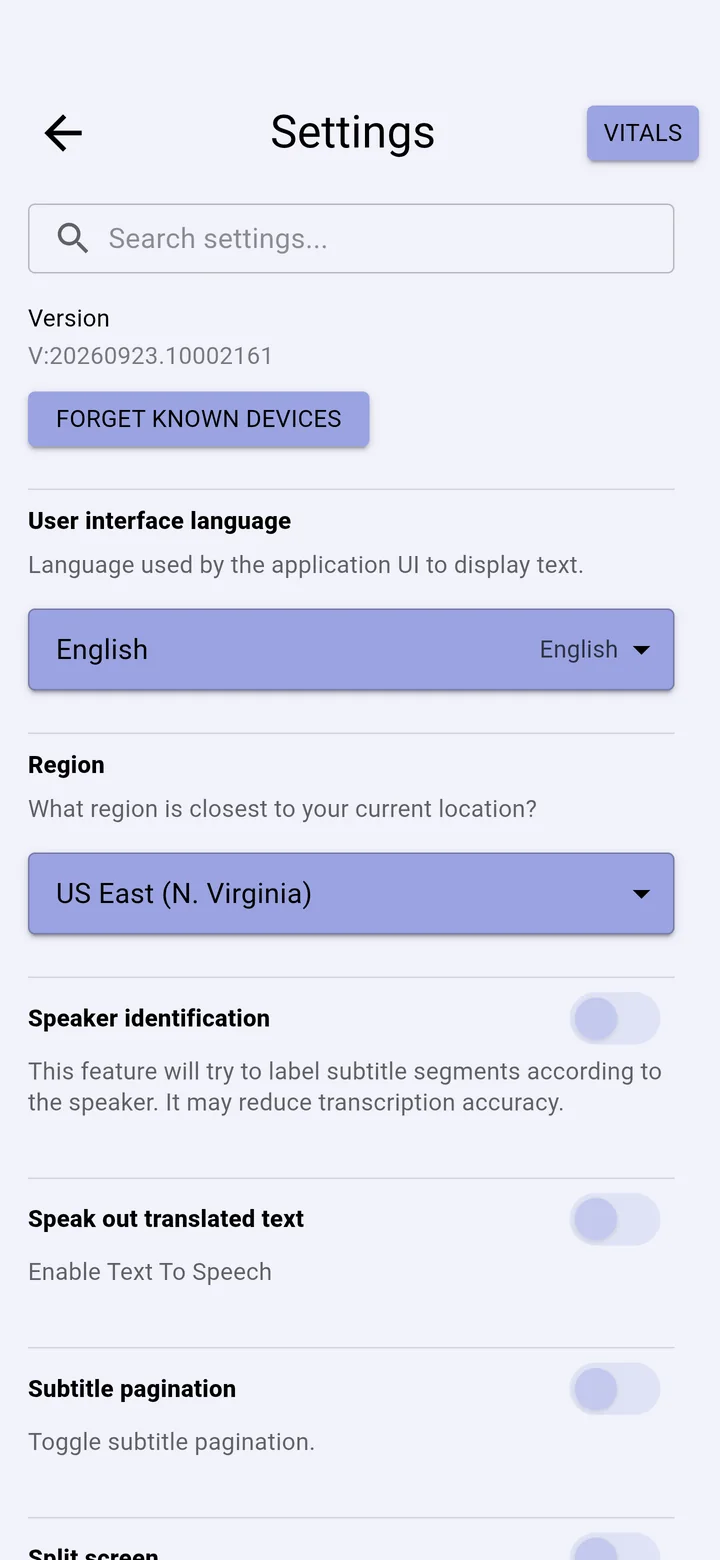
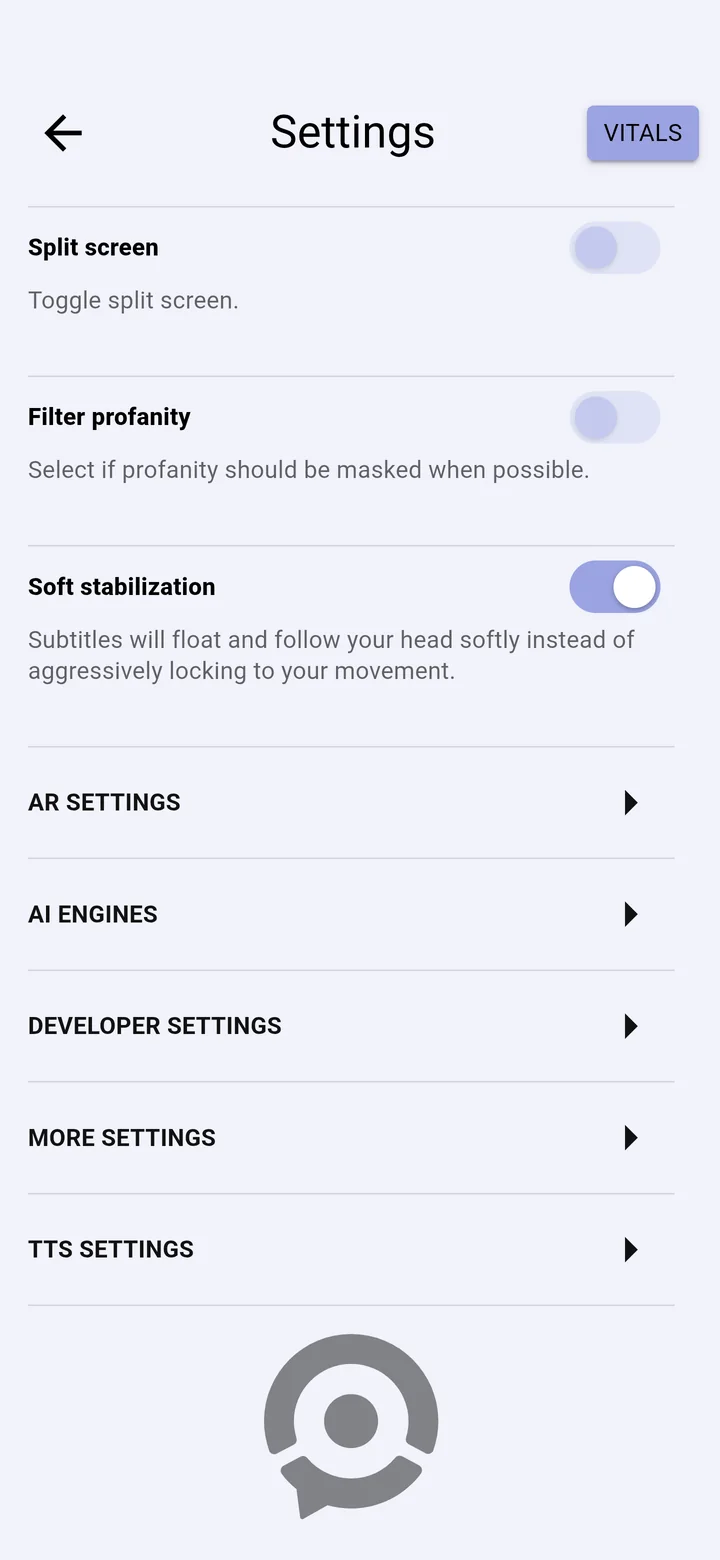
| Setting | What it does |
|---|---|
| Version | The app version. Our support team may ask for it. |
| Forget known devices | Removes every pair of glasses the app remembers. Pair them again afterwards. |
| User interface language | The language of the app's own menus and buttons, in more than 100 languages. Captions aren't affected. |
| Region | The cloud region closest to you, which keeps cloud captions fast. |
| Speaker identification, Speak out translated text, Subtitle pagination, Split screen, Filter profanity | The same switches as the settings panel. |
| Soft stabilization | Lets captions in smart glasses float gently with your head instead of locking to every movement. |
| AR settings | Settings for smart glasses that use AR mode. |
| AI engines | Which engines the app uses. See AI engines. |
| More settings | Discover, AAC, power saving, data saver, speaker names, the AI Assistant (GPT settings), caption correction and more. |
| TTS settings | The voice used to read translations aloud. |
| Vitals | Checks, resets and reports. See Check the app with Vitals. |
More settings
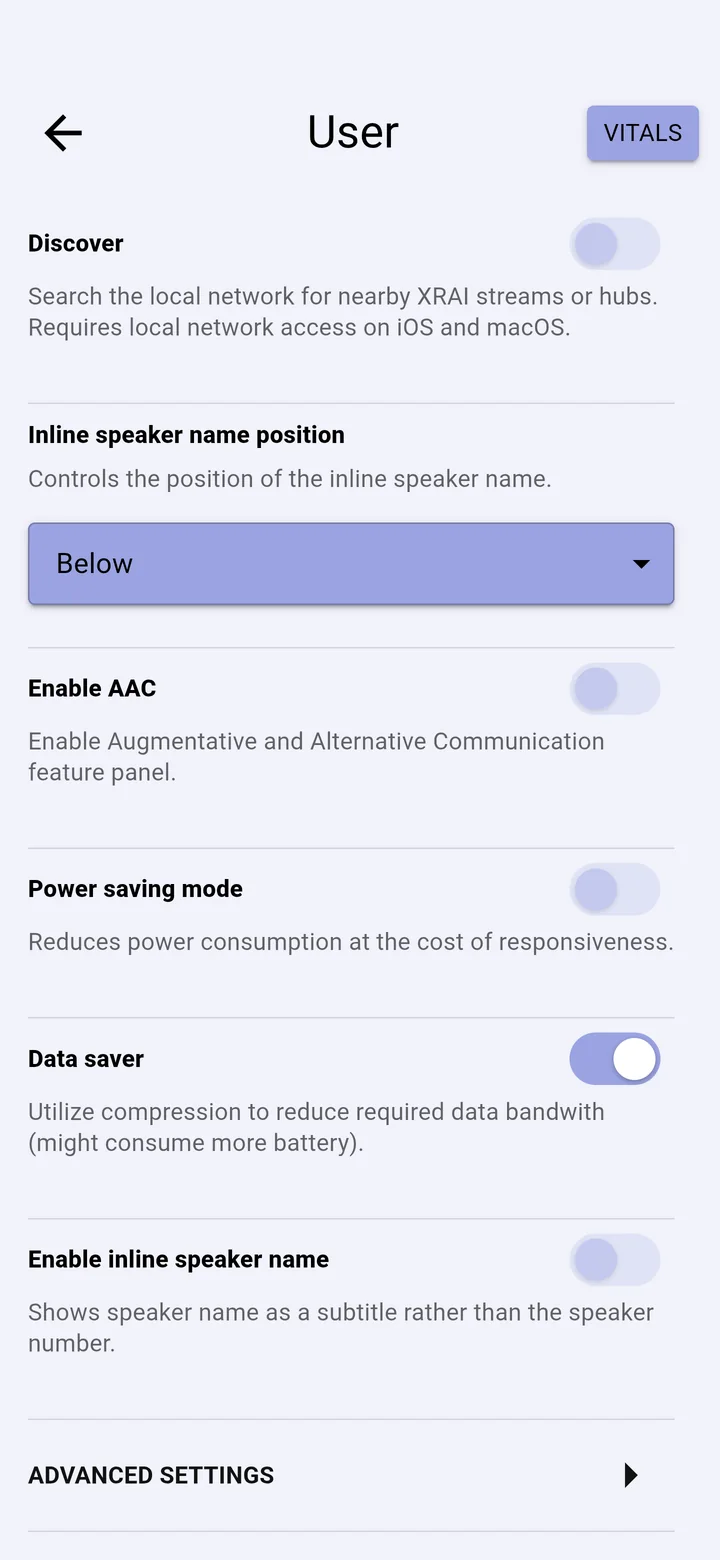
- Discover searches your local network for XRAI streams nearby. On iPhone and Mac it needs permission to use the local network.
- Enable AAC adds a panel of symbols for Augmentative and Alternative Communication.
- Power saving mode uses less battery, at some cost to how quickly captions appear.
- Data saver compresses audio to use less mobile data.
- Enable inline speaker name shows the speaker's name with their captions instead of a number; Inline speaker name position puts it above or below.