Basic mode shows the XRAI app as a few large buttons, for anyone who finds the full app busy or is setting it up for someone else.
Turn it on
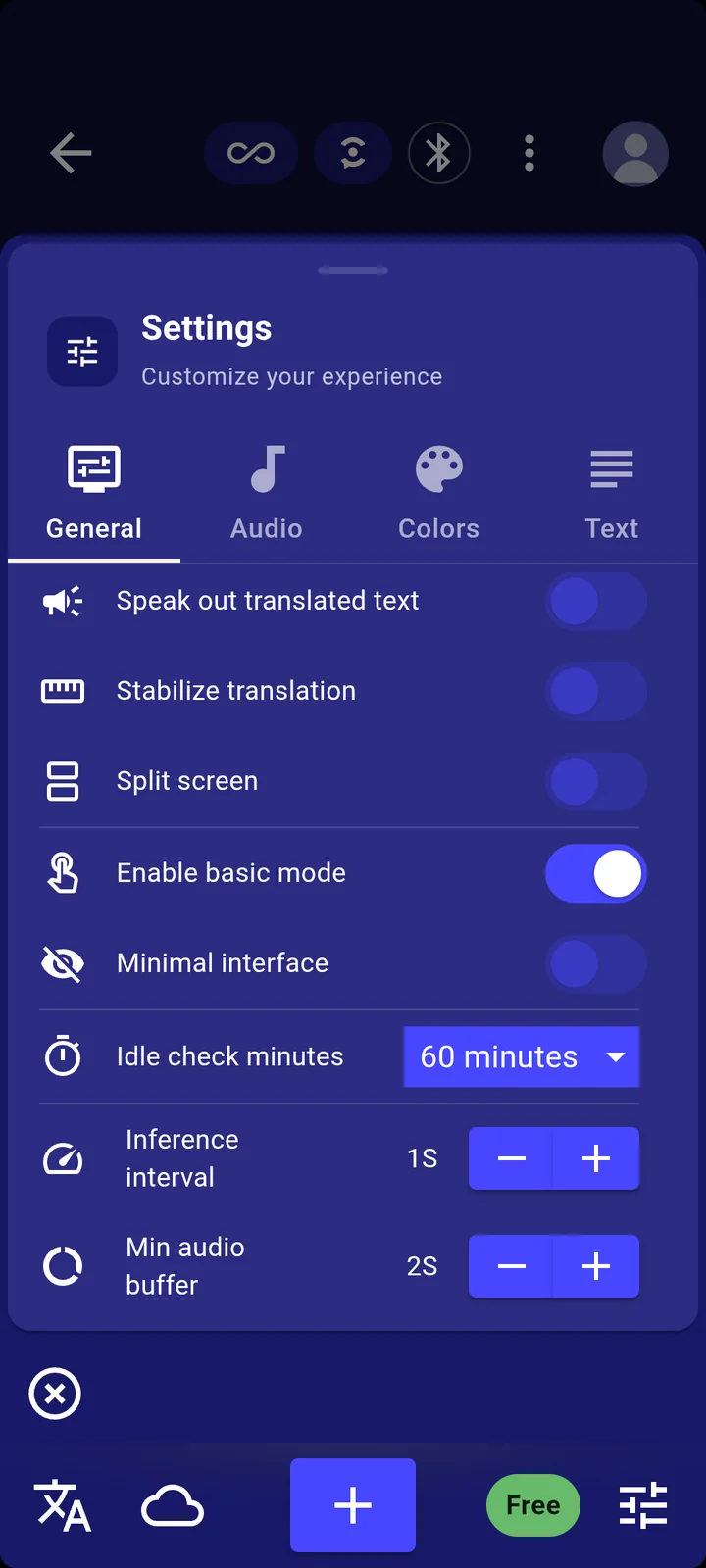
- Tap the settings icon in the bottom-right corner of the conversation screen.
- On the General tab, turn on Enable basic mode.
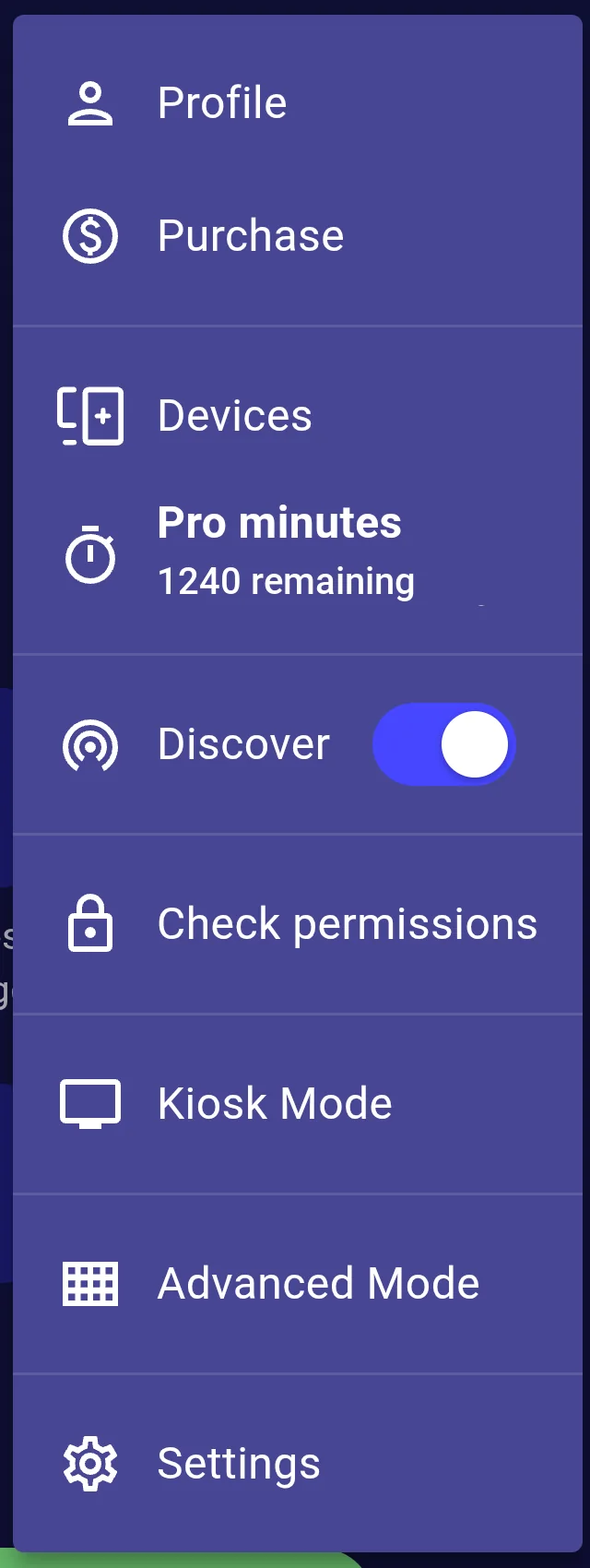
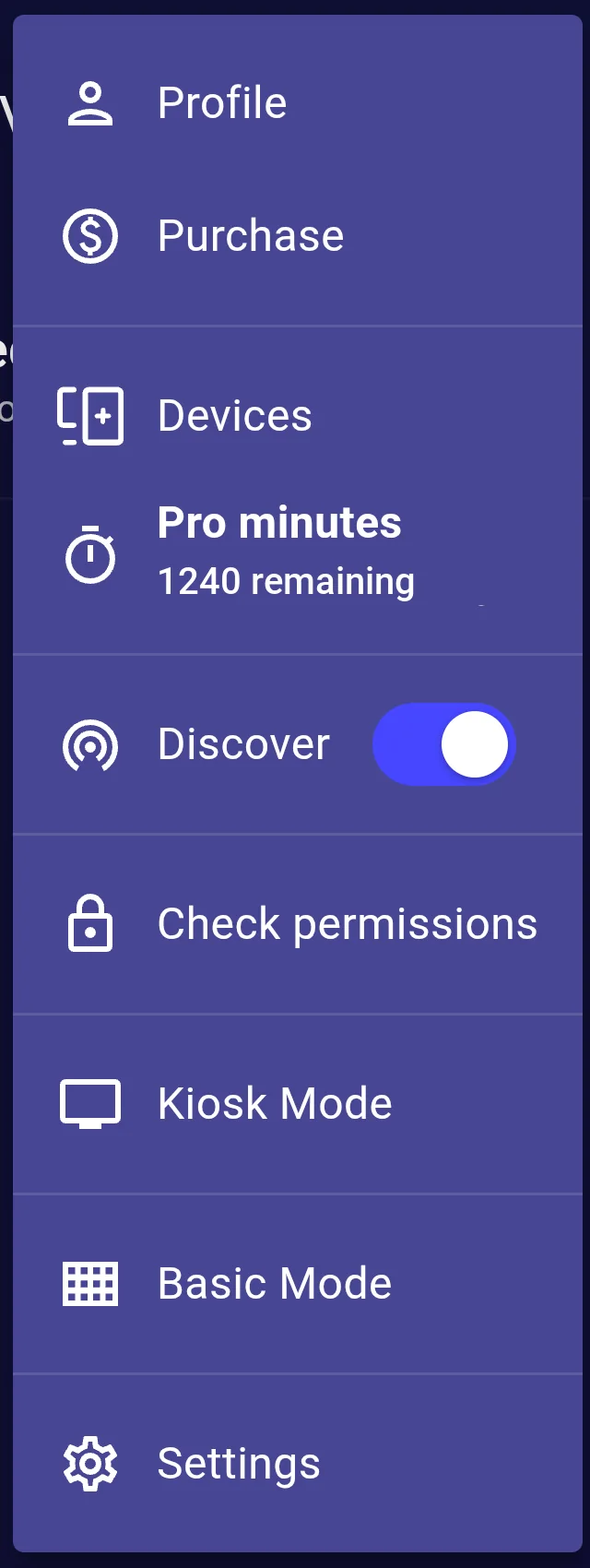
- Tap your picture in the top-right corner, then Basic Mode.
The basic screen
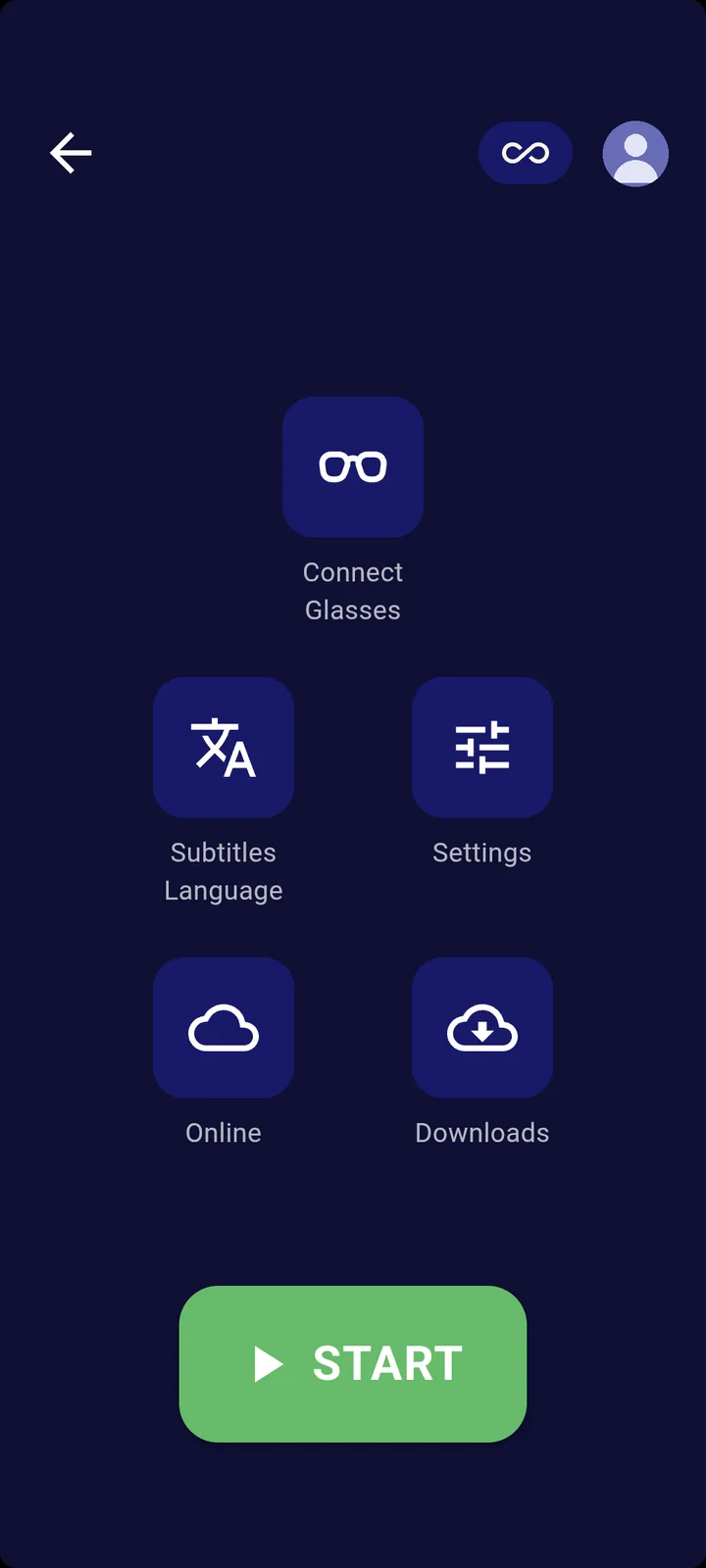
| Button | What it does |
|---|---|
| Connect Glasses | Finds and connects XRAI glasses |
| Subtitles Language | Translation, and Auto-Reverse for a conversation in two languages |
| Settings | Quick Settings: Appearance, Theme, Size, Position, Timeout and Speaker Labels |
| Online | Switches between online and offline captioning. See Use XRAI offline. |
| Downloads | Offline Models: speech recognition and translation to use without a connection |
| Start | Starts captioning |
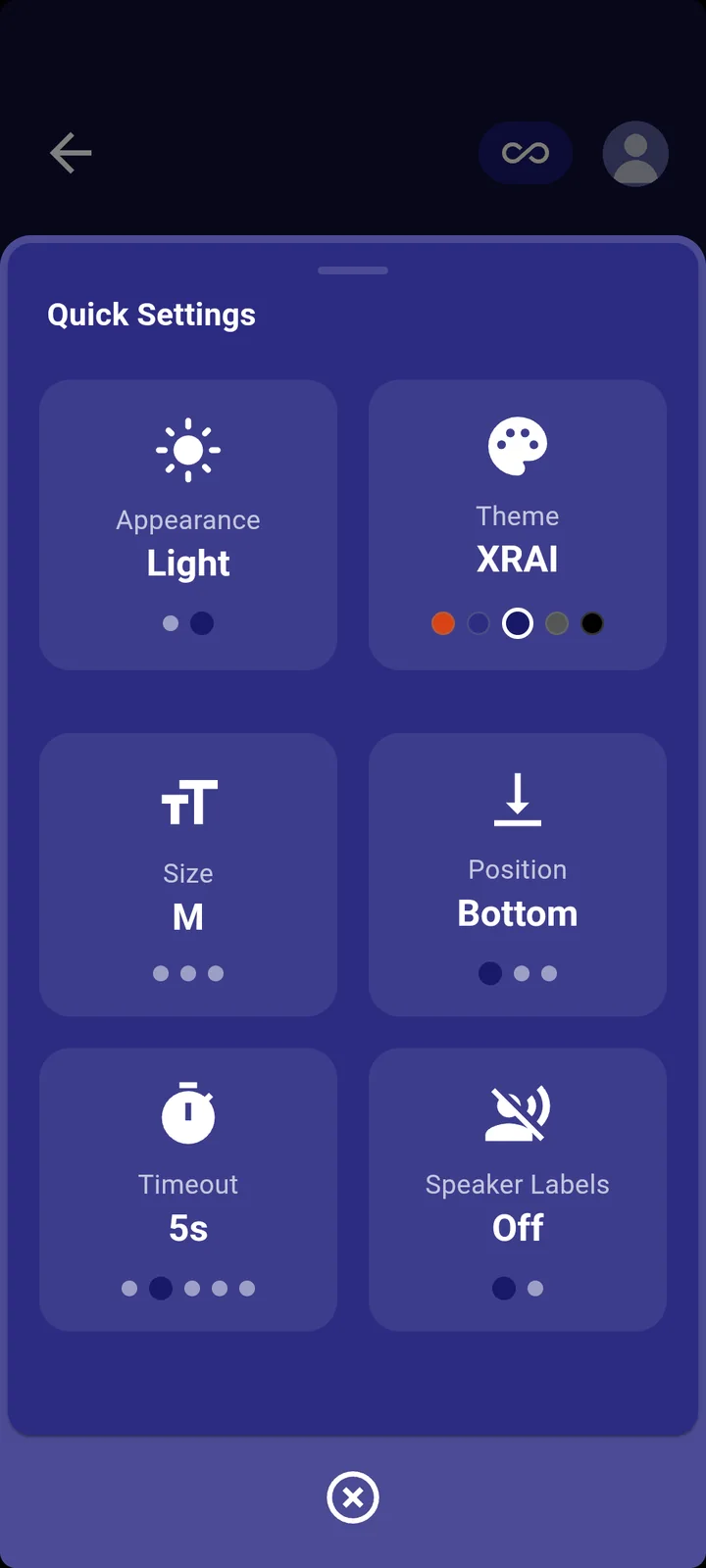
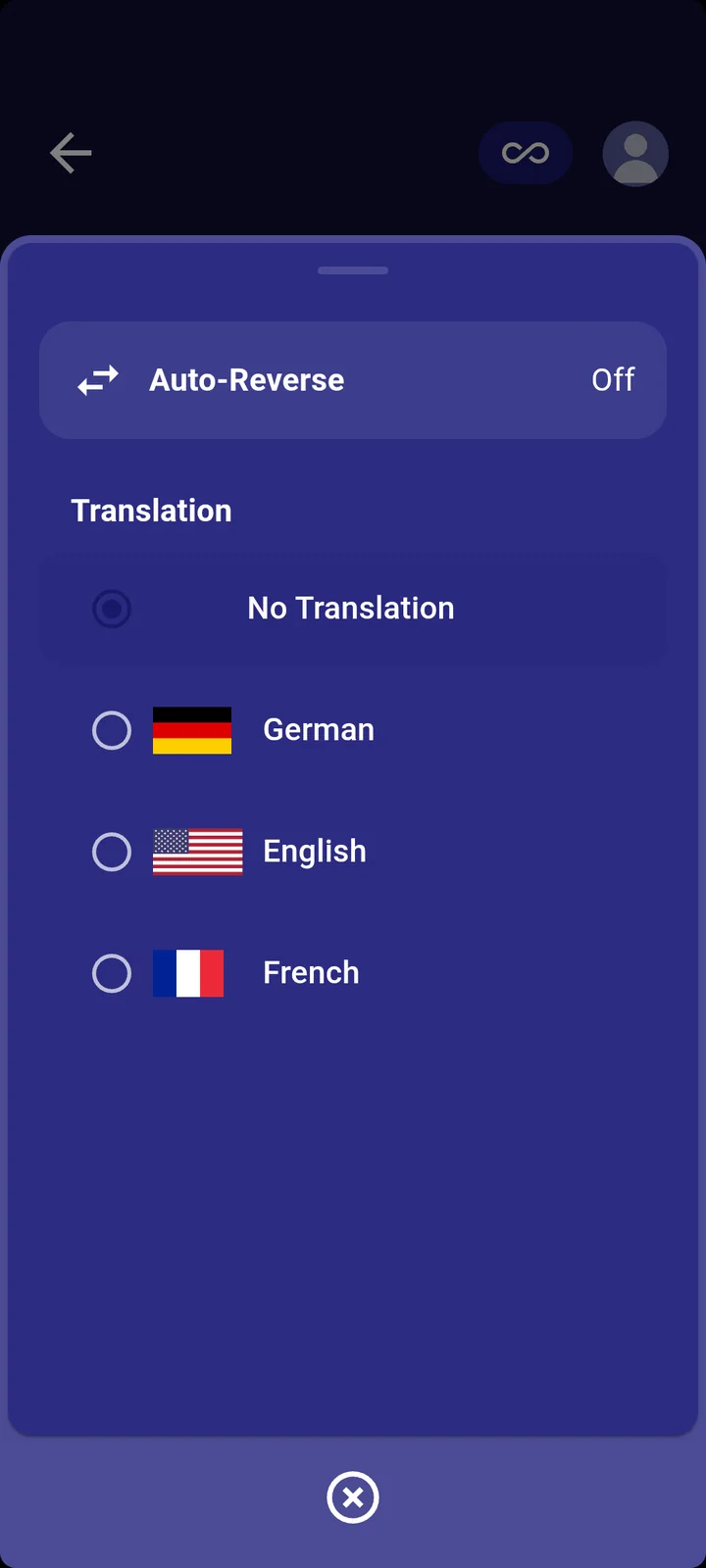
Tap a Quick Settings tile to move to its next setting; the dots under it show where you are.
Switch back
Tap your picture, then Advanced Mode. While Enable basic mode is on, the app opens in basic mode each time you sign in; turn it off on the General tab to stop that.