
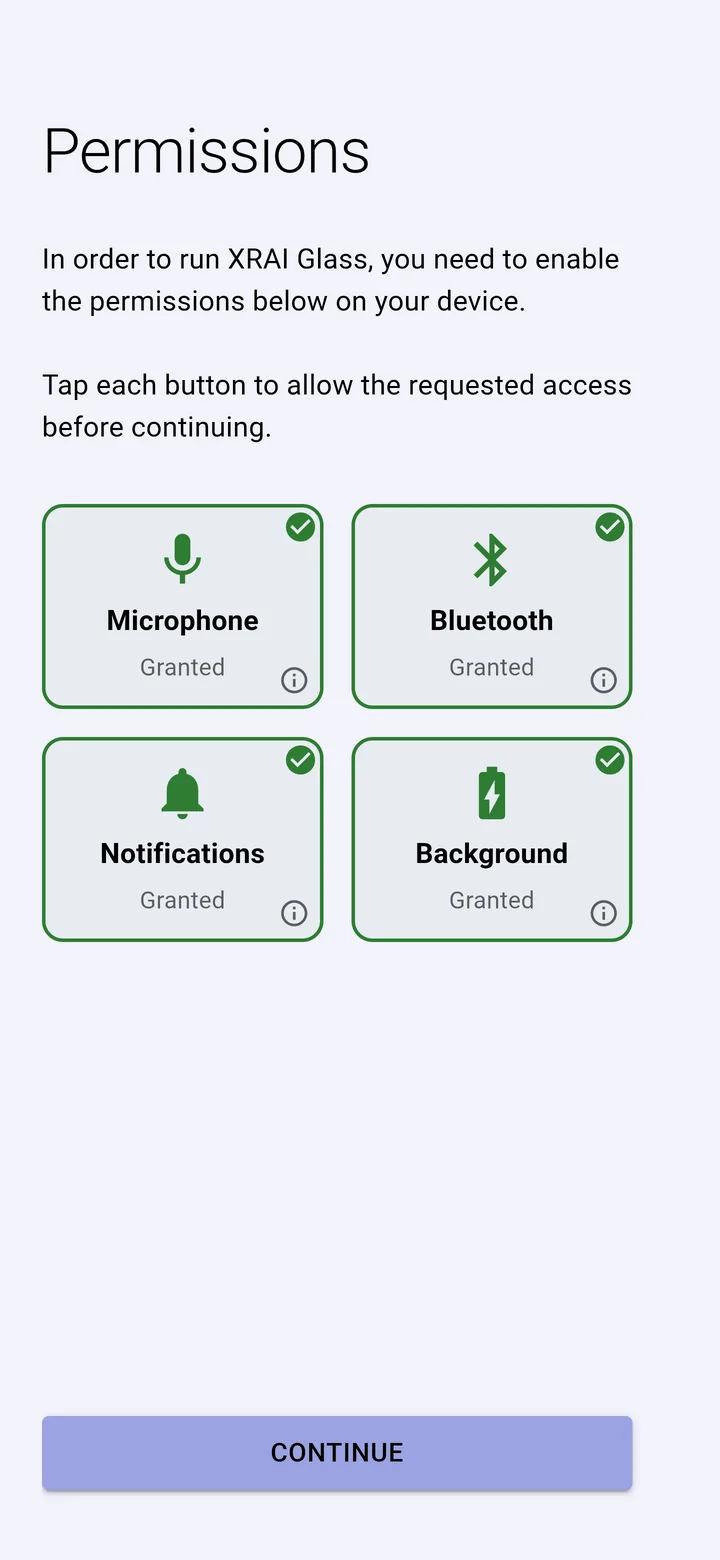
The XRAI app asks for four permissions. Without them captions can stop, glasses can't connect, or the app closes when the screen turns off.
- Tap your picture, then Check permissions.
- Each tile shows Granted with a green tick, or asks you to allow it. Tap a tile to allow that permission, and the i on it to see why the app needs it.
- Tap Continue when every tile is green.
| Permission | Why the app needs it |
|---|---|
| Microphone | To hear the conversation. Without it the app can't caption. |
| Bluetooth | To find and connect XRAI glasses and Bluetooth microphones. |
| Notifications | To show that captioning is running, and to tell you about updates. |
| Background | On Android, to keep captioning and stay connected to glasses when the screen is off or you switch apps. |
If you said no before
Your phone may not ask again. Allow the permission in your phone's settings instead:
- iPhone: Settings → XRAI Glass, then turn on Microphone, Bluetooth and, for offline captioning, Speech Recognition.
- Android: Settings → Apps → XRAI Glass → Permissions, and under App battery usage choose Unrestricted so it can run in the background.