
If your organisation provides XRAI for its staff or students, its administrators can see how XRAI is being used: the Pro minutes used and every session of everyone linked to the organisation's agreements. XRAI sets up administrators; to add or change one, email support@xrai.glass.
Switch to your organisation
- Sign in at account.xrai.glass.
- Click the button at the top right, which shows Personal, and choose your organisation under Switch View.
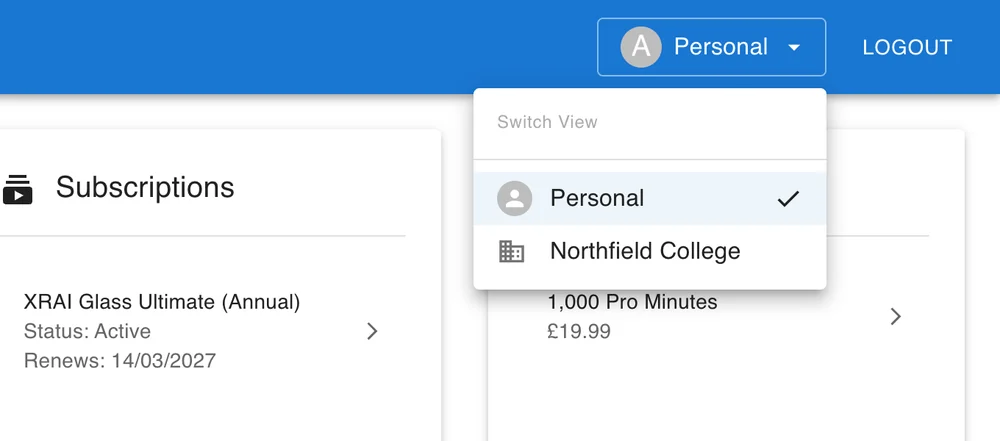
To go back to your own account, choose Personal. The portal also returns to Personal when you reload the page.
Usage and orders
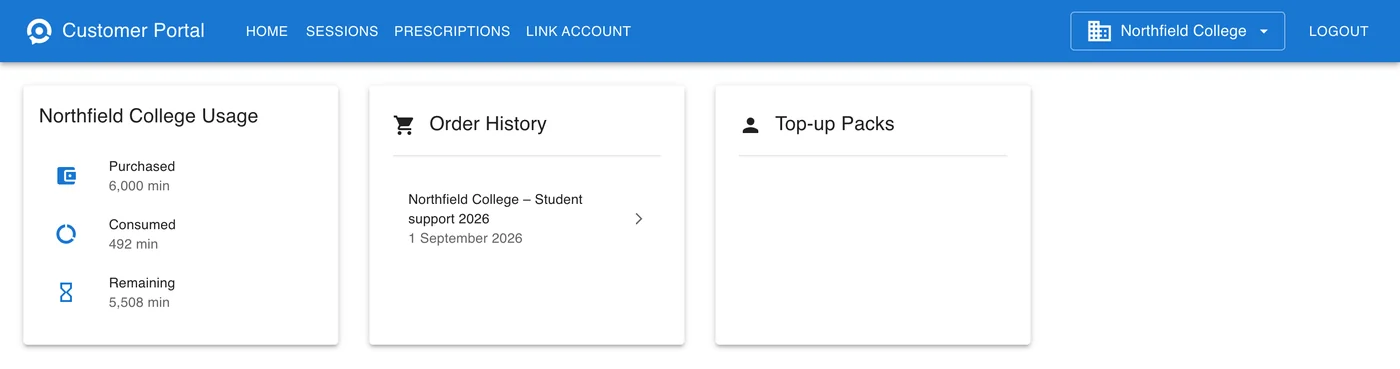
Home shows your organisation's name and usage. Consumed is the total Pro minutes used by everyone linked to your organisation's agreements. Order History lists the organisation's agreements and orders, and Top-up Packs the packs of Pro minutes bought for it.
Sessions of everyone linked
Click Sessions while your organisation is chosen. Each person linked to the agreement has a section with their name and email address, listing their sessions.
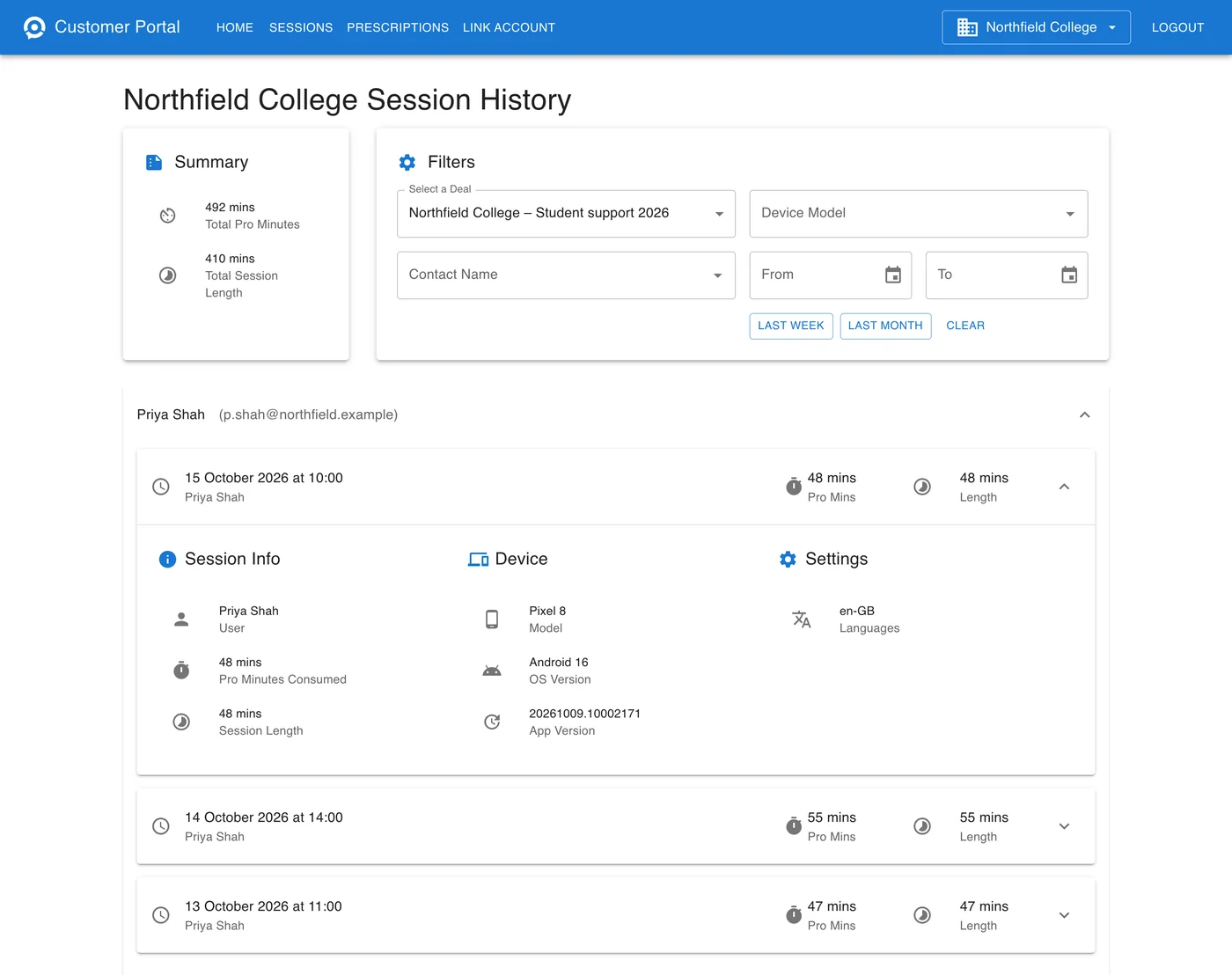
- Select a Deal chooses the agreement, if your organisation has more than one.
- Contact Name shows one person, and Device Model one kind of device. From, To, Last Week and Last Month limit the dates.
- Summary adds up the Total Pro Minutes and Total Session Length for the people and dates shown.
- Click a session for its device, app version and languages.
The portal shows when and how long people used XRAI, never what was said.
Add people
Give each person your Company ID and the Deal ID of the agreement, and ask them to follow Link your account to your organisation. The Deal ID is the Order ID shown when you click the agreement in Order History. XRAI gives you your Company ID; if you don't have it, email support@xrai.glass.
New links and new sessions can take a few minutes to appear.