
Text size
Press the magnifier (Zoom in) on the remote to make the text bigger, and minus (Zoom out) to make it smaller. There are five sizes, from XS to XL, and the TV shows the size you chose for a moment.
Colours
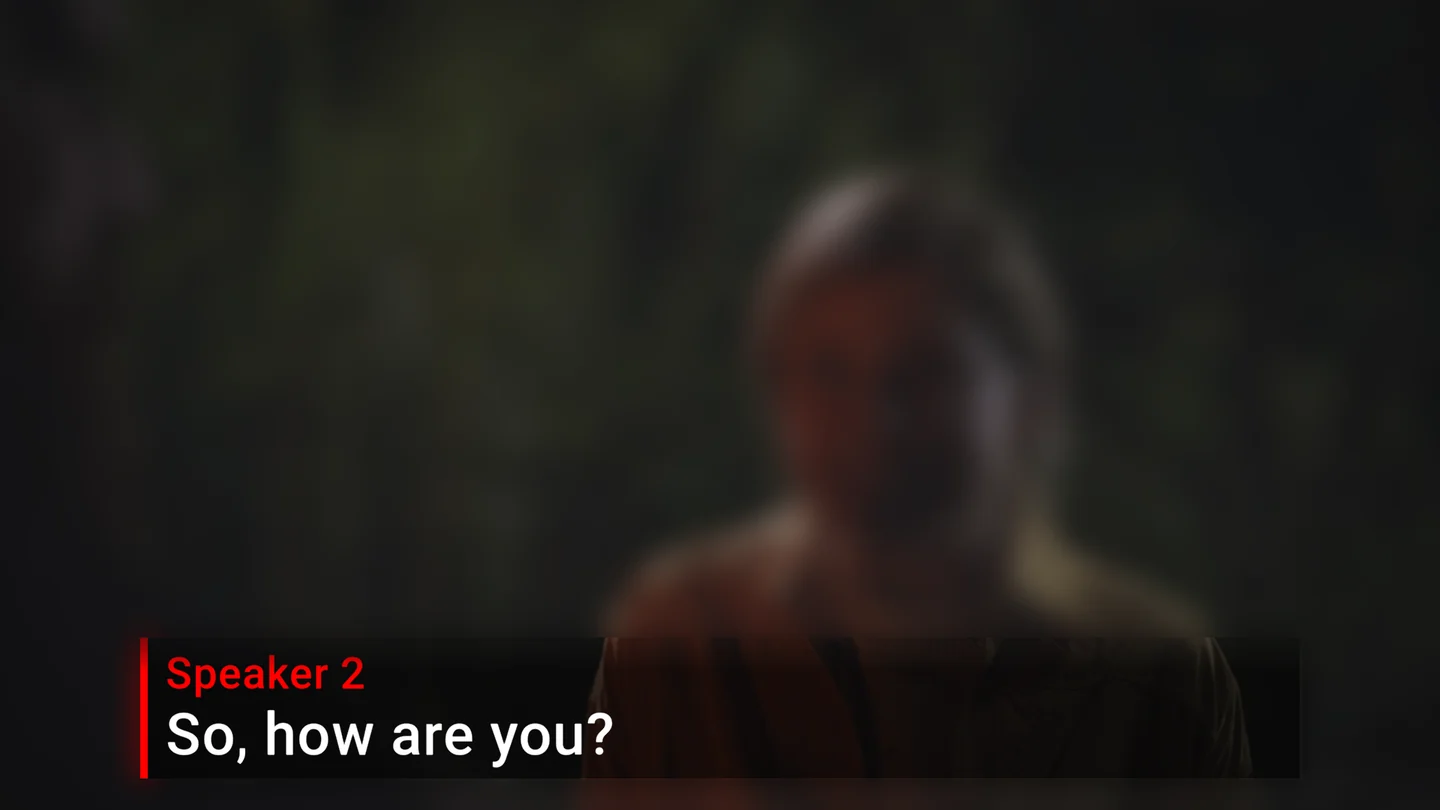
In Settings, Text colour has white, black, red, orange, amber, yellow, lime, green, cyan, azure, blue, violet and magenta. Background has the same colours plus grey, and Clear for no background.
When captions are off, the remote changes them too: Fast-forward and Rewind change the background colour, and Next track and Previous track change the text colour. While captions are on, these buttons control Live Pause instead.
Caption bar
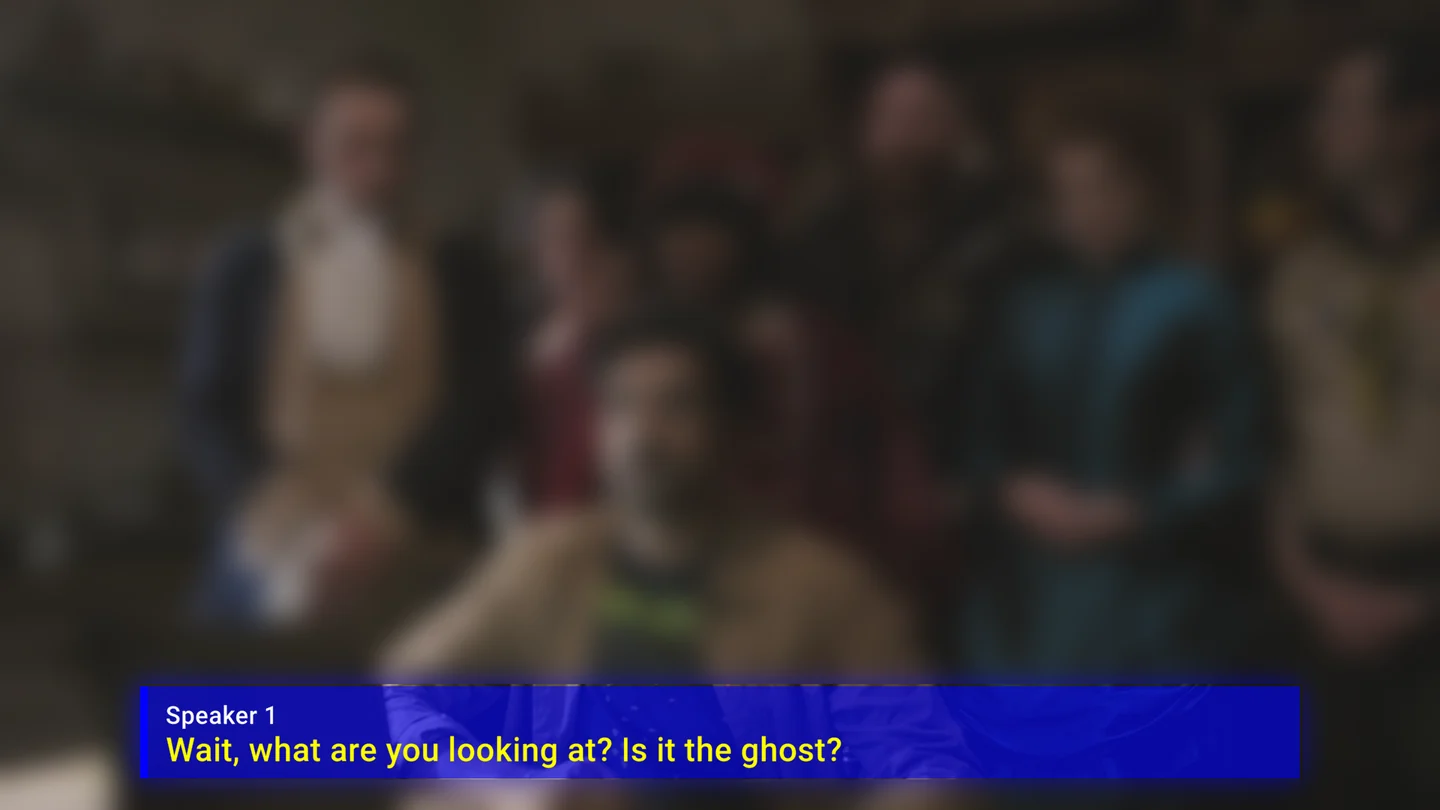
Press yellow or CC on the remote to give captions their own black bar. The picture gets smaller and moves up, and captions appear in the bar below it, so they never cover the picture. Press it again to put captions back over the picture.
Position and size
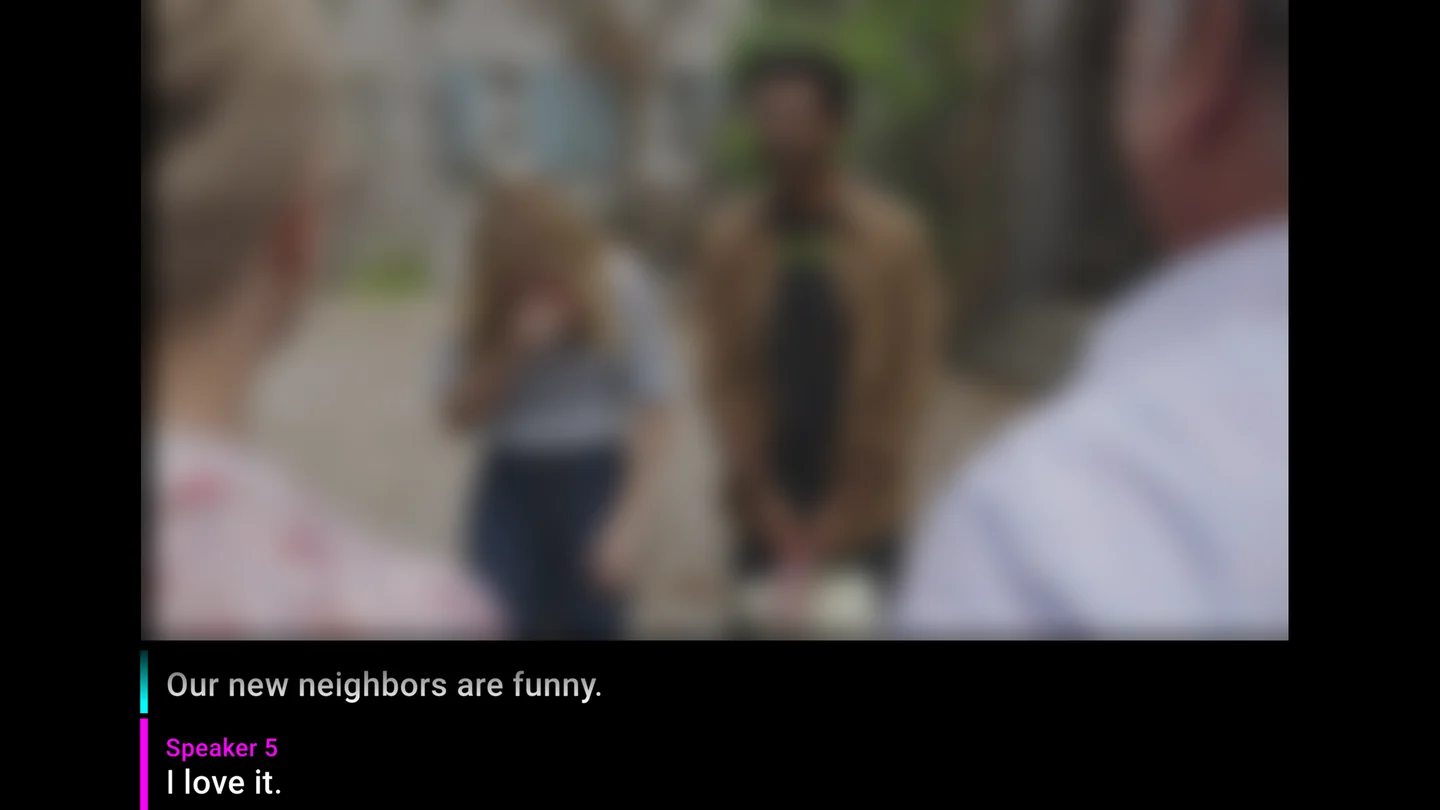
Press Page up to put captions at the top of the screen and Page down to put them back at the bottom.
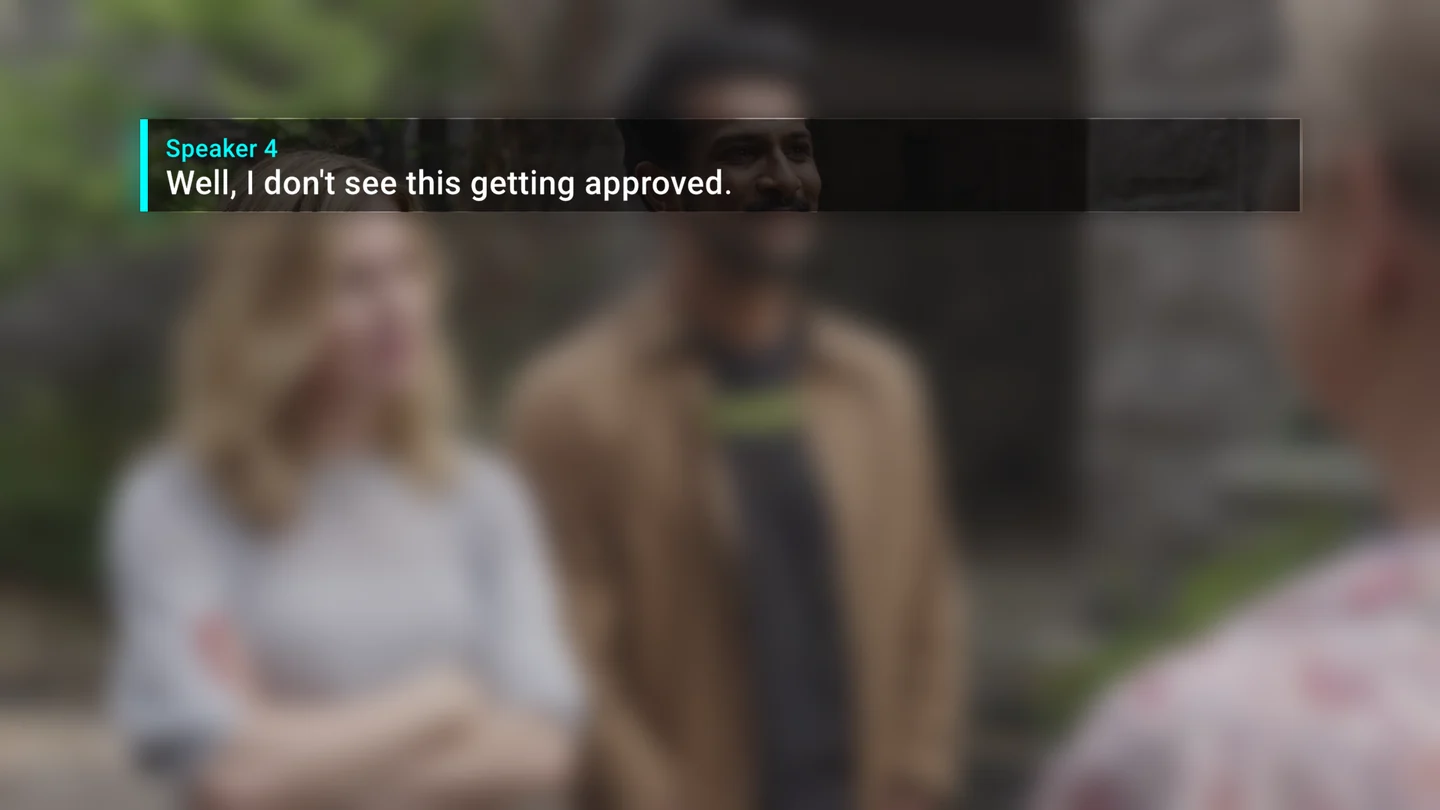
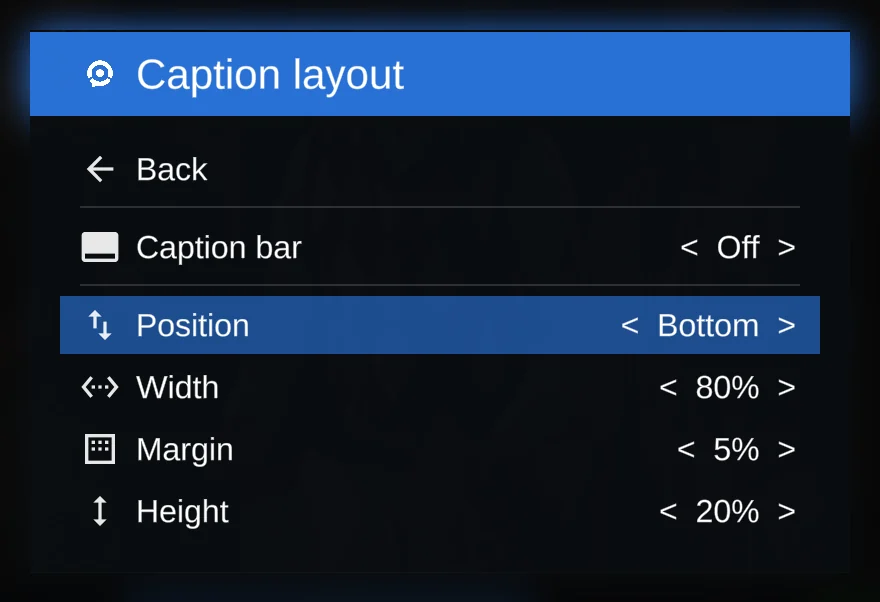
In Settings, Caption layout has the caption bar and these settings:
- Position: the top or the bottom of the screen.
- Width: how much of the screen's width the captions use, from 60% to 100%.
- Margin: how far the captions are from the edge, from 0% to 15%.
- Height: how much of the screen the captions use, from 10% to 20%.
While you change them, Settings fades and a grey box shows where the captions will go.
While captions are on and the XRAI bar is hidden, the arrow buttons adjust the captions directly: left and right change the width, and up and down change the height.