
Picture
Press the green button on the remote to switch the picture between HDMI in, a USB camera plugged into the box, and Cast. The TV shows the picture you chose for a moment. In Settings, it's Video source.
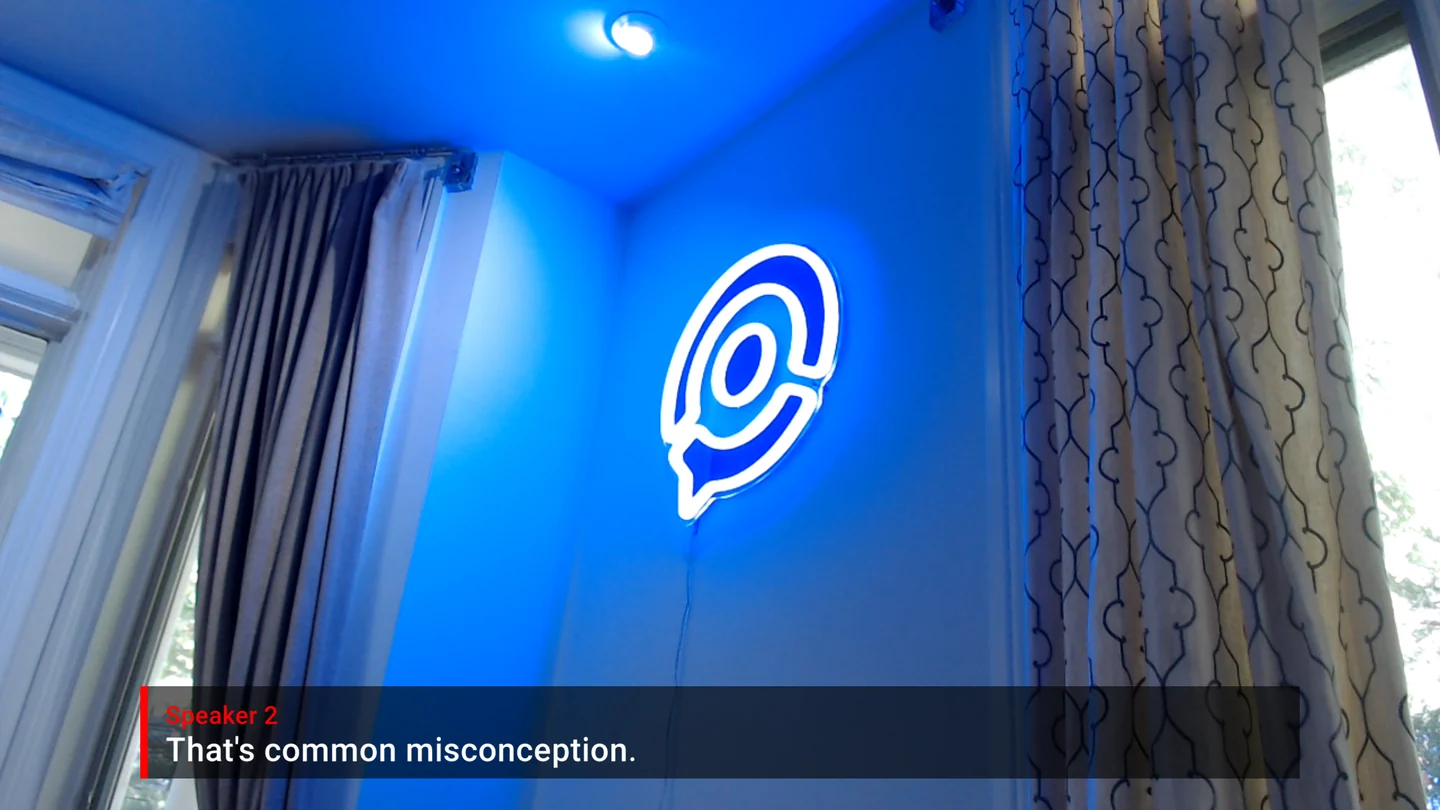
A USB camera shows a room, a stage or a speaker with captions. For casting a laptop screen, see Cast a screen to XRAI TV.
Sound
Press the red button or TV input to switch the sound that XRAI captions, such as HDMI In or a USB camera's microphone. The TV shows the sound you chose for a moment. In Settings, it's Audio source.
The programme's sound
Press Mute to turn the programme's sound on the TV off or on. The TV shows Audio: Muted or Audio: On. Captions carry on while the sound is off.
Speak out
With Speak out on in Settings, XRAI reads the subtitles aloud through the TV. Programme under speech sets how loud the programme stays while it speaks.