Press Menu on the remote to open or close Settings. Press up and down to choose a setting, and left and right to change it. A setting with only an arrow on the right opens more settings when you press OK. Press Back to go back.
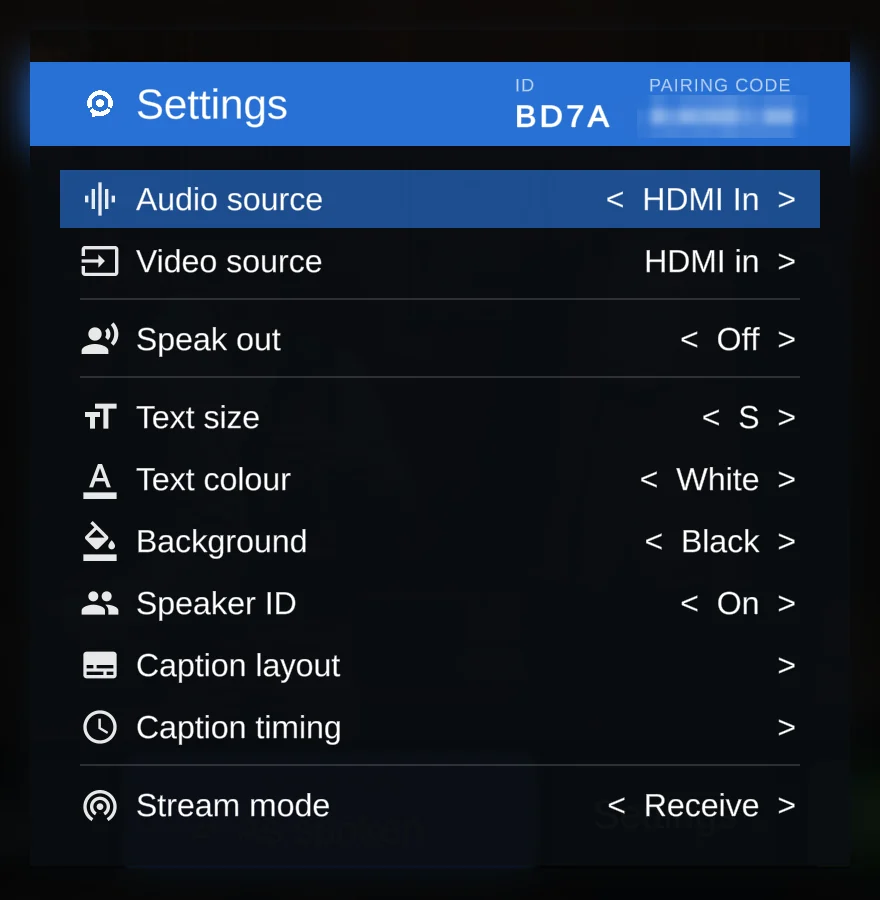
The header shows the box's ID and its pairing code. Settings can also be changed from the XRAI app on a phone paired with the box.
| Setting | What it does |
|---|---|
| Audio source | The sound XRAI captions: the HDMI input, a microphone such as the one in a USB camera, or a cast screen. |
| Video source | The picture on the TV: HDMI in, a USB camera, or Cast. Press OK to switch. |
| Speak out | XRAI reads the subtitles aloud through the TV, which is useful with a translation. |
| Programme under speech | Shown when Speak out is on. How loud the programme stays while XRAI speaks, from 0% to 100%. |
| Text size | XS, S, M, L or XL. |
| Text colour | The colour of the caption text. |
| Background | The colour behind the captions, or Clear for none. |
| Speaker ID | A label and a colour for each speaker. |
| Caption layout | The caption bar, and where the captions sit on the screen. See Change how captions look. |
| Caption timing | Caption sync and caption timeout, below. |
| Stream mode | Receive shows captions from an XRAI stream nearby. Publish shares this TV's captions as a stream. |
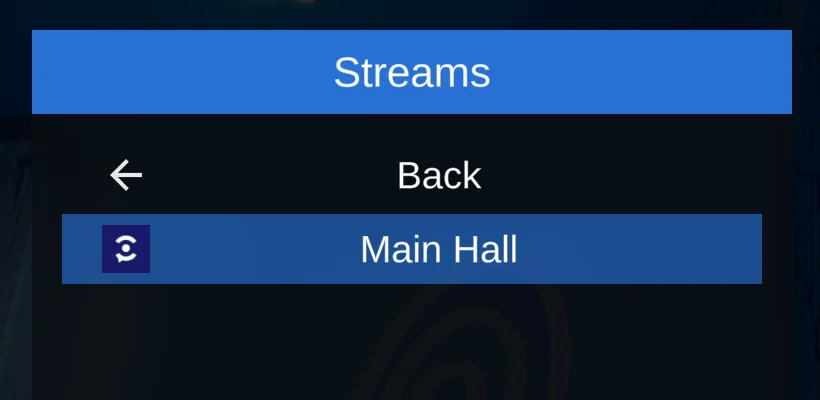
| Streams | Shown in Receive mode when a stream is found. Choose one to show its captions. |
Caption timing
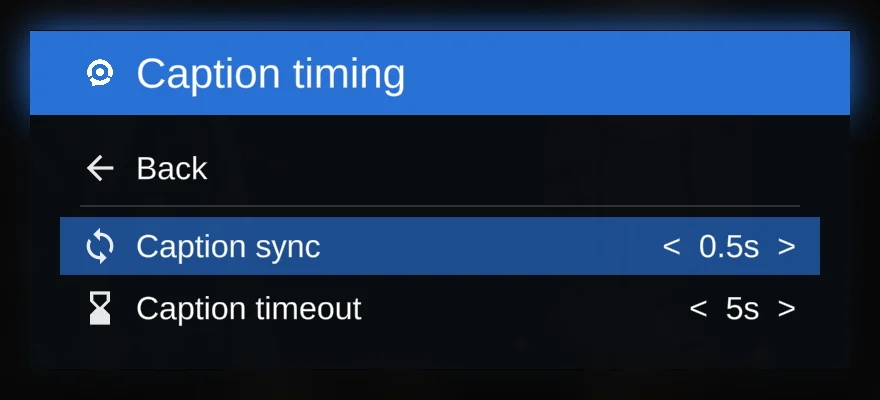
- Caption sync holds the picture back, by up to a second, so it reaches the TV at the same time as its captions. The picture pauses for a moment when captions start. Choose Off to show the picture straight away. The blue button on the remote changes it too.
- Caption timeout is how long a caption stays on screen after the speaking stops. With Off, captions stay until the next ones replace them.
Streams
With Stream mode set to Receive, XRAI TV lists the XRAI streams it finds on the network, such as the captions from a venue's XRAI Studio. Choose one to show its captions on the TV.