
Prescription lenses for the XRAI AR2 are made to your prescription. After you order them, enter your prescription at account.xrai.glass and attach it to the order.
What you need
Your glasses prescription from your optician. It lists, for each eye, the sphere (SPH), and sometimes a cylinder (CYL), an axis and a reading addition (ADD), and your pupillary distance (PD). Prescriptions often write the right eye first, as R or OD, and the left eye as L or OS.
Add your prescription
- Sign in at account.xrai.glass and click Prescriptions.
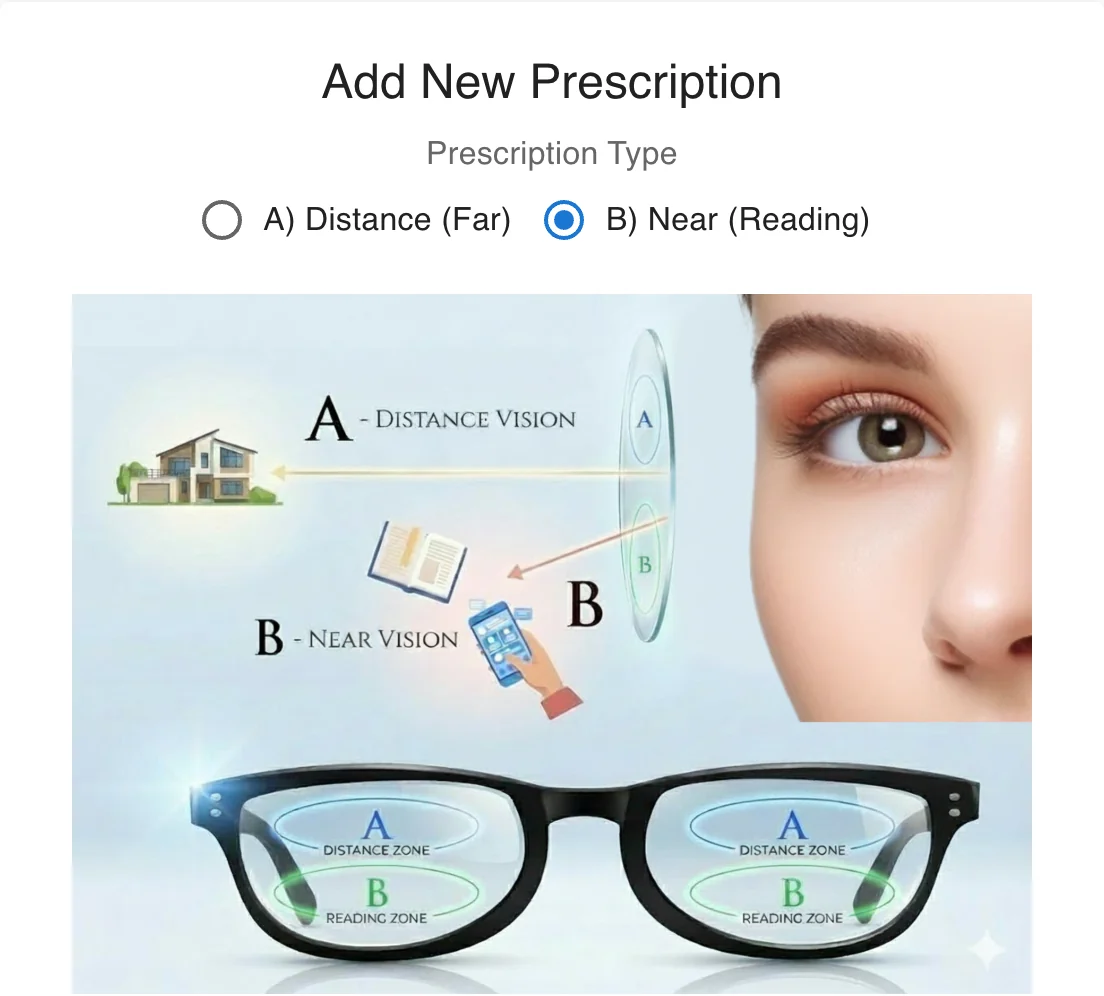
- Under Prescription Type, choose A) Distance (Far), or B) Near (Reading) if your prescription has an ADD value. Choosing B adds the Add (Reading) boxes.
- Enter the values for each eye in the Left Eye and Right Eye columns. If both eyes are the same, fill in the left eye and click the copy button next to Right Eye.
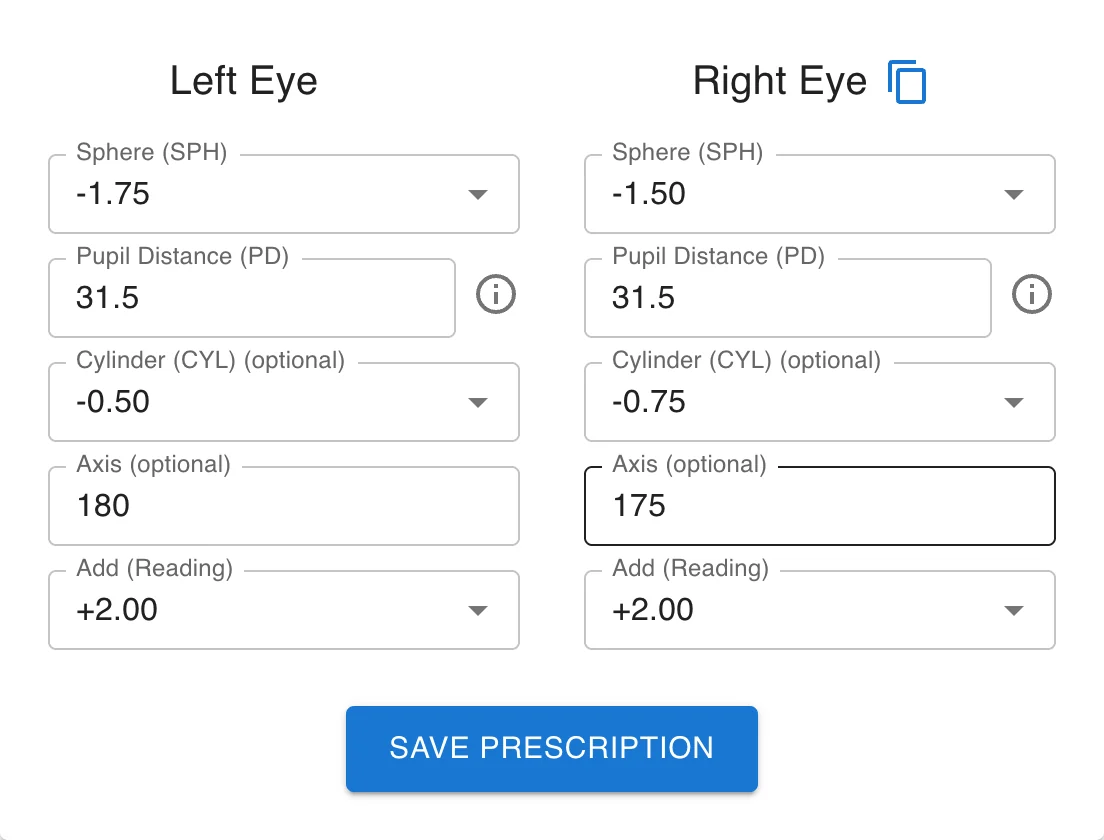
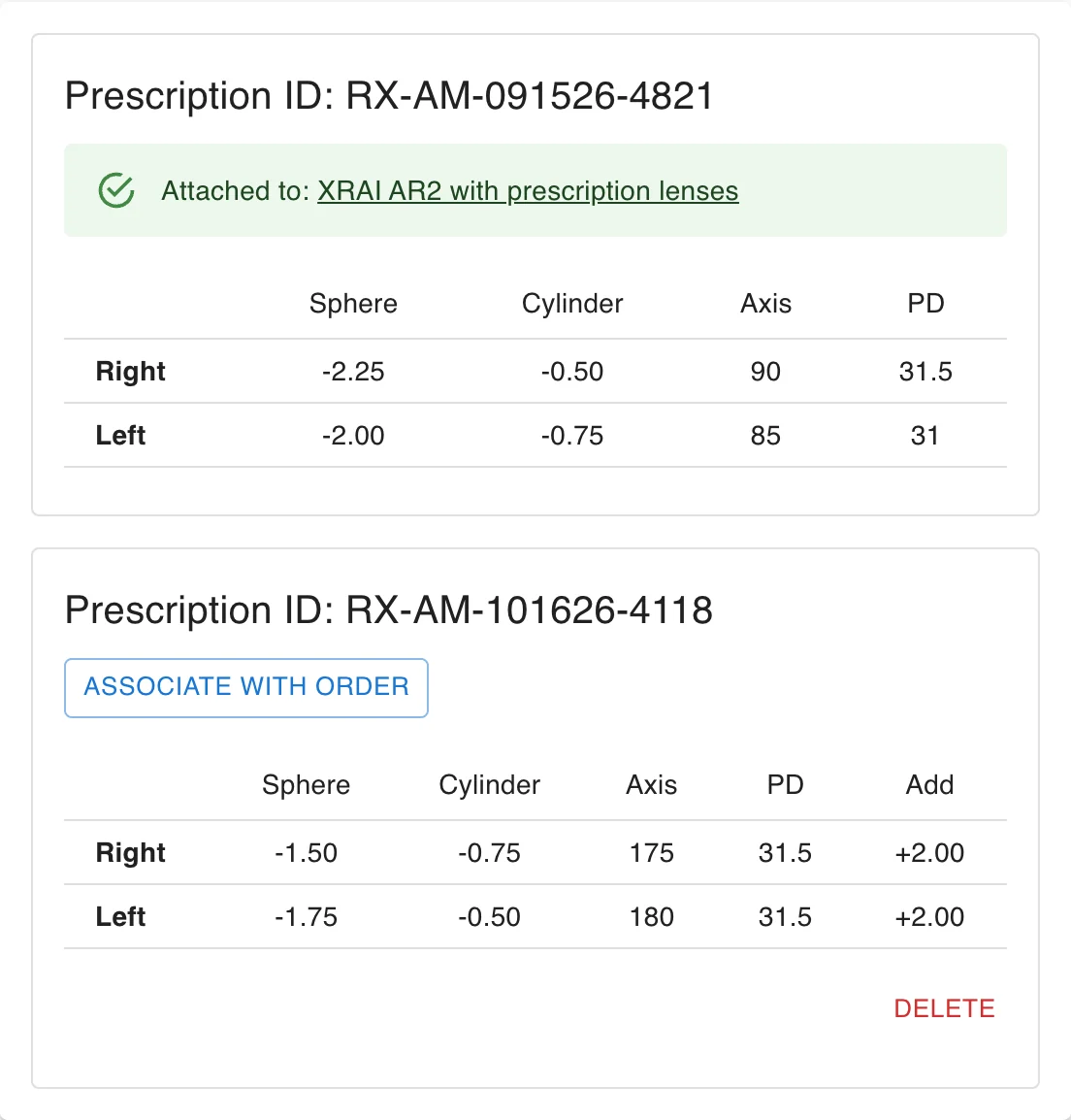
- Click Save Prescription. It appears under Saved Prescriptions with its own ID.
| Box | What to enter |
|---|---|
| Sphere (SPH) | From −12.00 to +4.00, in steps of 0.25. Required. |
| Cylinder (CYL) | From −6.00 to +6.00, in steps of 0.25. Leave it empty if your prescription has none. |
| Axis | A whole number from 1 to 180, if your prescription has a cylinder. |
| Add (Reading) | From +0.75 to +4.00, in steps of 0.25. Only with B) Near (Reading), where it is required. |
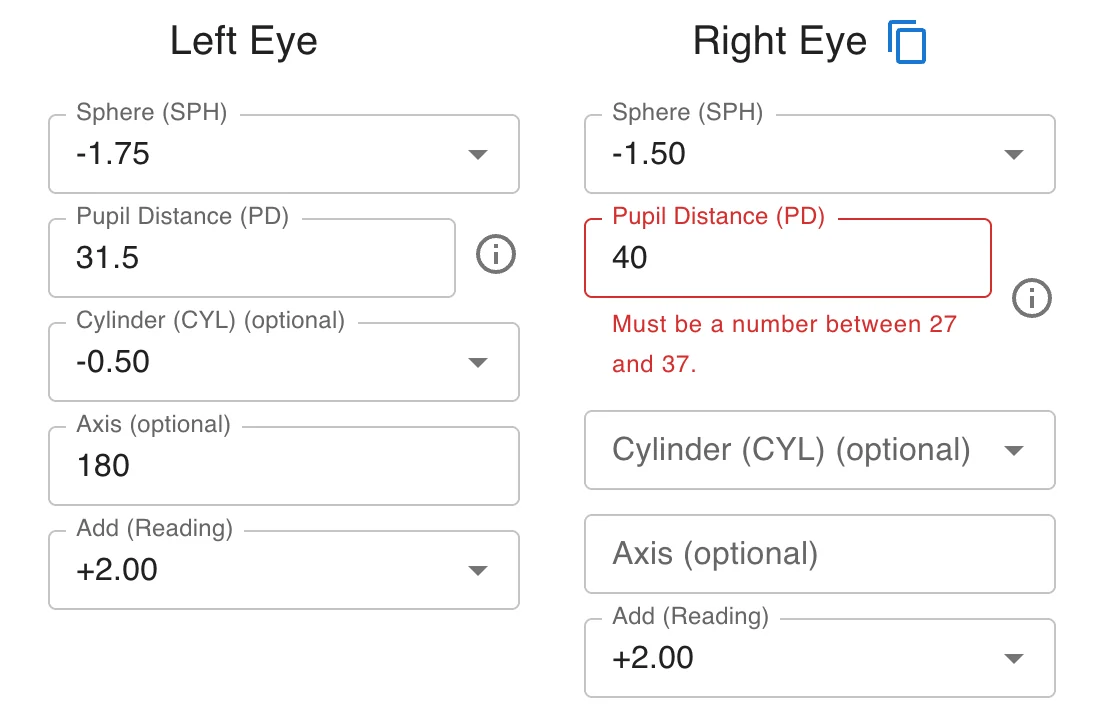
| Pupil Distance (PD) | From 27 to 37 for each eye. If your prescription gives one PD, such as 63, enter half of it, 31.5, for each eye. If it has no PD, ask your optician, or measure it yourself: see below. |
A value outside these limits shows a message under its box, and the prescription isn't saved until you correct it.
Measure your PD
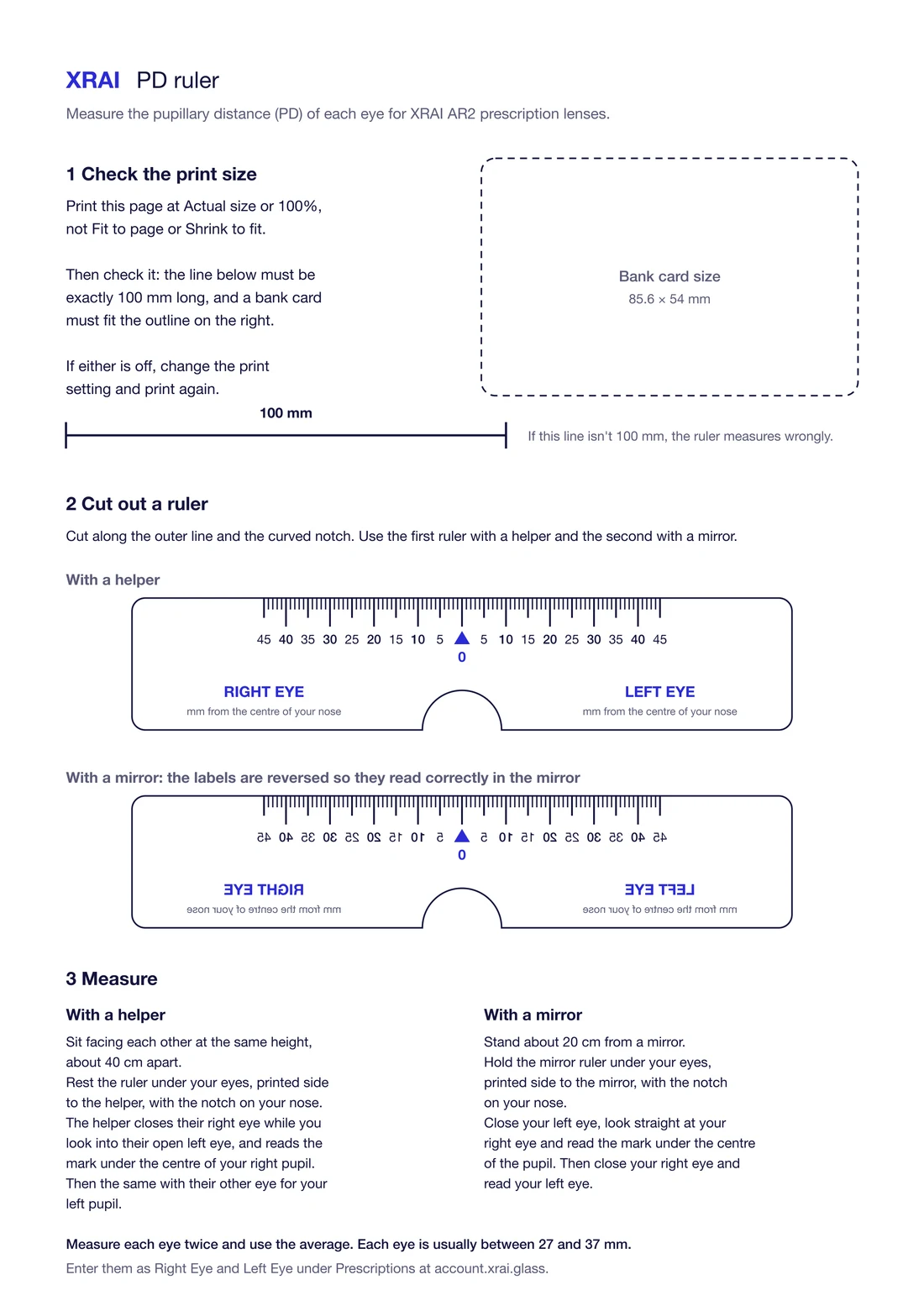
Your PD for each eye is the distance from the centre of your nose to the centre of that pupil. If your optician hasn't given it to you, print the XRAI PD ruler and measure it with a helper or a mirror.
- Print the ruler at Actual size or 100%, and check the 100 mm line with a ruler or the card outline with a bank card.
- Cut out the helper ruler or the mirror ruler, including the notch for your nose.
- Rest it under your eyes with the notch on your nose, and read the mark under the centre of each pupil as the page describes, one eye at a time.
- Measure twice and enter the average for each eye.
Attach it to your order
- Under Saved Prescriptions, click Associate with Order on your prescription.
- Choose your order under Select Order and click Associate. The list only shows orders with prescription lenses that don't have a prescription yet.
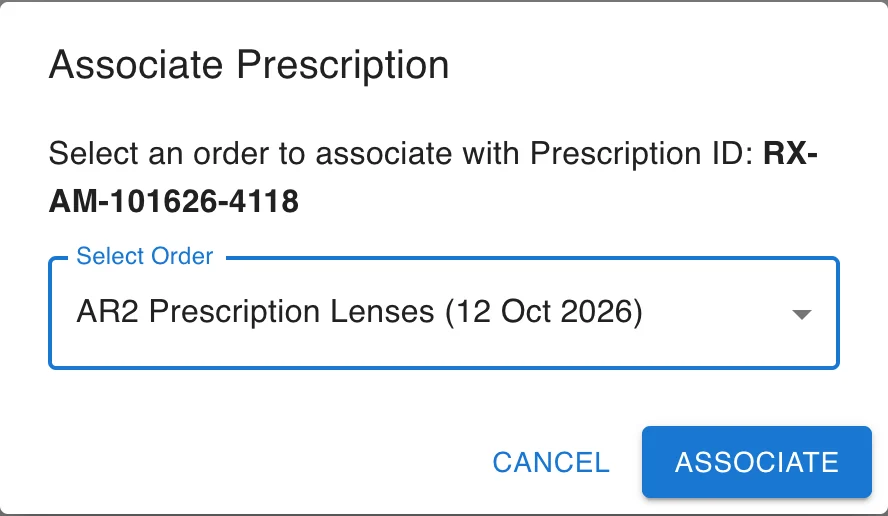
You can also attach it from the order: on Home, click the order, choose the prescription in its Prescription panel and click Associate. Add New opens the Prescriptions page.
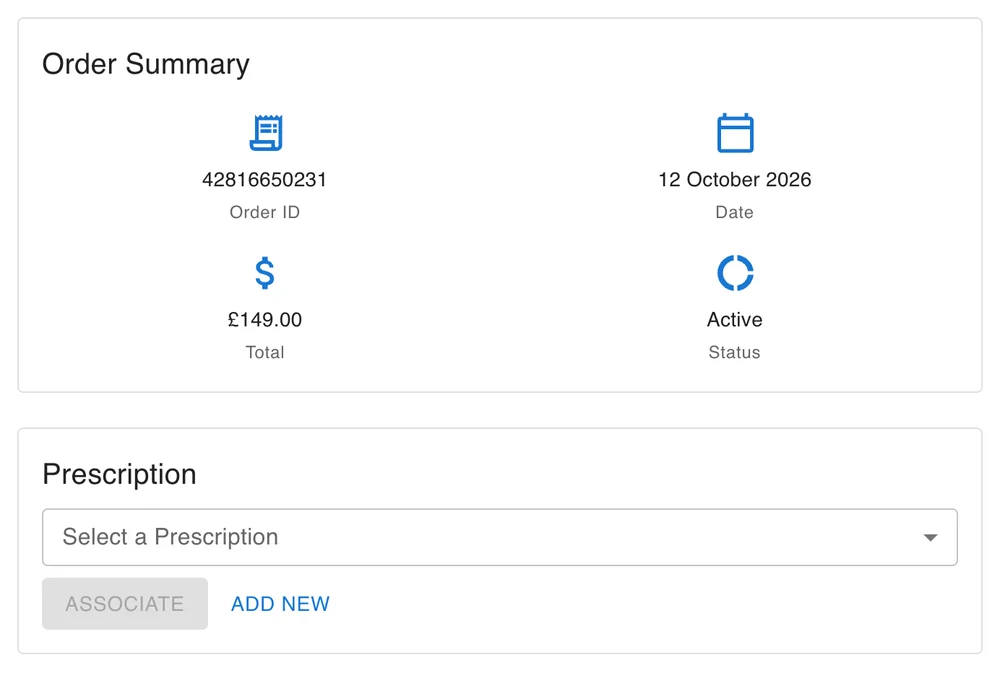
Once attached, the order shows Attached Prescription ID, and the prescription shows the order it is attached to.
Correct a prescription
A saved prescription can't be edited. If it isn't attached to an order yet, click Delete and add it again. Once it is attached, it can't be deleted: email support@xrai.glass with your order number and the correct prescription.
To fit the lenses when they arrive, see Prescription lens inserts.