
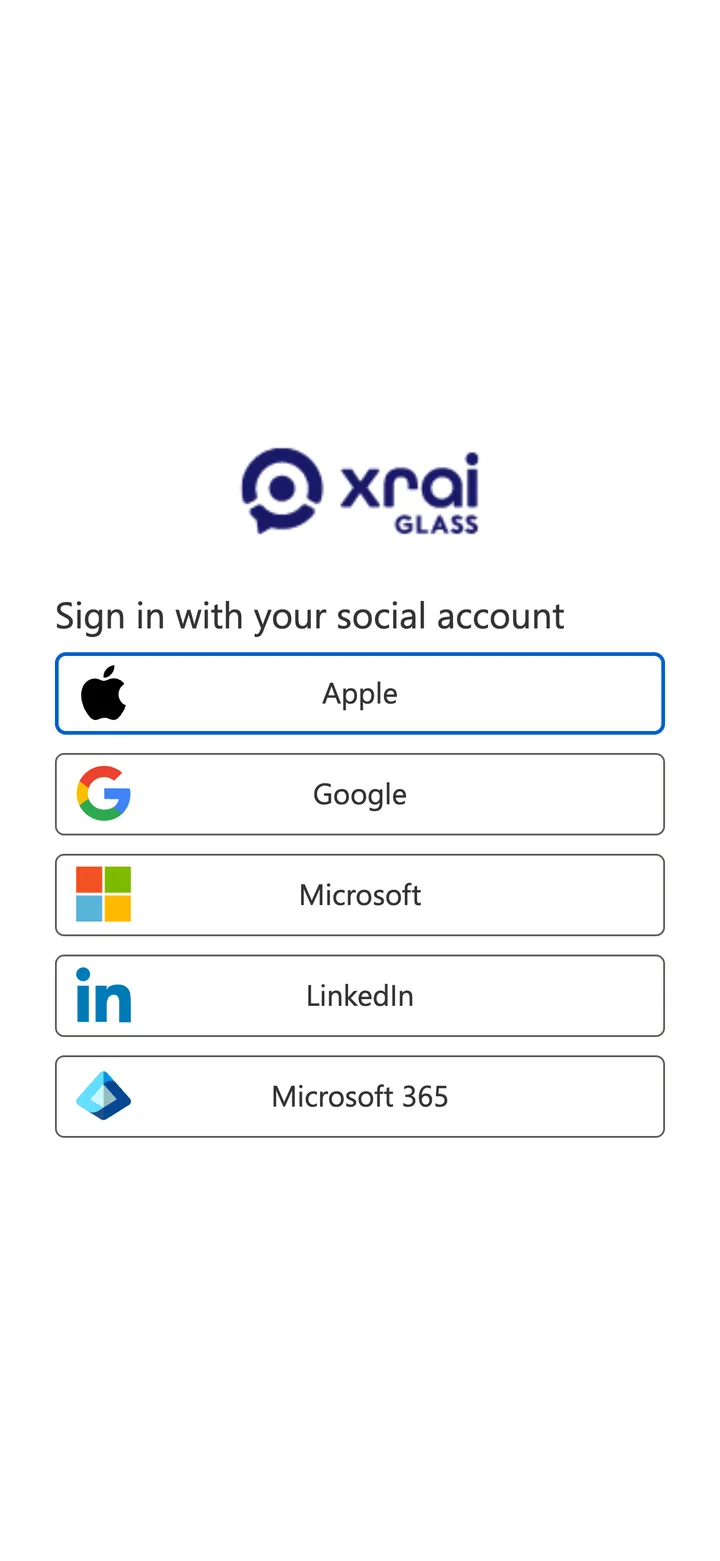
Staff can sign in to XRAI with their work or school account by choosing Microsoft 365 on the XRAI sign-in page. Many organisations allow only an administrator to approve new apps, so the first time someone signs in, Microsoft shows Need admin approval instead of returning them to XRAI.
This page is for your IT administrator. Approving XRAI once lets everyone in your organisation sign in, or only the people you choose.
If you run XRAI in your own Azure subscription, your staff sign in through your own app registration instead: see Deploy XRAI into your Azure cloud.
What XRAI asks for
XRAI asks only for what it needs to sign people in:
| Permission | What XRAI uses it for |
|---|---|
| Sign users in (openid) | Signing the person in to XRAI with their work account. |
| View users' basic profile (profile) | Their name, shown in their XRAI profile. |
| View users' email address (email) | Their email address, which identifies their XRAI account. |
XRAI can't read email, files, calendars, chats or any other Microsoft 365 data, and it doesn't ask to keep access between sign-ins.
XRAI's application ID is 7383d8c3-d75a-4243-944f-d87b0eed630c. Use it to find XRAI in the Microsoft Entra admin center.
Who can approve XRAI
Sign in with an account that has one of these Microsoft Entra roles:
- Global Administrator
- Privileged Role Administrator
- Cloud Application Administrator
- Application Administrator
Approve XRAI for your organisation
- Select Approve XRAI for your organisation to open Microsoft's approval page.
- Sign in with your administrator account.
- Microsoft shows Permissions requested and Accept for your organization, with the three permissions above. Select Accept.
- Microsoft then opens a page from XRAI's sign-in service that says the resource you are looking for has been removed or is unavailable. This is expected: your approval is saved. Close the page.
Your staff can now sign in with Microsoft 365. XRAI also appears under Enterprise apps in the Microsoft Entra admin center, where you can manage it.
From the Microsoft Entra admin center
If XRAI is already listed in your enterprise apps, for example because someone in your organisation approved it for themselves, you can approve it for everyone there instead:
- Sign in to the Microsoft Entra admin center and go to Entra ID → Enterprise apps → All applications.
- In Application ID starts with, enter 7383d8c3, select Apply, and select the app it finds.
- Under Security, select Permissions.
- Check the permissions, select Grant admin consent for your organisation, and select Accept.
Requests from your staff
If your organisation has turned on admin consent requests, staff who see Need admin approval can give a reason and select Request approval. Reviewers find the requests under Entra ID → Enterprise apps → Admin consent requests, on the My Pending tab. Select XRAI, then Review permissions and consent, and select Accept.
Choose who can sign in
Once you approve XRAI, everyone in your organisation can sign in to it with Microsoft 365. To allow only some people:
- In Entra ID → Enterprise apps → All applications, find XRAI by its application ID as above and select it.
- Select Properties, set Assignment required? to Yes, and select Save.
- Select Users and groups, then Add user/group, and add the people or groups who use XRAI. Assigning groups needs Microsoft Entra ID P1 or P2.
People you haven't added see a message from Microsoft that they aren't assigned to the app. To stop anyone in your organisation signing in to XRAI with Microsoft 365, set Enabled for users to sign in? to No in the same Properties.
Your organisation's sign-in rules, such as multi-factor authentication and Conditional Access, apply to XRAI as they do to your other apps.
What your staff do next
- In the XRAI app, the desktop app or at account.xrai.glass, they choose Microsoft 365 and sign in with their work account. See Install the XRAI app and sign in.
- If your organisation provides XRAI for them, they link their XRAI account to it. See Link your account to your organisation.
Ask them to choose Microsoft 365 every time. The Microsoft button is for personal Microsoft accounts such as Outlook.com.
If it doesn't work
| What happens | What to do |
|---|---|
| Staff still see Need admin approval | Check that you approved XRAI in the organisation they sign in to. If your administrator account can open more than one organisation, switch to theirs and approve XRAI again. Then ask them to sign in again. |
| Microsoft says they aren't assigned to the app | Add them, or a group they belong to, under Users and groups, or set Assignment required? to No. |
| Any other message from Microsoft | Email support@xrai.glass with the time it happened and the code that starts with AADSTS. |