
The XRAI AR One were the first XRAI captioning glasses, before the XRAI AR2. The XRAI app runs on the glasses themselves. They connect to the internet over Wi-Fi, and your phone pairs with them using a code shown in the glasses.
What you need
- Wi-Fi. The glasses join 2.4 GHz Wi-Fi networks. Away from home, use your phone's hotspot: see Connect your XRAI AR One to Wi-Fi or a phone hotspot.
- The XRAI app on your iPhone or Android phone, signed in. Your phone pairs with the glasses and works as the remote control.
- A computer with Google Chrome or Microsoft Edge and the glasses' USB-C cable, to update the glasses and set up Wi-Fi.
The AR One updater
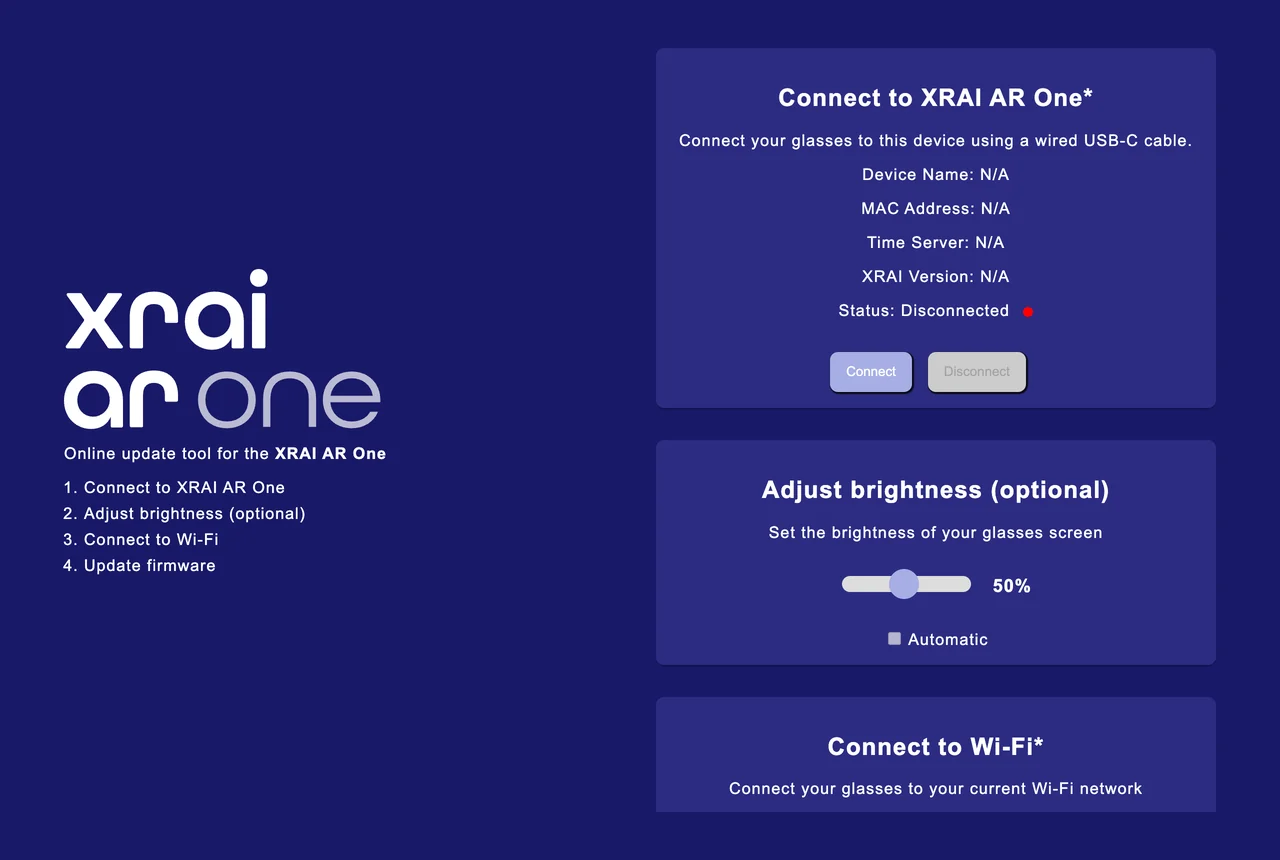
The online updater at link.xrai.glass/ar-one connects to the glasses over USB. Use it to update the XRAI software on the glasses, connect them to Wi-Fi and set the brightness of the display.
Help with your AR One
| To do this | See |
|---|---|
| Get the latest XRAI software on the glasses | Update your XRAI AR One |
| Join a Wi-Fi network or your phone's hotspot | Connect your XRAI AR One to Wi-Fi or a phone hotspot |
| Pair the glasses with the app again | Reconnect your XRAI AR One to the app |
| Reinstall the glasses' software from a Windows PC | Restore the XRAI AR One factory software |