
If the glasses keep showing a pairing code and the app doesn't connect to them, clear the devices the app remembers and pair again. This often happens after you change phones or reinstall the app.
Before you start, check that the glasses are switched on and connected to Wi-Fi. See Connect your XRAI AR One to Wi-Fi or a phone hotspot.
1. Clear the devices the app remembers
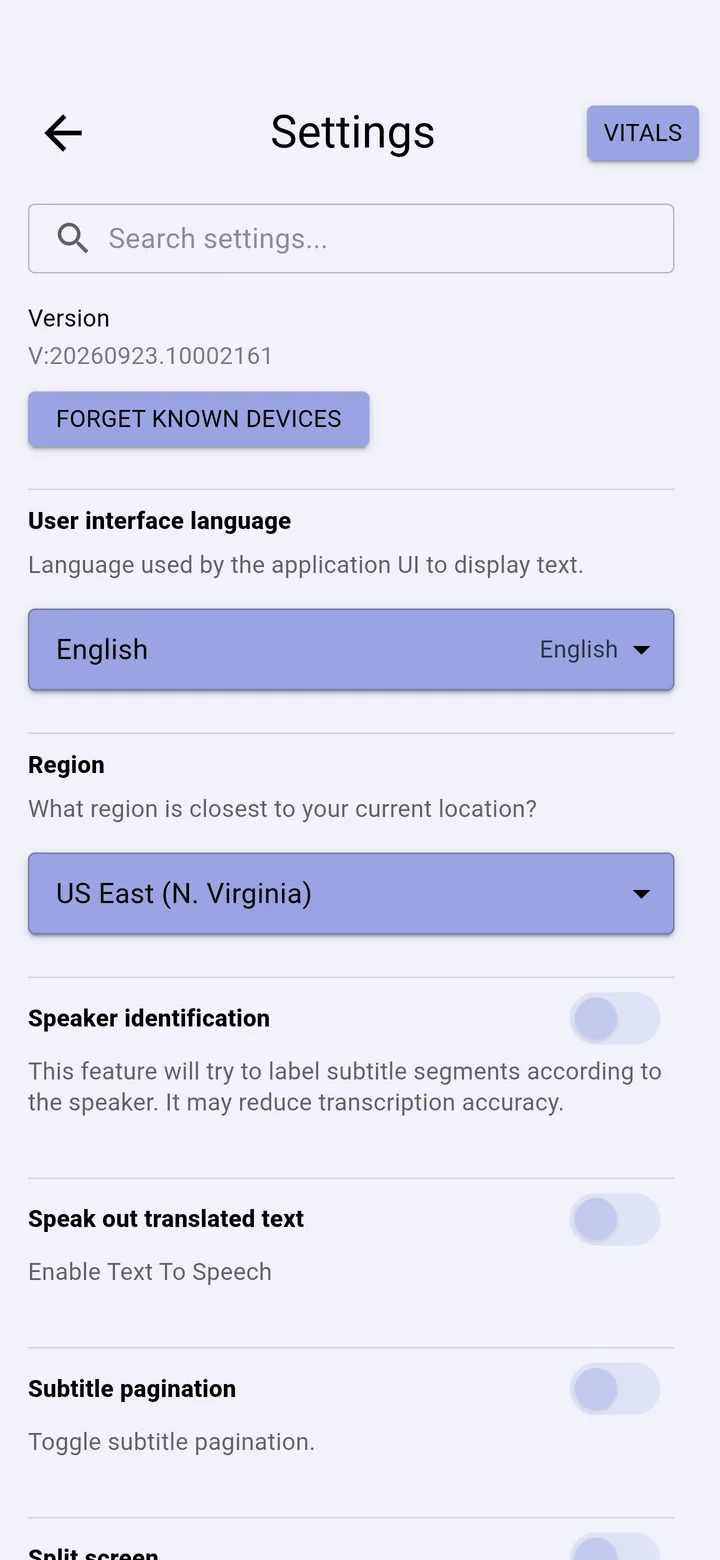
- In the XRAI app, tap your picture → Settings.
- Tap the number under Version eight times, until a message shows Developer settings: Enabled. Tap Ok.
- Tap Forget known devices, then go back.
2. Pair again
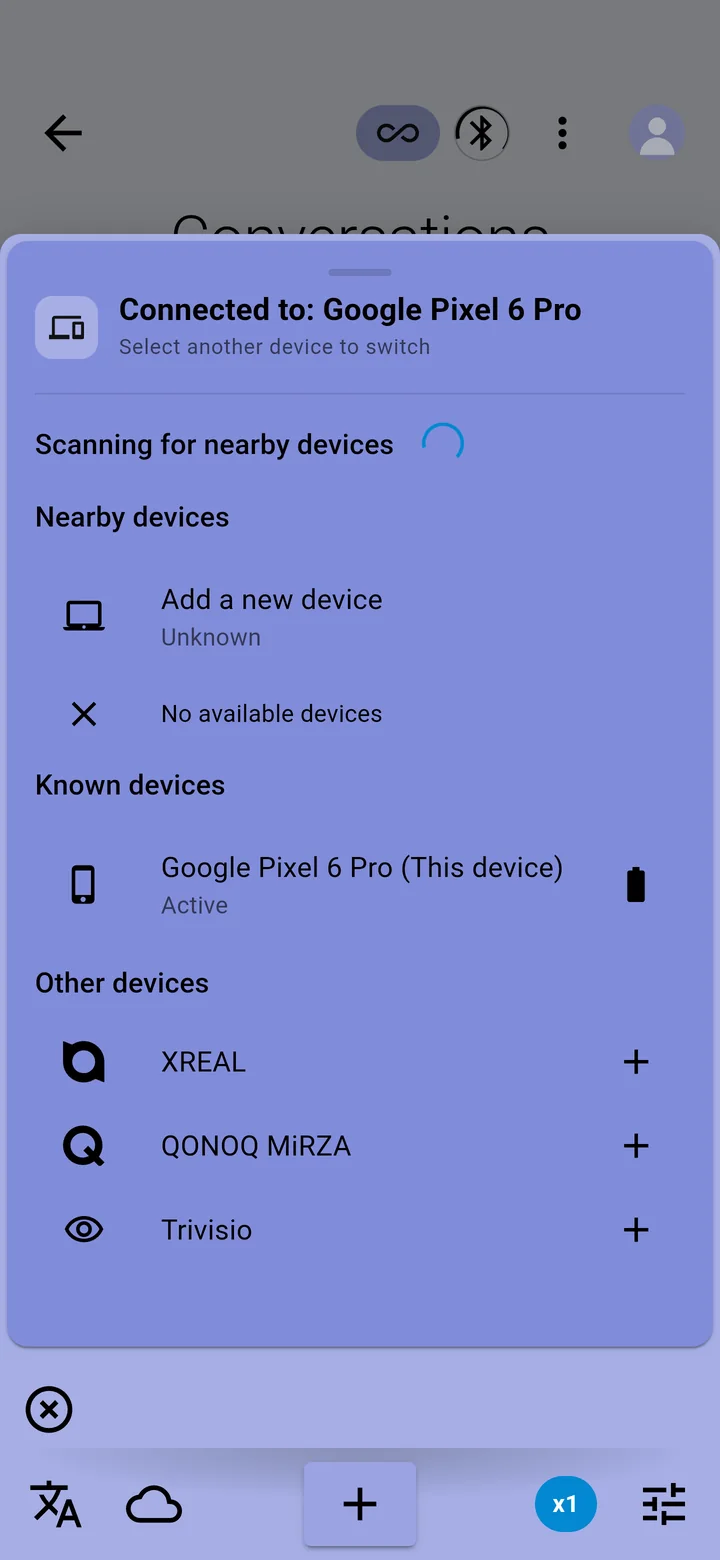
- Tap your picture → Devices.
- Under Nearby devices, tap XRAI AR One. If the glasses aren't listed, tap Add a new device.
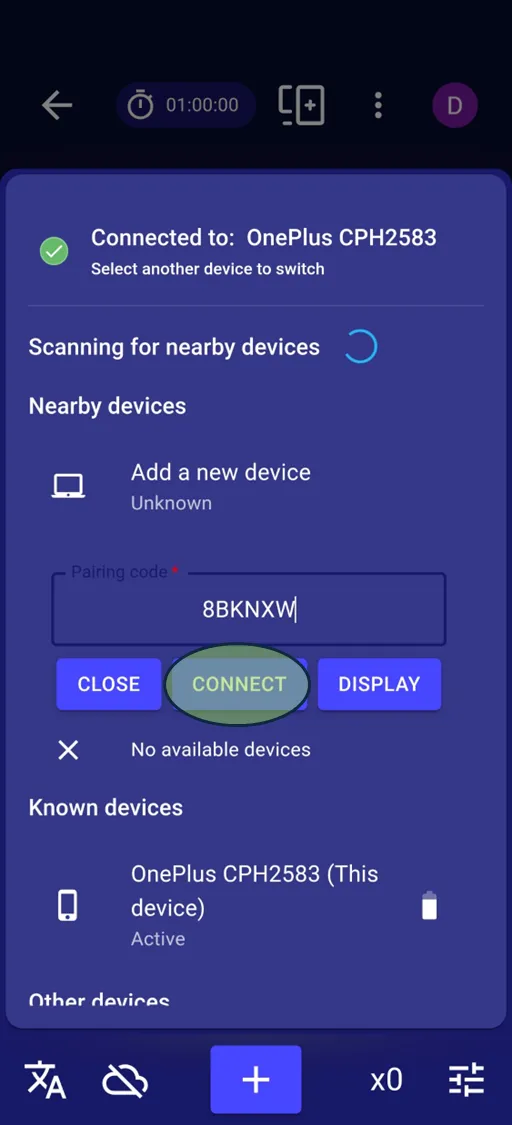
- Type the pairing code shown in the glasses and tap Connect. The glasses sign in to your account and captioning starts.
If the glasses still don't connect, switch them off and on again, check they're on Wi-Fi, and pair again.