
If the glasses no longer start, or the online updater can't connect to them, you can reinstall their software from a Windows PC. This erases the glasses and returns them to the software they shipped with. Afterwards you update them, connect them to Wi-Fi and pair them again.
What you need
- A Windows PC.
- A Qualcomm 9008 deep-flash cable, sometimes sold as an EDL cable. It is a USB cable with a button on it.
- These four downloads:
- Qualcomm USB driver (19 MB)
- QPST (63 MB)
- QFIL (6 MB)
- AR One software image (1.4 GB)
1. Install the tools
- Unzip the Qualcomm USB driver, open Qualcomm USB Driver v1.0.10061.1.exe and follow the installer.
- Unzip QPST, open QPST.2.7.496.1.exe and follow the installer, choosing Complete. Note the folder it installs to, usually C:\Program Files (x86)\Qualcomm\QPST.
- Unzip QFIL and copy everything in its folder into the QPST folder. When Windows asks for permission, tick Do this for all current items and click Continue.
- Copy the AR One software image into the bin folder inside the QPST folder, and unzip it there.
2. Set up QFIL
- In the QPST folder, open QFIL.exe.
- Open the Configuration menu and set these options exactly, then click OK:
Download Protocol 0 - Sahara Device Type emmc Validation Mode 0 - No Validation Reset After Download On Erase All Before Download Off 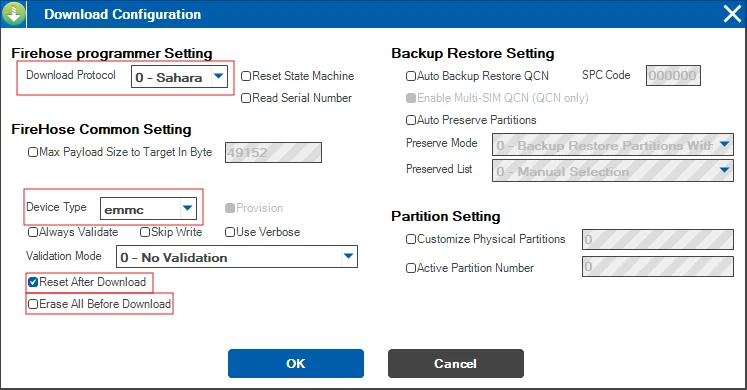
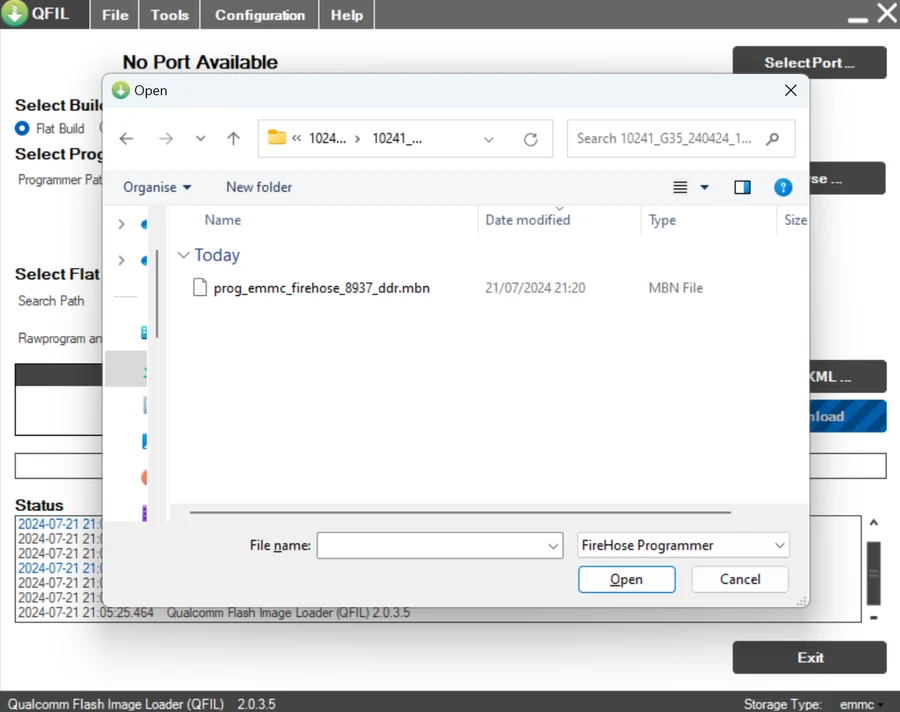
- Under Select Build Type, choose Flat Build. Under Select Programmer, click Browse, open the folder you unzipped the software image into, and choose prog_emmc_firehose_8937_ddr.mbn.
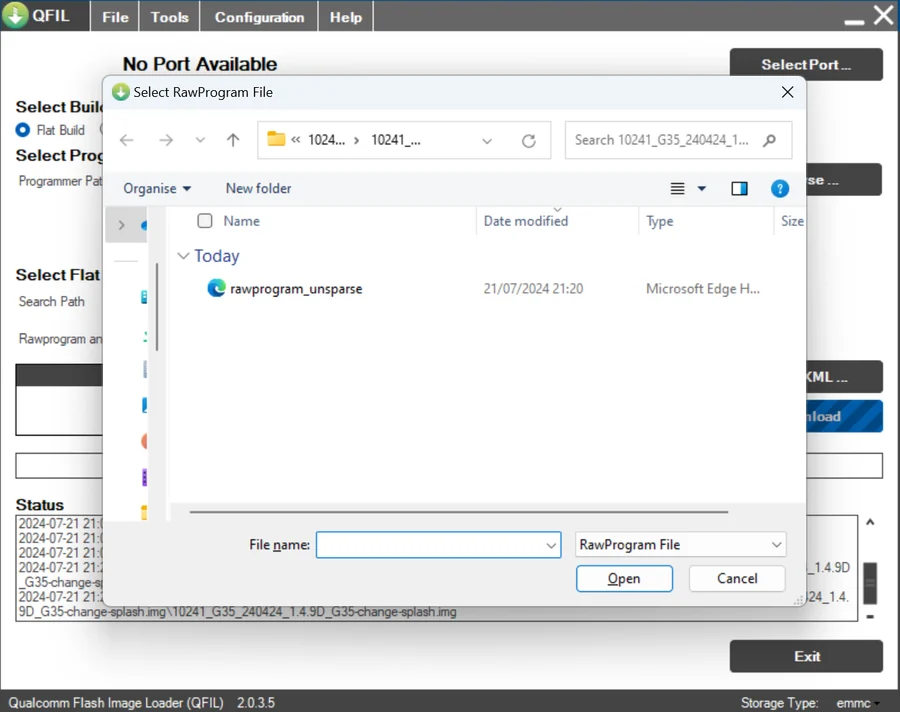
- Click Load XML and choose rawprogram_unsparse.xml. When QFIL asks for the patch file, choose patch0.xml. Both files then appear under RawProgram and Patch.
3. Put the glasses in download mode
- Switch off the glasses by holding the front button for 5 seconds.
- Connect the glasses to the PC with the deep-flash cable.
- Hold the front button on the glasses and the button on the cable together for 10 seconds. Release the button on the glasses, then one second later release the button on the cable.
- The top of QFIL changes to Please Select an Existing Port. If it still shows No Port Available, repeat from step 1.
4. Install the software
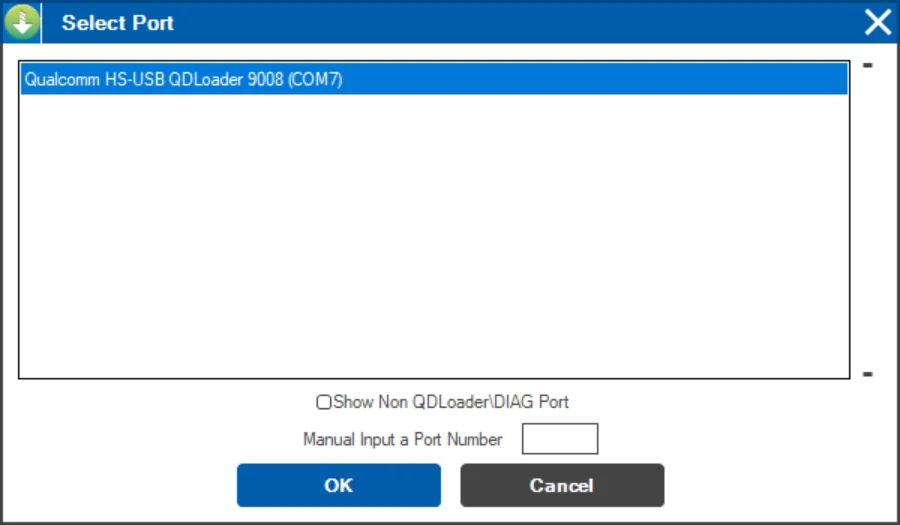
- Click Select Port, choose Qualcomm HS-USB QDLoader 9008 and click OK. The COM number after it varies.
- Click Download. Installing takes 5 to 10 minutes. Leave the glasses connected until the status shows Finish Download and the glasses restart.
Afterwards
- Update the glasses to the latest XRAI software.
- Connect them to Wi-Fi.
- Pair them with the XRAI app.