
The AR One need an internet connection to caption. At home, connect them to your Wi-Fi. Away from home, connect them to your phone's hotspot. The glasses join 2.4 GHz networks only.
1. Away from home: turn on your phone's hotspot
Skip this step if you're connecting the glasses to a Wi-Fi network.
iPhone
- Open Settings → Personal Hotspot.
- Turn on Allow Others to Join and Maximize Compatibility. Maximize Compatibility makes the hotspot use 2.4 GHz.
- Note the Wi-Fi Password. The hotspot has the same name as your iPhone, which you can find in Settings → General → About → Name.
Android
- Open your phone's hotspot settings. Where they are depends on the phone, for example Settings → Network & internet → Hotspot & tethering, Settings → Connections → Mobile Hotspot and Tethering or Settings → Connection & sharing → Personal hotspot.
- Turn on the hotspot and note its name and password.
- In the hotspot's settings, set the band to 2.4 GHz. Some phones call this AP band or Extend compatibility.
2. Connect the glasses
- Switch on the glasses and connect them to a computer with their USB-C cable.
- In Google Chrome or Microsoft Edge, open link.xrai.glass/ar-one, click Connect, choose your glasses and click Connect again.
- Scroll to Connect to Wi-Fi. Choose your network or hotspot from the list. If it isn't there, click ↻ to look again.
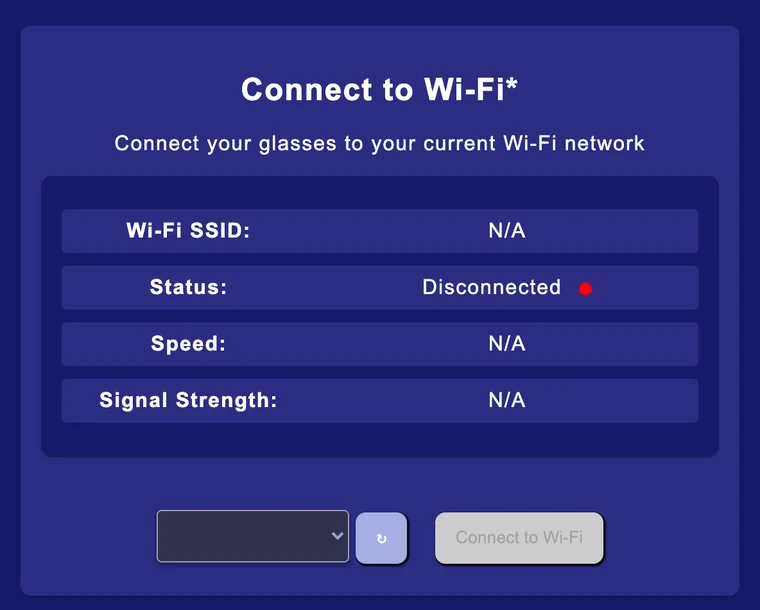
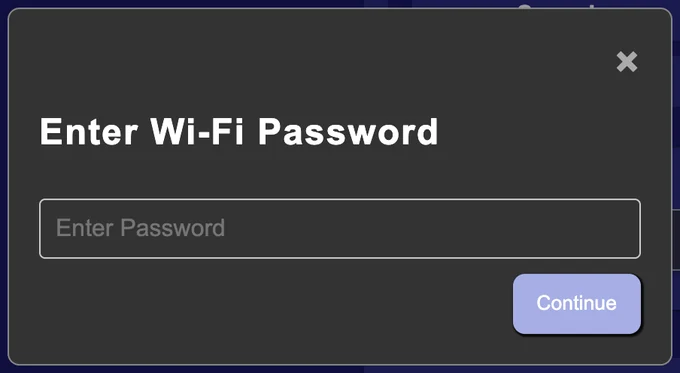
- Click Connect to Wi-Fi, enter the password and click Continue.
- Check that Wi-Fi SSID shows the network's name and Status shows Connected. You can then disconnect the cable.
The glasses remember the network and join it again the next time they're in range.
Using a hotspot
- Phones turn the hotspot off after a few minutes with nothing connected. Turn it on before you switch on the glasses.
- On an iPhone, keep the Personal Hotspot screen open until the glasses have joined.
- If the glasses don't caption, check that they're listed as connected in your phone's hotspot settings.