
Some events captioned by XRAI have a page at events.xrai.glass. Open the link or QR code the organisers share. You don't need an app or an account, and it is free. What the page shows depends on what the organisers share.
Live now
While the event is on, Live now shows the latest captions from each stage, with the time and the speaker. It updates by itself every few seconds, so you can leave it open.
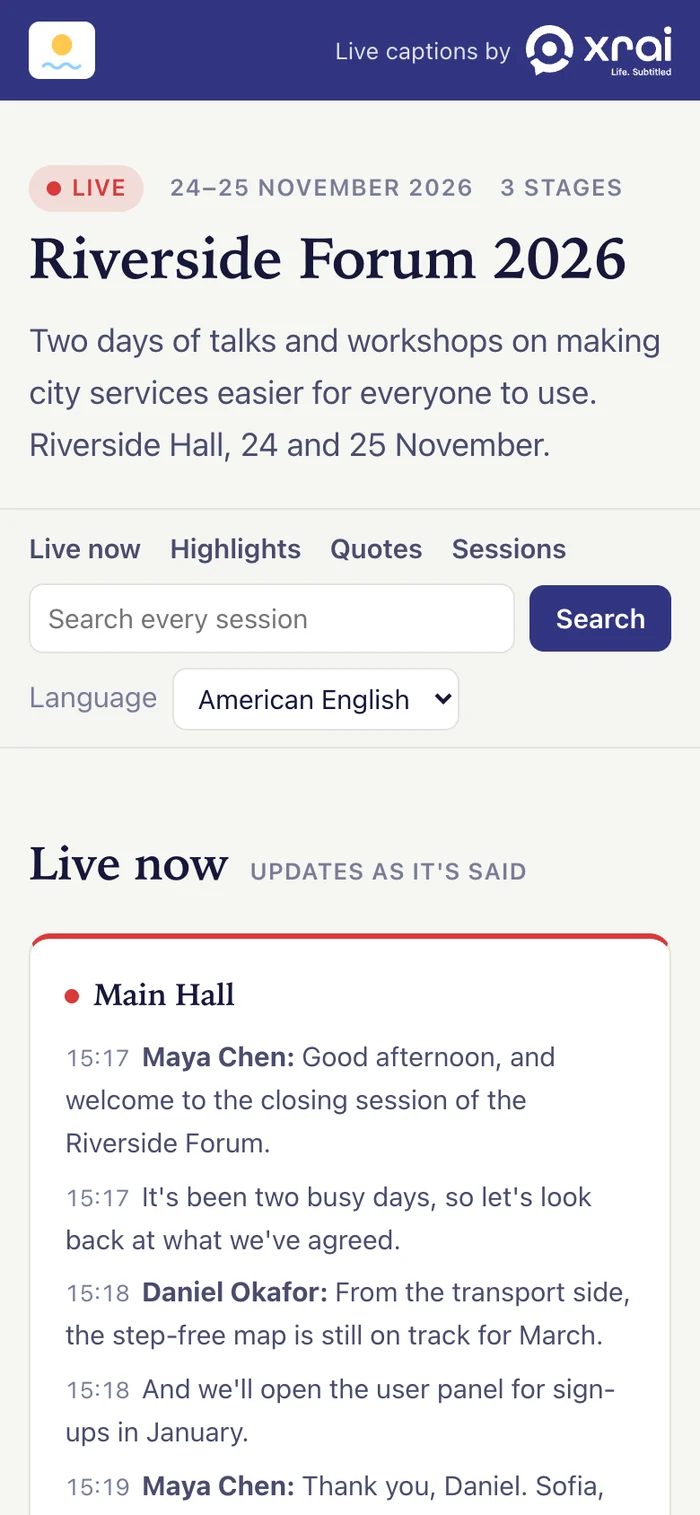
When no stage is live, it says Nothing is live right now. Captions appear as soon as a stage starts.
Highlights and quotes
Highlights holds the summaries the organisers publish: the main themes, announcements, what happens next, and questions with their answers. Quotes holds the lines they've picked out, with who said them. Each shows its stage and time, and when the organisers share transcripts, the time links to that moment.
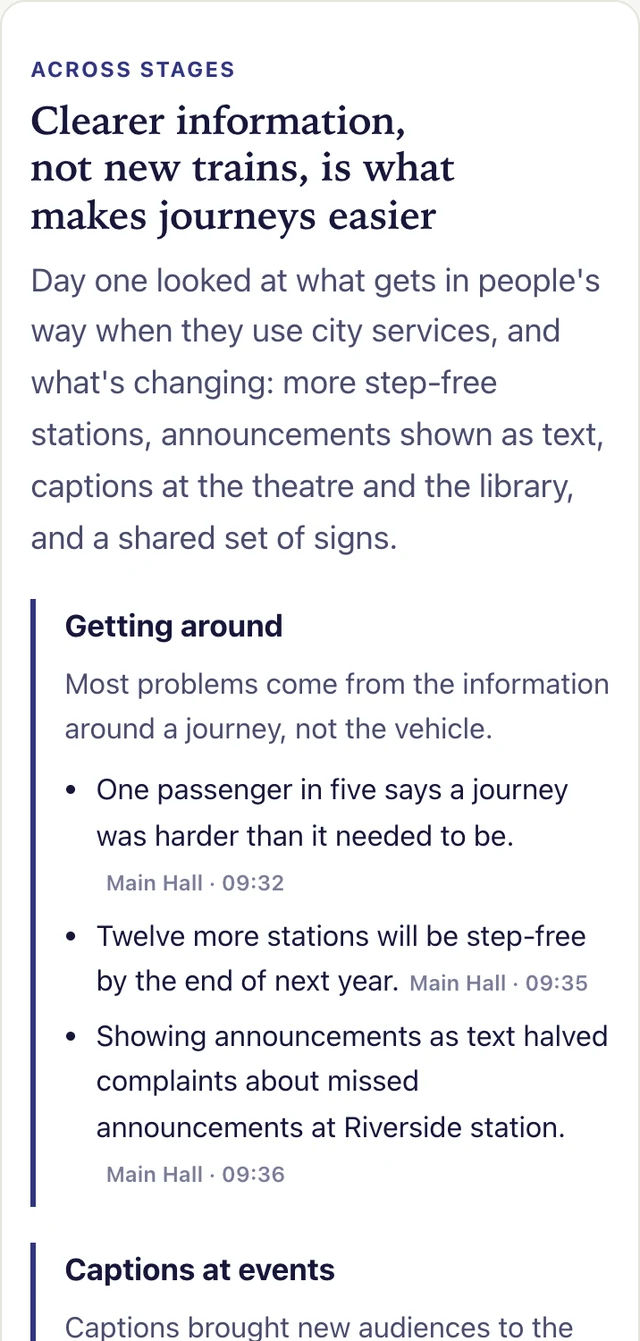
Summaries are written by AI from the live captions, so check the transcript before you quote one.
Read a session
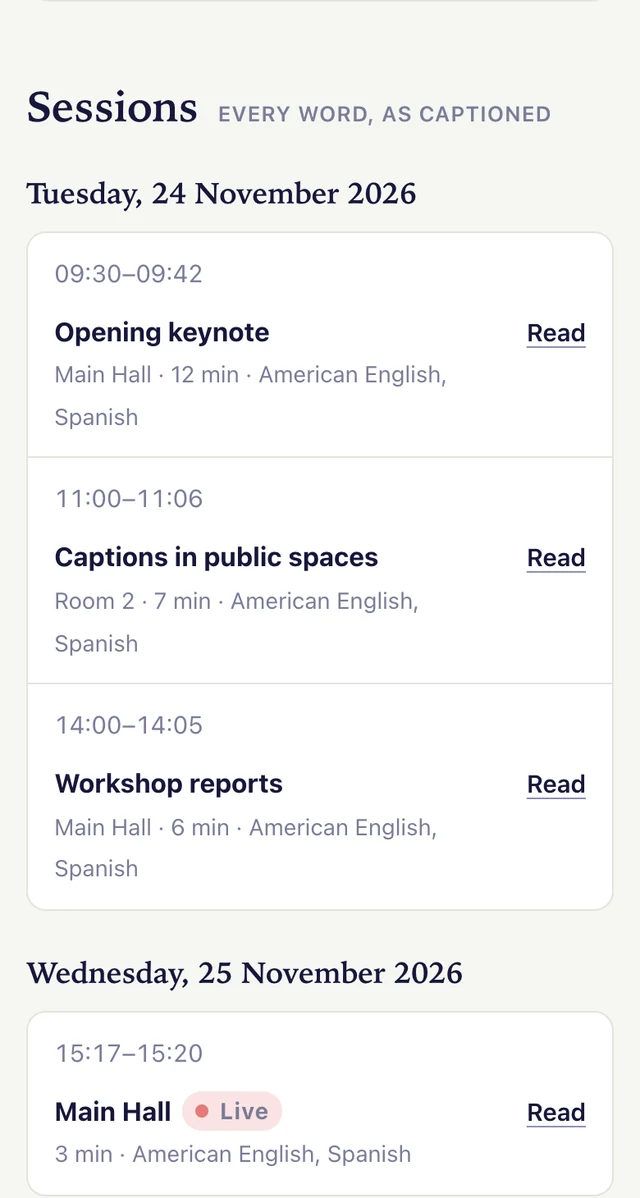
- Under Sessions, find the day. Each session shows its times, its name or stage, its length and its languages. A session that's still going is marked Live.
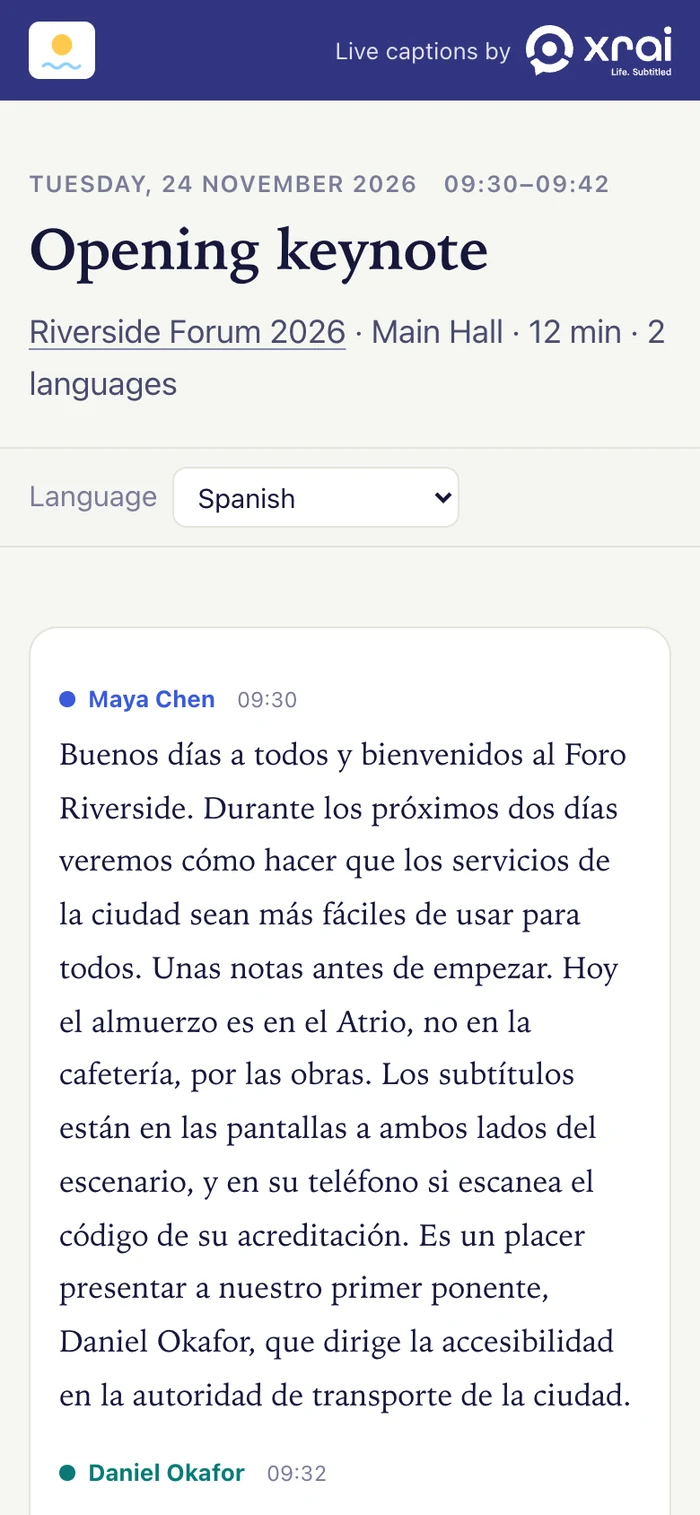
- Select the session, or Read.
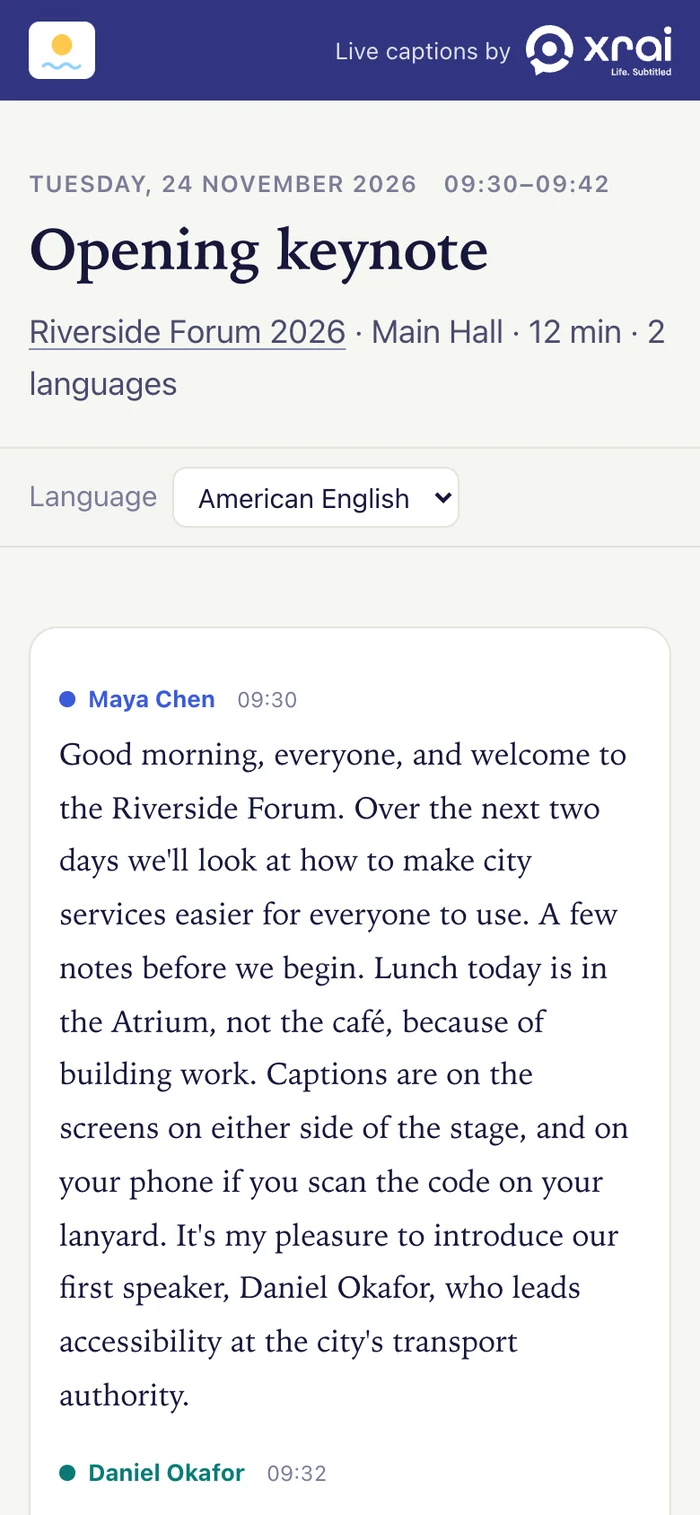
- The session reads as a conversation: each speaker's words as a paragraph, with their name and the time. A long pause is marked, for example 12 minutes later.
A session that's still going says so: reload the page for its latest lines. To go back, select ← All sessions.
Search every session
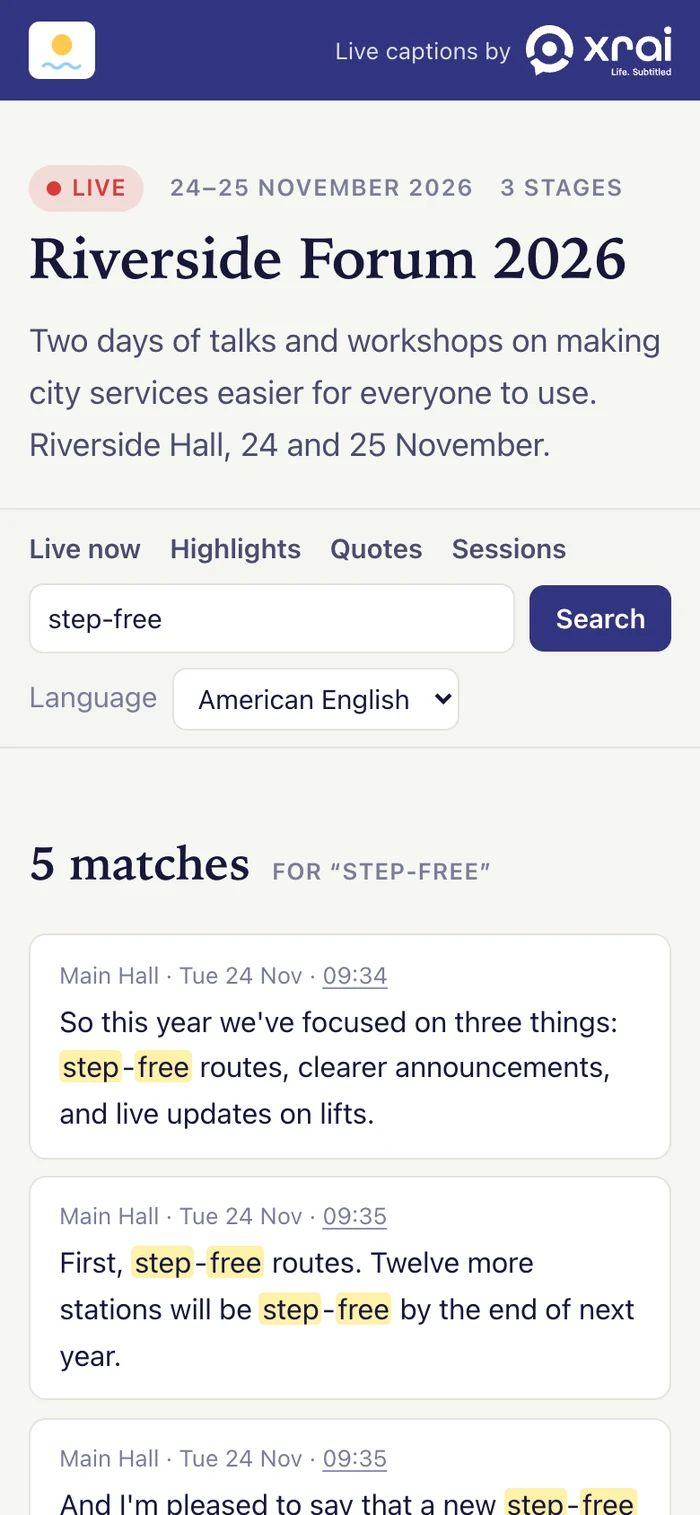
- Type a word or phrase in Search every session, and select Search.
- The matches from every stage and day are listed, with your words highlighted.
- Select a match's time to open the session at that line.
Names and unusual words are captioned as they sound. If nothing matches, try fewer words or another spelling.
Choose a language
If the event is captioned in more than one language, choose yours from the Language menu. The live captions, the sessions and the search change to that language. Highlights and quotes stay in the language they were written in.
Times are shown in the event's time zone, which the bottom of the page names. Captions come from live speech recognition, so expect the odd misheard word.
If the page doesn't open
This event's page isn't here means the address is mistyped, or the organisers haven't published the page yet. Check the link with the organisers.