
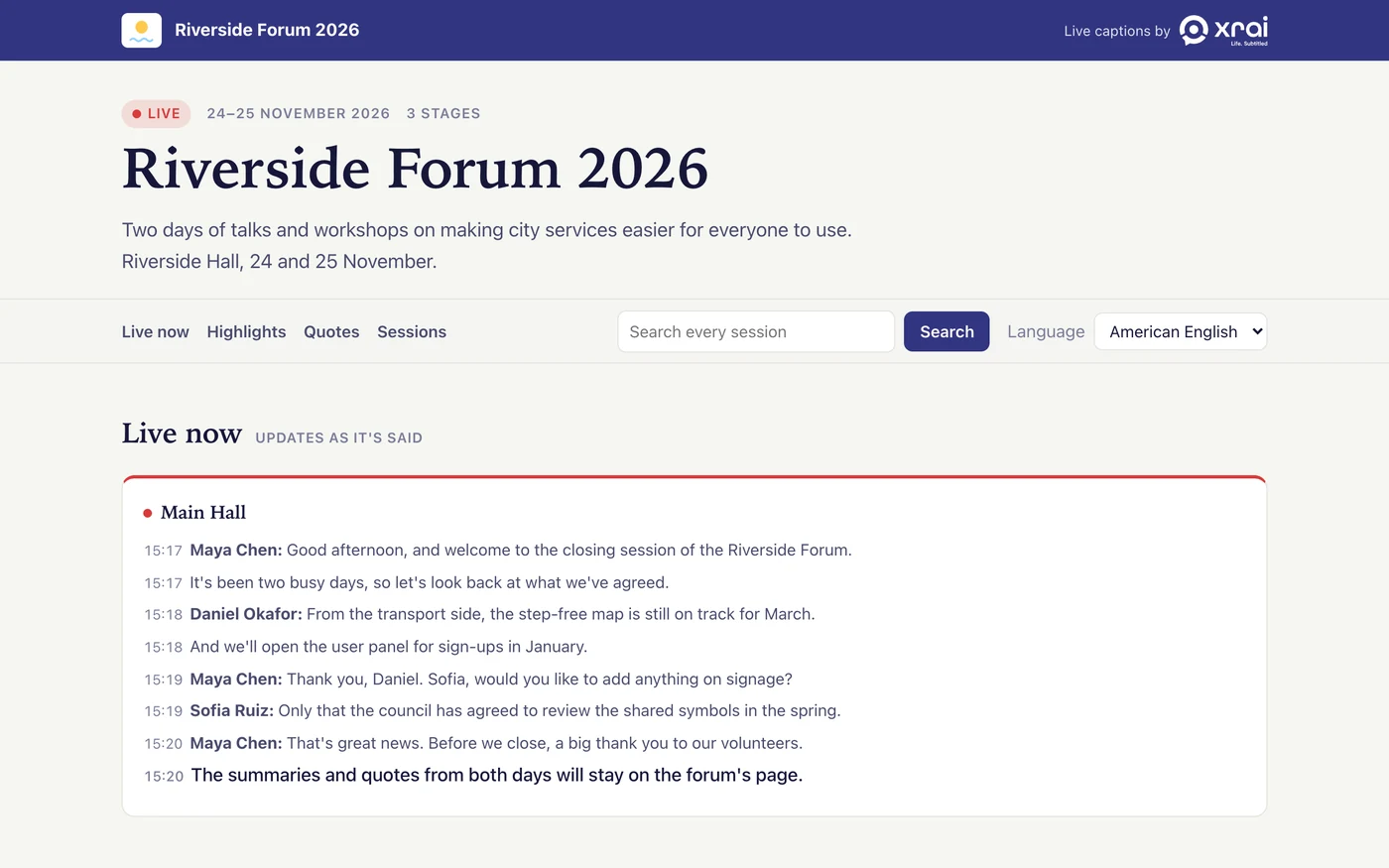
Your event can have a public page at events.xrai.glass that anyone can open, with no app or account. It covers all of the event's recorded stages and days, and shows what you choose:
- what's being said on each stage right now;
- the summaries and quotes you publish;
- every session's transcript, with a search across all of them.
Only stages with recording on appear: see Record your event's captions. Nothing is public until you publish the page.
Set up the page
- In Recordings at my.xrai.glass, find your event and its Public page box.
- Select Set it up, or Edit if you've set it up before.
- Fill in the page's details, and choose what it shows.
- Select Publish, or Save without publishing to finish it later. Only you can see a page you haven't published.
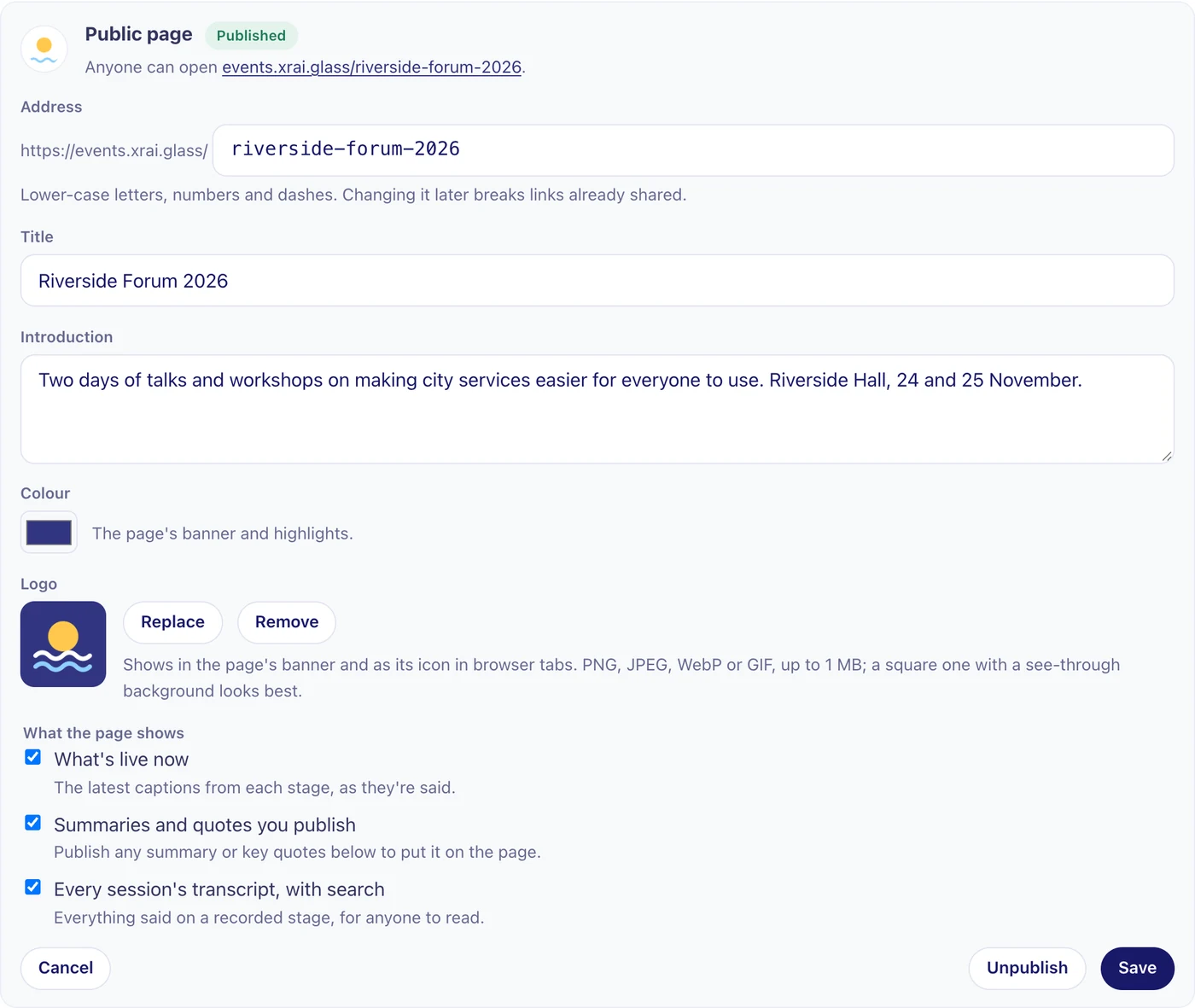
| Setting | What it does |
|---|---|
| Address | The end of the page's address, after events.xrai.glass/. Use 3 to 60 lower-case letters, numbers and dashes, starting and ending with a letter or number. Changing it later breaks links you've already shared. |
| Title | The page's heading. Left empty, it's your event's name. |
| Introduction | A line or two under the title: what the event is, where, and when. |
| Colour | The colour of the page's banner and highlights. |
| Logo | The picture in the page's banner, also shown as its icon in browser tabs. |
Add your logo
- Save the page once, with Save without publishing or Publish. The logo can be added after that.
- Select Edit, then under Logo, select Choose a picture.
- Choose a PNG, JPEG, WebP or GIF of up to 1 MB. A square one with a see-through background looks best.
The logo is saved as soon as it's uploaded, without the page's Save button. Replace changes it, and Remove takes it off. Until you add one, the page shows your organisation's logo, if we have it.
Choose what the page shows
| Tick box | What visitors see |
|---|---|
| What's live now | The latest captions from each stage, as they're said, while the event is on. On to start with. |
| Summaries and quotes you publish | Each summary, set of key quotes or answer you publish. On to start with. See Summaries, key quotes and your own prompts. |
| Every session's transcript, with search | Everything said on each recorded stage, for anyone to read and search. Off until you tick it. |
When the page shows transcripts, each point in a published summary links to the moment it came from.
Choose which sessions appear
- Sessions appear by the names you give them: see Name, trim and hide parts of a session.
- Parts of a session you've trimmed or hidden are left out.
- A session whose On event page switch is off, in the Recordings list, doesn't appear at all. Use it for sound checks and tests.
- Sessions in the recycle bin never appear.
Share the page
Once it's published, the Public page box shows its address, with Open and Copy link. Share the link on your event's website, in emails to attendees, and on screens at the event.
For what visitors see and can do, see Read an event's page.
Change or take down the page
- Select Edit, make your changes, and select Save. Published pages update straight away.
- To take the page down, select Unpublish. Its address then shows This event's page isn't here until you publish it again.