
Captioning often starts before the speakers do, with sound checks and tests, and can run on long after they've finished. You can trim each session to where it really starts and ends, hide any part in between, give it a name, and correct what the captions got wrong.
What hiding does
A hidden part stays in your recording, and you can bring it back at any time. While it's hidden, it's left out of:
- the event's page: its sessions, transcripts, search and live captions;
- summaries, key quotes and answers to your own prompts;
- downloads.
The session page then says when the session was recorded, and how many parts are hidden.
Name a session
- In Recordings at my.xrai.glass, select Open beside the session.
- Select Name this session, type a name such as Opening keynote, and select Save.
The Recordings list and the event's page both show the session by this name, so it's easy to tell which is which. To change it, select Rename. Leave it empty to show the stage's name instead.
Trim with the timeline
The Trim timeline at the top of the session shows the whole recording. Each bar is a stretch of captions, so the gaps show when nobody spoke. Hidden parts are shaded.
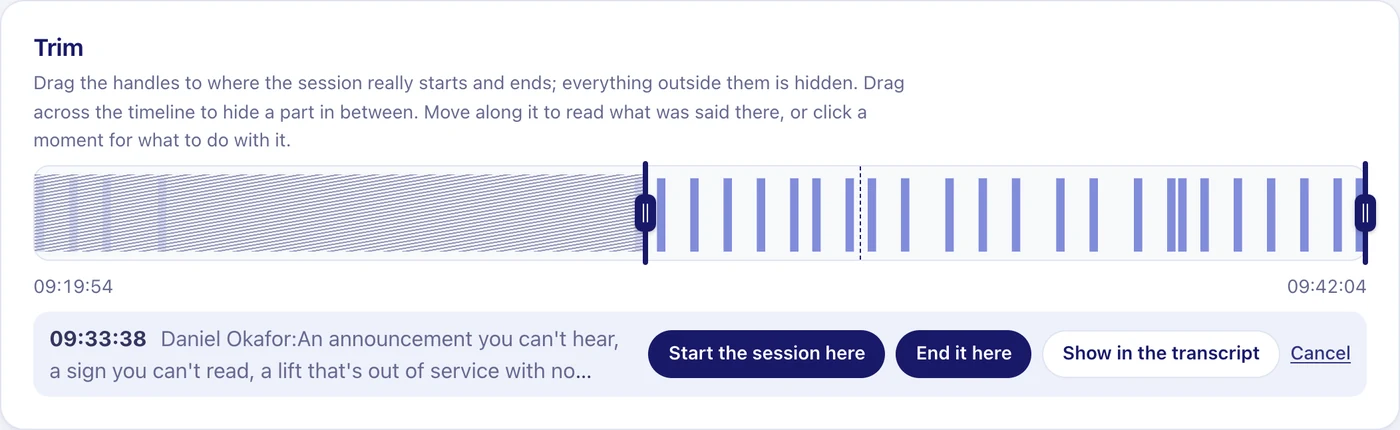
- Read what was said: point at the timeline, and the line said at that moment shows below it.
- Set the start and end: drag the left handle to where the session really starts, and the right handle to where it ends. Everything outside them is hidden. To undo a trim, drag its handle back to the edge.
- Choose a moment: click the timeline, then select Start the session here, End it here, or Show in the transcript to find that line below.
- Hide a part in between: drag across that part of the timeline, then select Hide this part.
Edit the transcript
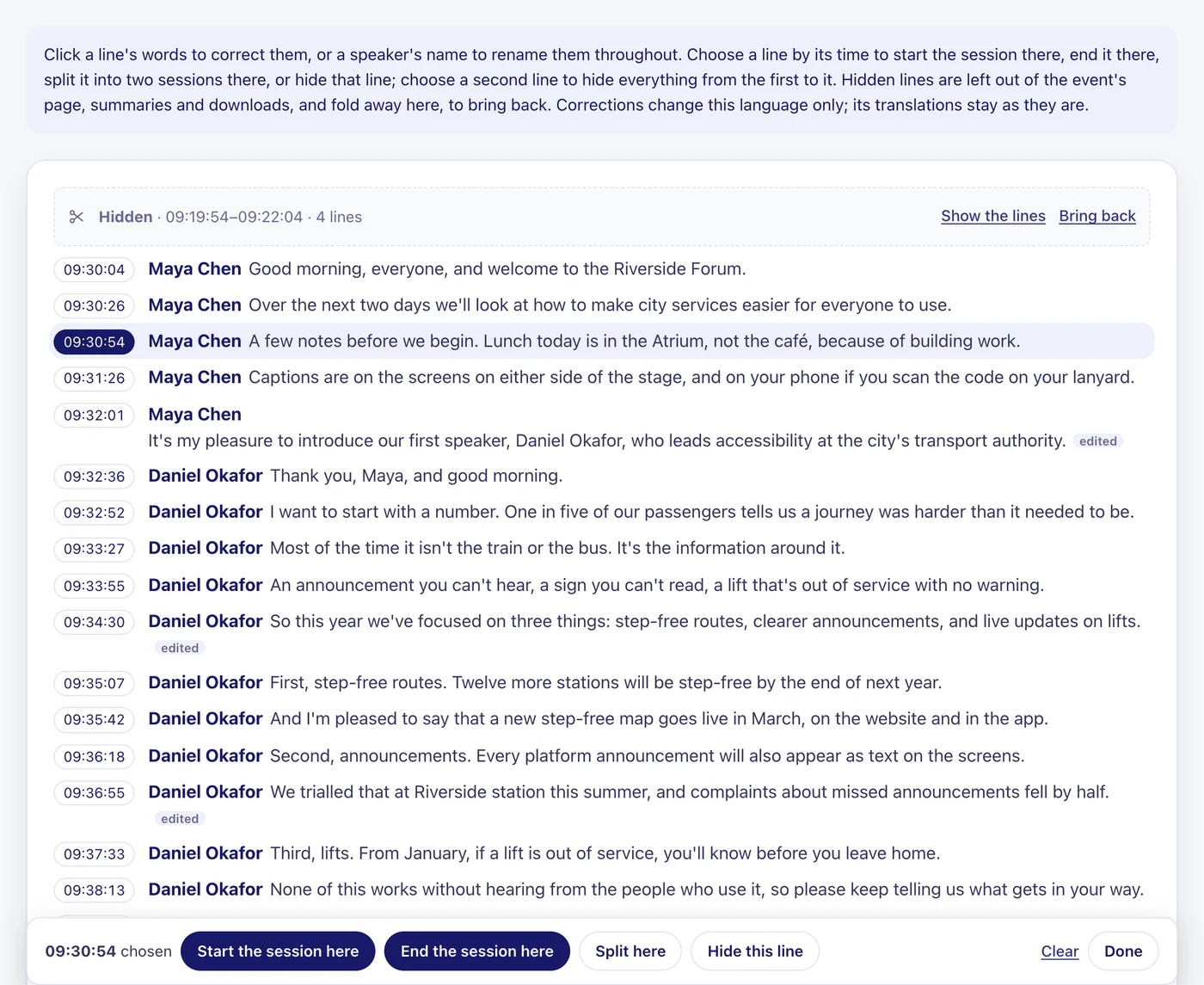
Select Edit above the transcript. Each line's time becomes a button, and its words and speaker can be changed.
| To | Do this |
|---|---|
| Start or end the session at a line | Select the line's time, then Start the session here or End the session here. |
| Hide one line | Select its time, then Hide this line. |
| Hide several lines | Select the time of the first line, then the time of the last, then Hide these lines. |
| Correct the words | Select the words, change them, and press Enter or select Save. Escape cancels. |
| Rename a speaker | Select the speaker's name, type the new one, and select Rename speaker. It changes everywhere in the session. |
| Split the session in two | Select a line's time, then Split here. See Split and join sessions. |
Select Done when you've finished. Clear unchooses the lines.
Corrected lines
A corrected line is marked edited. To undo a correction, select its words again: the box shows what the captions heard, and Put back what was heard restores it.

A correction changes the language you're reading only. Its translations stay as they were, so choose each language from the menu to correct it.
To have AI find misheard words for you, see Correct a transcript with AI suggestions.
Hidden lines
Hidden lines fold into a band that shows their times and how many there are. Show the lines opens the band to read them, and Bring back puts them back in the session.
Keep a whole session off the event page
To keep a whole session, such as a sound check, off the event's page, turn off its On event page switch in the Recordings list. It stays in your recordings. To remove a session altogether, move it to the recycle bin: see Delete sessions and use the recycle bin.