
AI can read the captions of your recorded sessions and write a summary, pick out the quotes worth sharing, or answer a question of your own. Choose one session or up to 50, across stages and days. Parts of a session you've hidden are left out.
Choose the sessions
- In Recordings at my.xrai.glass, tick the sessions. The tick box beside a stage's name picks all of its sessions.
- A bar appears at the bottom of the page with the number of sessions chosen.
- Choose what you'd like:

| Choice | What you get |
|---|---|
| Summarise | A headline and overview, who spoke, the main themes with their points, then Announcements, Actions with who will do them, Questions with their answers and, for more than one session, Session by session. |
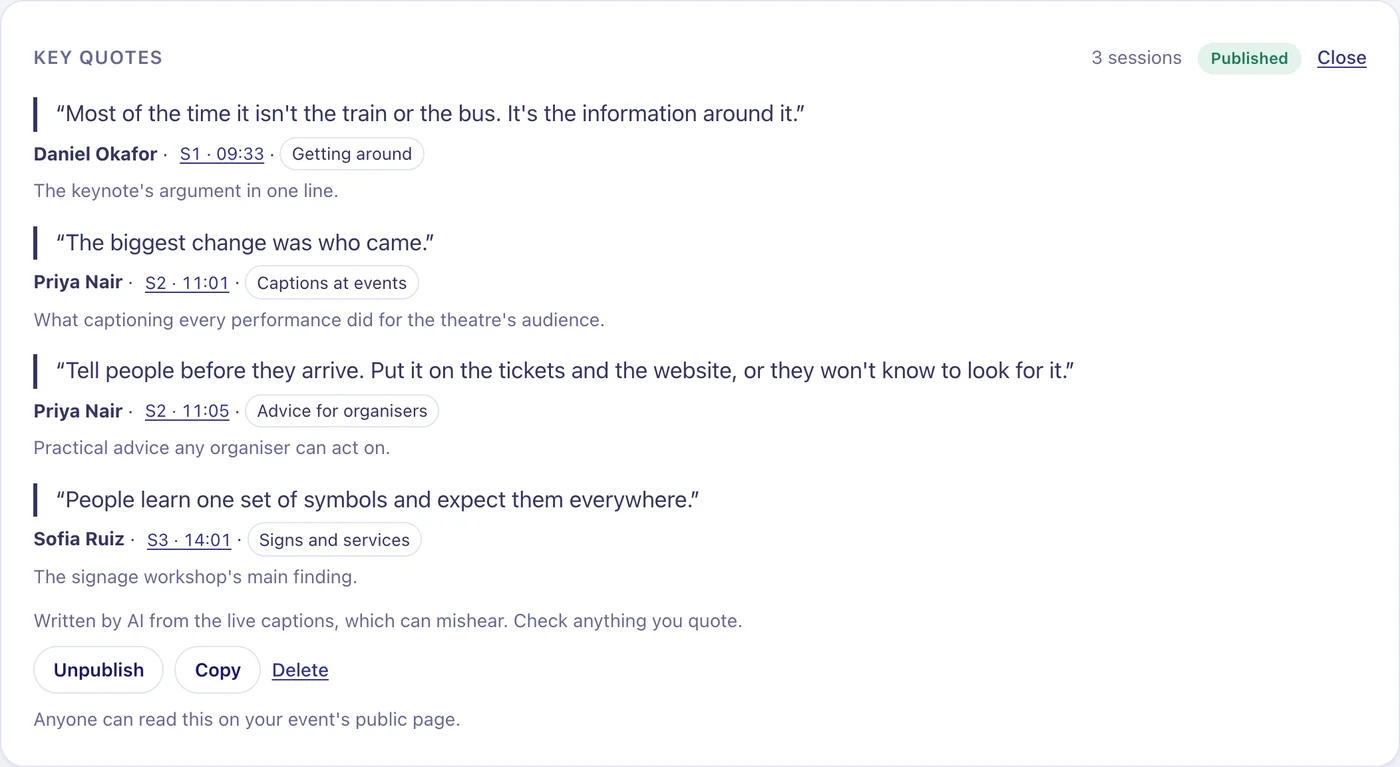
| Key quotes | The quotes most worth sharing, each with who said it, its theme, and why it was chosen. |
| Your own prompt | Choose one of your saved prompts, or Write one now and type your question. Then select Ask. |
Move to bin in the same bar puts the chosen sessions in the recycle bin: see Delete sessions and use the recycle bin.
The answer appears at the top of the page. A summary takes about a minute.
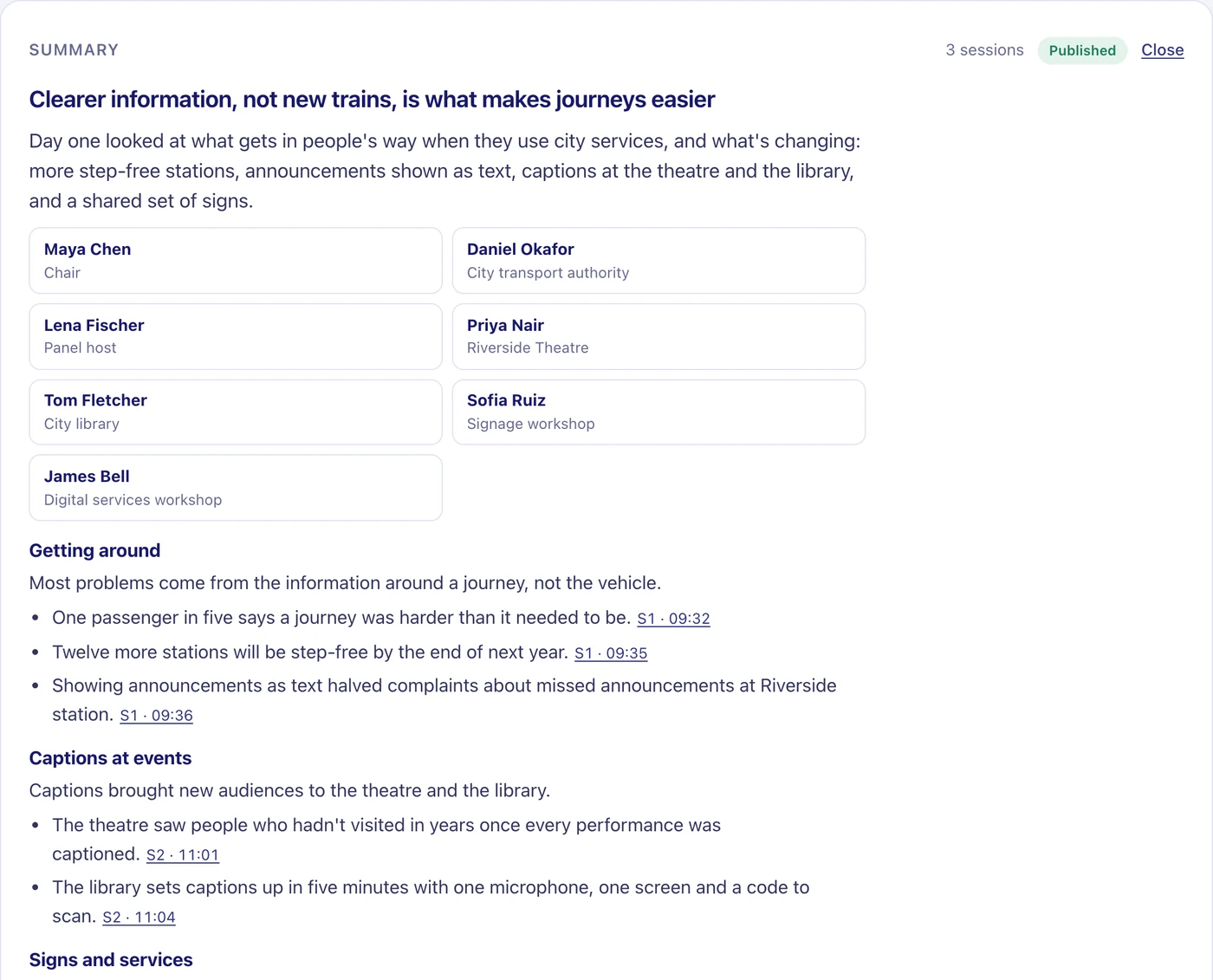
Each point links to the moment in the transcript it came from. With several sessions, each is labelled S1, S2 and so on, in the order they took place.
In an open session, Summarise and Key quotes work on that session alone, in the language you're reading.
Check before you share
Every answer ends with: Written by AI from the live captions, which can mishear. Check anything you quote. Click a point's time to read what was said at that moment. Correcting the transcript first makes summaries and quotes more accurate: see Correct a transcript with AI suggestions.
Save your own prompts
- Under Your prompts, give the prompt a Name, for example Action points.
- Write the Prompt, for example List every action point, who said it and when. It can be up to 4,000 characters.
- Select Save prompt. It's offered under Your own prompt from then on.
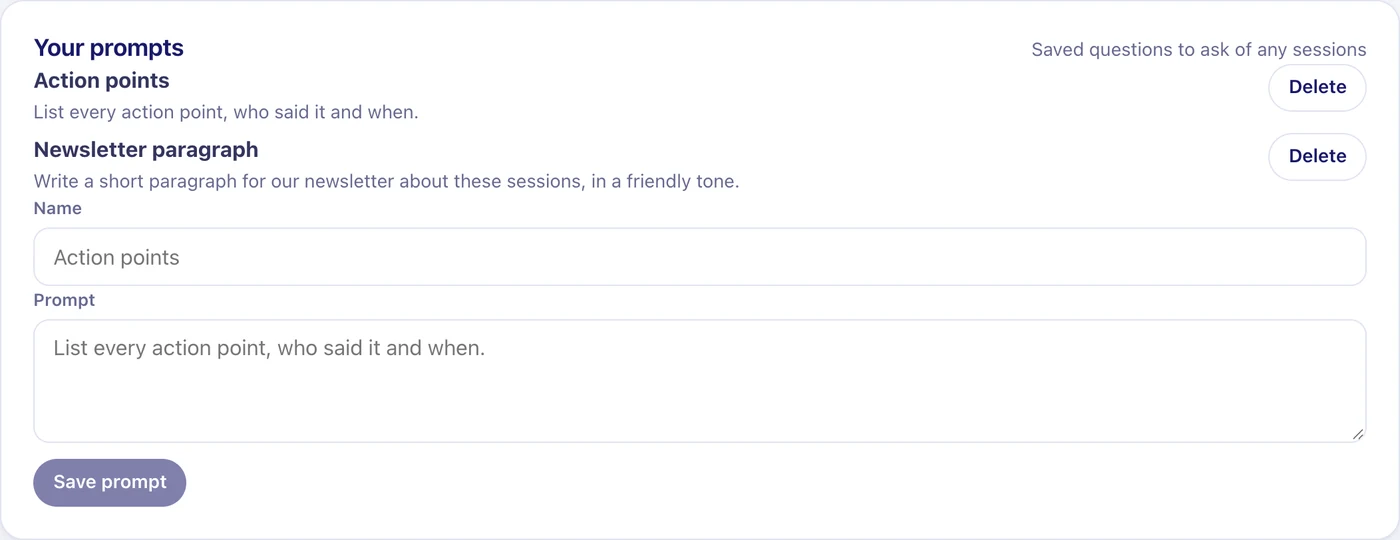
You can keep up to 50 prompts. Select Delete beside one to remove it.
Keep, publish or delete an answer
Answers are yours alone until you publish one. They're listed under Your summaries and quotes; click one to open it again. Each answer has these buttons:
- Publish to the event page: puts it on your event's public page, when the page shows summaries and quotes. Select Unpublish to take it off. See Share your event on a public page.
- Copy: copies the text, to paste into an email or a newsletter.
- Delete, then Delete for good: removes it. This can't be undone.
Only an answer about one event can be published. One drawn from sessions at several events stays private.
Limits
- Up to 50 sessions in each request.
- Up to 30 requests an hour, counting suggested corrections, and five being written at once.
- Prompts of up to 4,000 characters.