
Recordings at my.xrai.glass lists every recorded session at your events. Events that are still booked are under Booked, and finished ones under Past events.
The Recordings list
Each event shows its stages, and each stage its sessions under the day they took place.
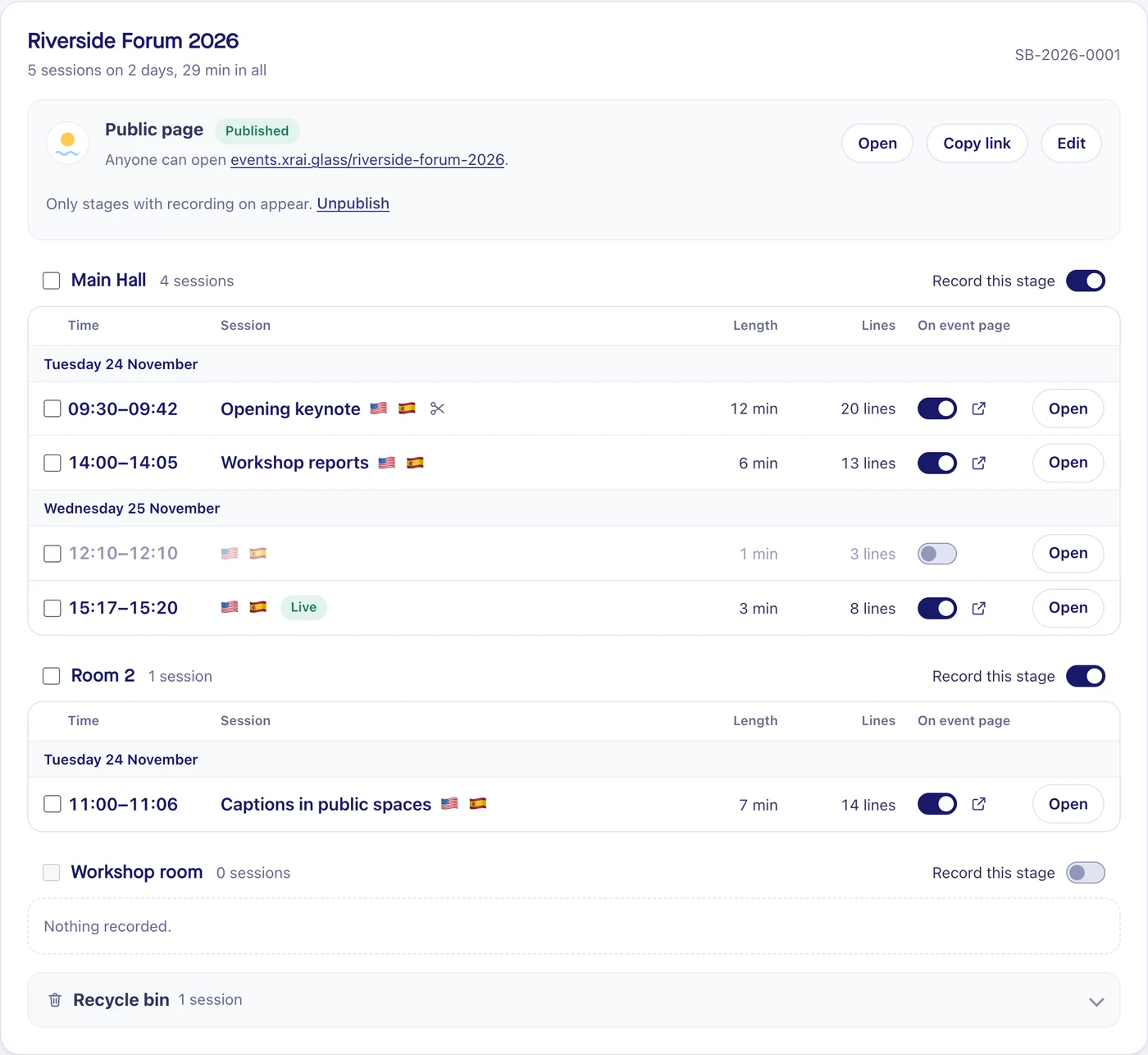
| Column | What it shows |
|---|---|
| Time | When the session started and ended, as the event's page shows it. |
| Session | The session's name, if you've given it one, and a flag for each of its languages. Live means it's still going, and a scissors mark means parts of it are hidden. |
| Length and Lines | How long the session lasted, and how many lines of captions it has. |
| On event page | Whether the session appears on the event's public page. Turn it off to keep a session, such as a sound check, off the page. The icon beside the switch opens the session on the page. |
A session that's off the event page is greyed in the list. You can still open, search and download it.
Open a session
- Select Open beside a session.
- The session page shows its name, stage, day, times, length and number of lines, then its captions line by line, each with its time and, when the stream labels speakers, the speaker's name.
- To read another language, choose it from the language menu. The language that was spoken is marked (spoken).
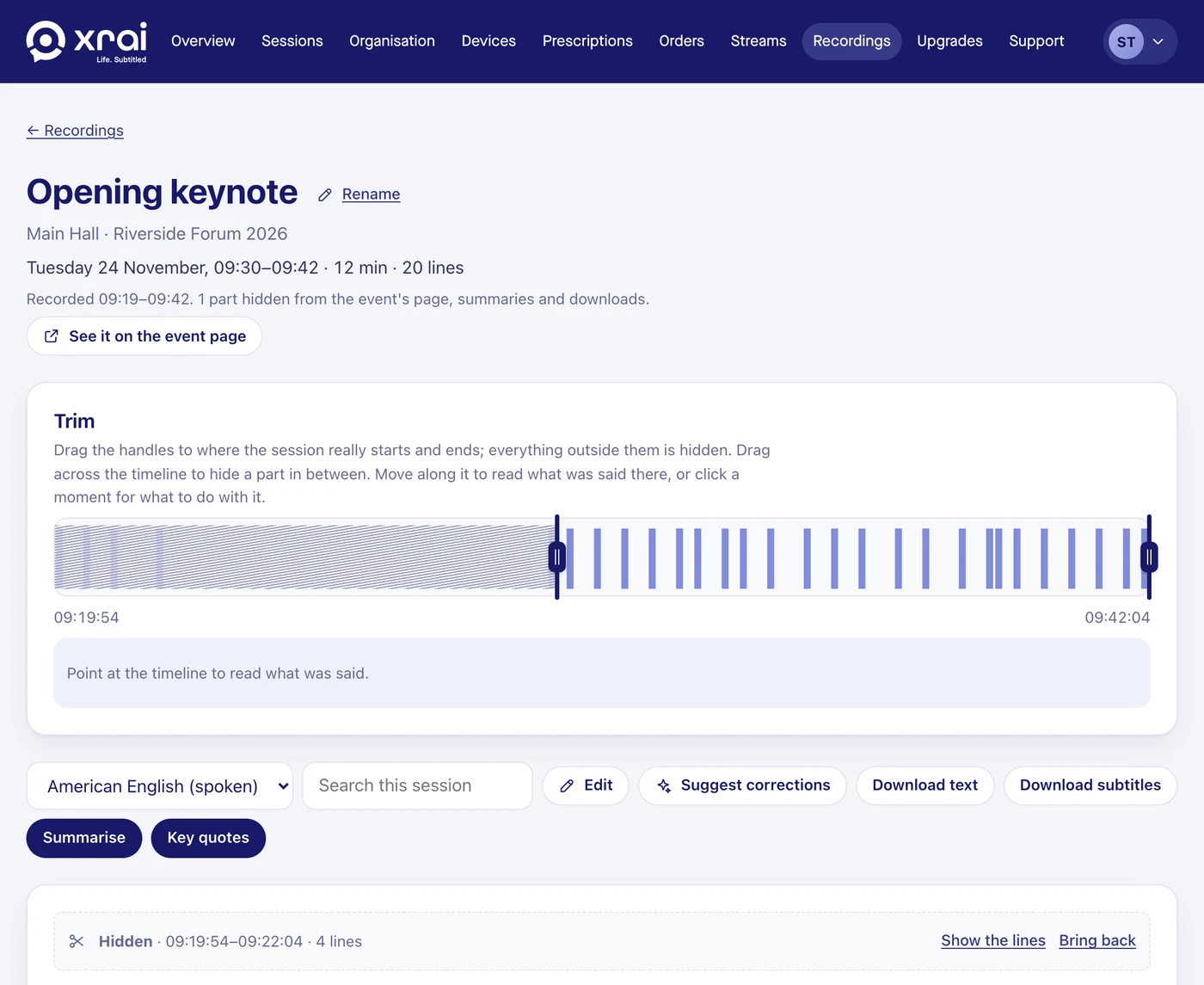
See it on the event page opens the session on your event's public page, once the page is published.
A session shows its first 5,000 lines. To reach the rest, search it or download it.
A session marked Live is still going. Reload the page to see its latest lines.
Search a session
Type in Search this session. Only the lines that match stay on screen. Clear the box to see them all again.
Names and unusual words are captioned as they sound, so if a search finds nothing, try another spelling or fewer words.
Download a session
| Button | What you get |
|---|---|
| Download text | A plain text file of the session: each line with its time, and the speaker's name where it changes. |
| Download subtitles | An SRT subtitle file, to add to a video of the event. |
Both download the language you're reading, with your corrections. Parts you've hidden are left out. Choose another language first to download that one.
Recordings are kept for 12 months after the session ends. To keep one longer, download it.
Next
- To name a session, or trim it to where the speakers start and finish, see Name, trim and hide parts of a session.
- To have sessions summarised or their quotes picked out, see Summaries, key quotes and your own prompts.