
Recording keeps the captions of your event, in every language you broadcast, so you can read them again, tidy them, download them, have them summarised, and share them on your event's page. It comes with your event booking, and stays off until you switch it on for a stage.
Who can use it
- The person who booked the event.
- Administrators of the organisation whose stages are in the booking.
Sign in at my.xrai.glass with your XRAI account. Recordings appears in the menu once you have an event booking.
Switch recording on
- At my.xrai.glass, open Recordings.
- Under Booked, find your event. Each stage has a Record this stage switch.
- Turn it on for every stage you want to keep. Turn it off to stop recording that stage.
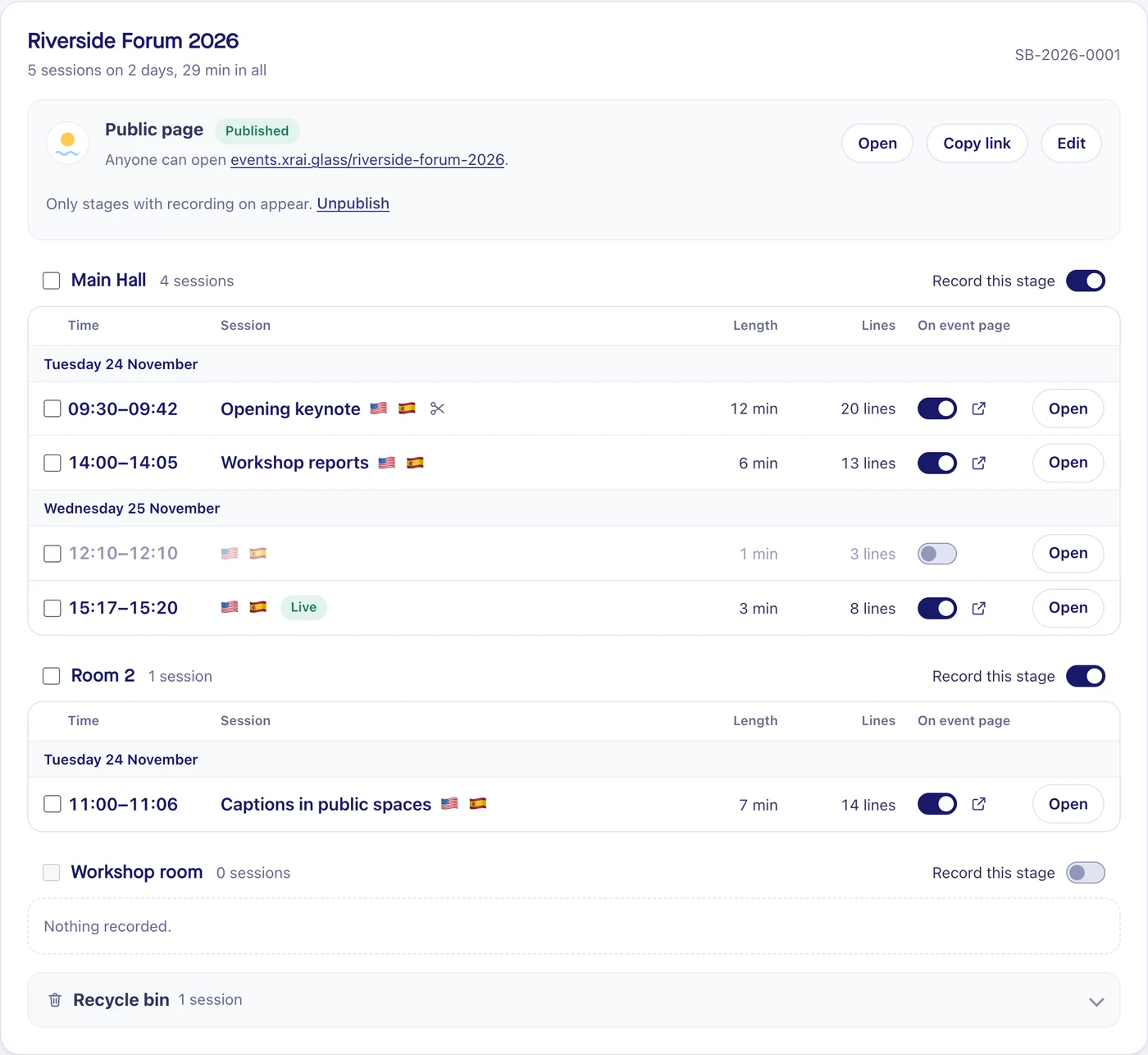
The switch shows while the event is booked. To have recording on from the start, ask us when you book and we'll switch it on for you.
What's recorded
- Every caption on a stage with recording on, in each language the stream broadcasts, with its time and, when the stream labels speakers, the speaker's name.
- Captions only. The audio isn't recorded.
- Nothing from a stage with recording off.
If you'll share transcripts, let your speakers know their words are kept.
Sessions
A stage's captions are kept as sessions. A session starts with the first caption, and ends after 30 minutes without one, or when captioning on that stage is stopped and started again. A session that's still going is marked Live.
Sessions often include sound checks before the speakers start, or run on after they finish. You can trim and name each session, hide parts of it, and split or join sessions so that each one is a single talk.
How long recordings are kept
Recordings are kept for 12 months after the session ends, then deleted, including sessions in the recycle bin. Download anything you want to keep for longer: see Read, search and download recordings.