
Jam shares a conversation from your XRAI app with the people around you: a tour group, a class, a meeting or a table of friends. They scan a QR code with their phone's camera and read the captions in their browser, translated into their own language, and can listen to them on their earbuds. They don't need the app or an account.
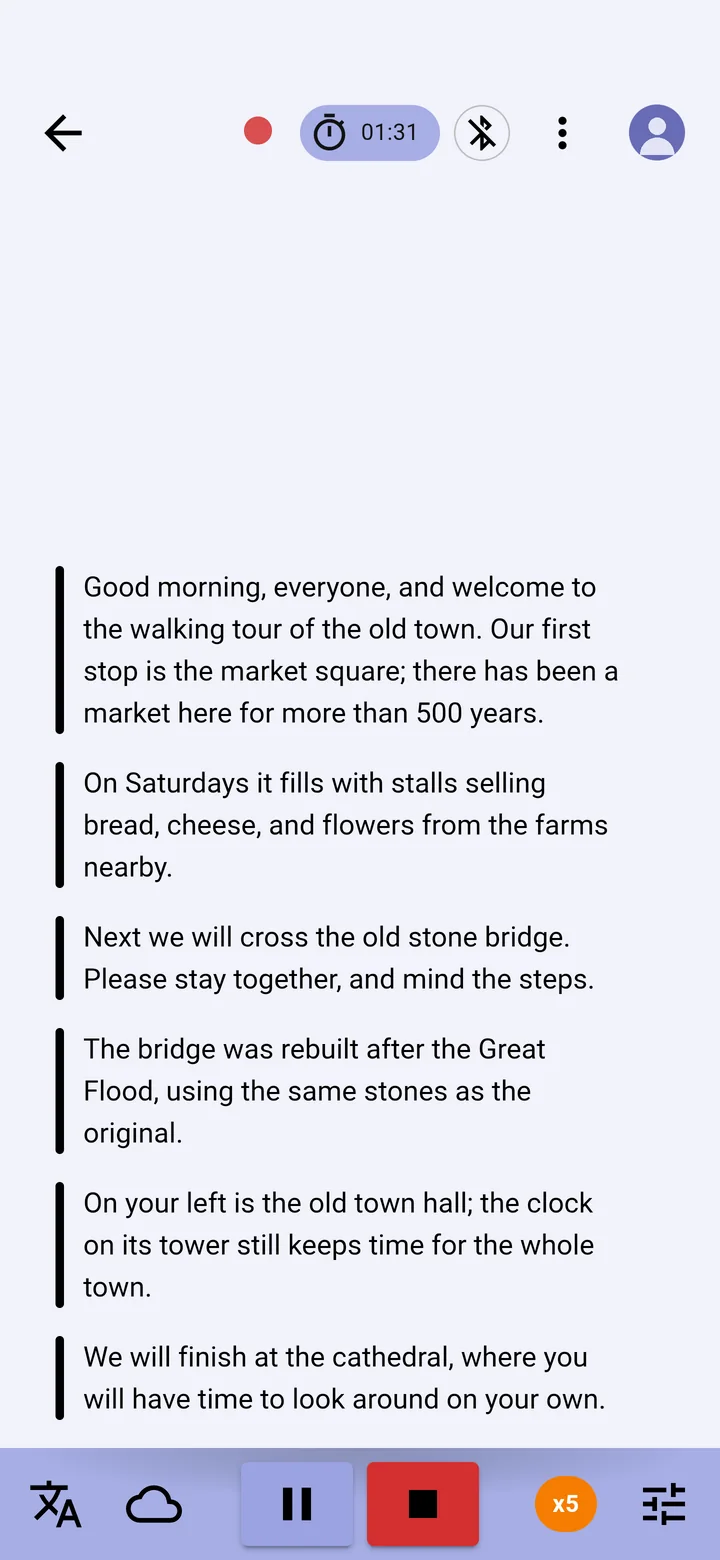
Turn on Jam
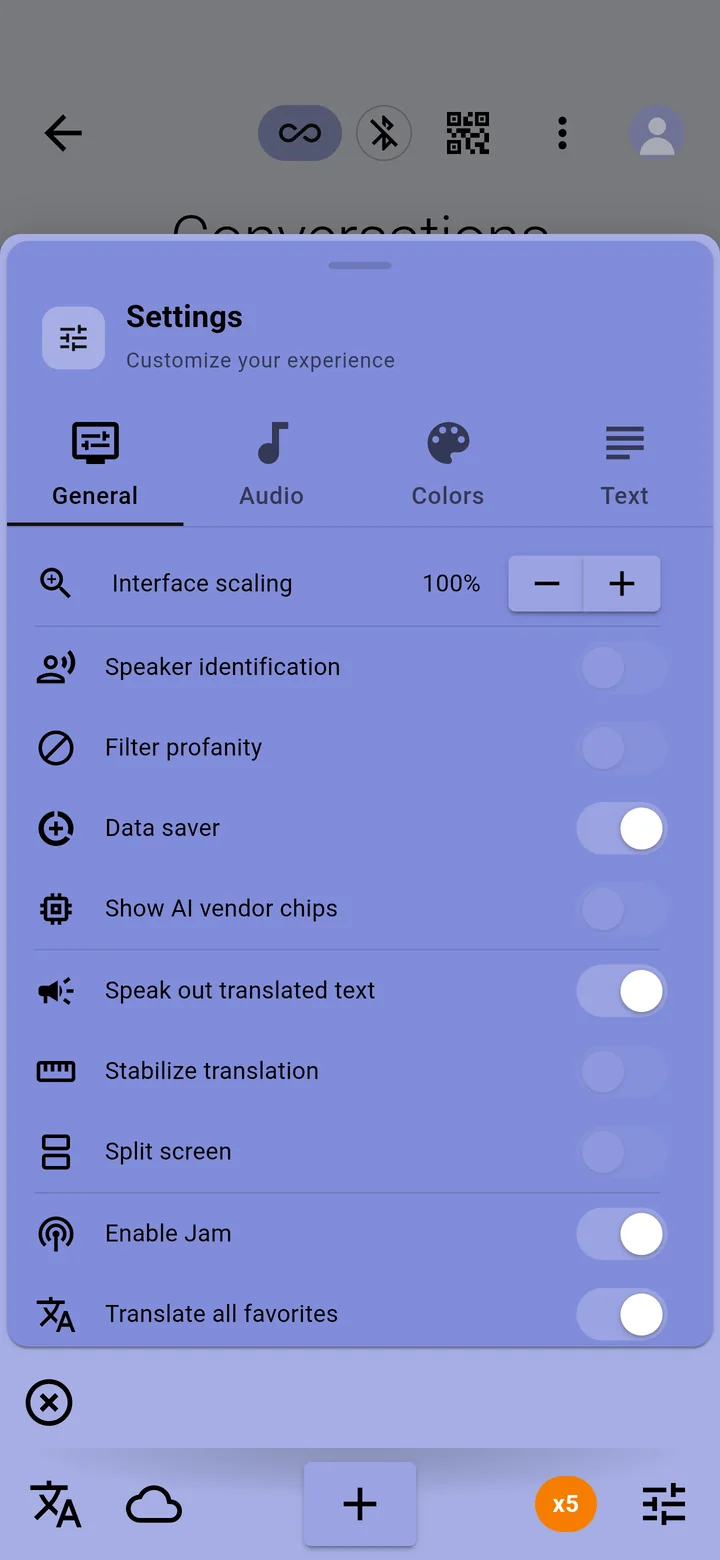
- Tap the settings icon at the bottom right of the conversation screen.
- Turn on Enable Jam. A QR code button appears at the top of the screen.
- To offer translations, turn on Translate all favorites, which appears under Enable Jam.
- To let people listen, turn on Speak out translated text.
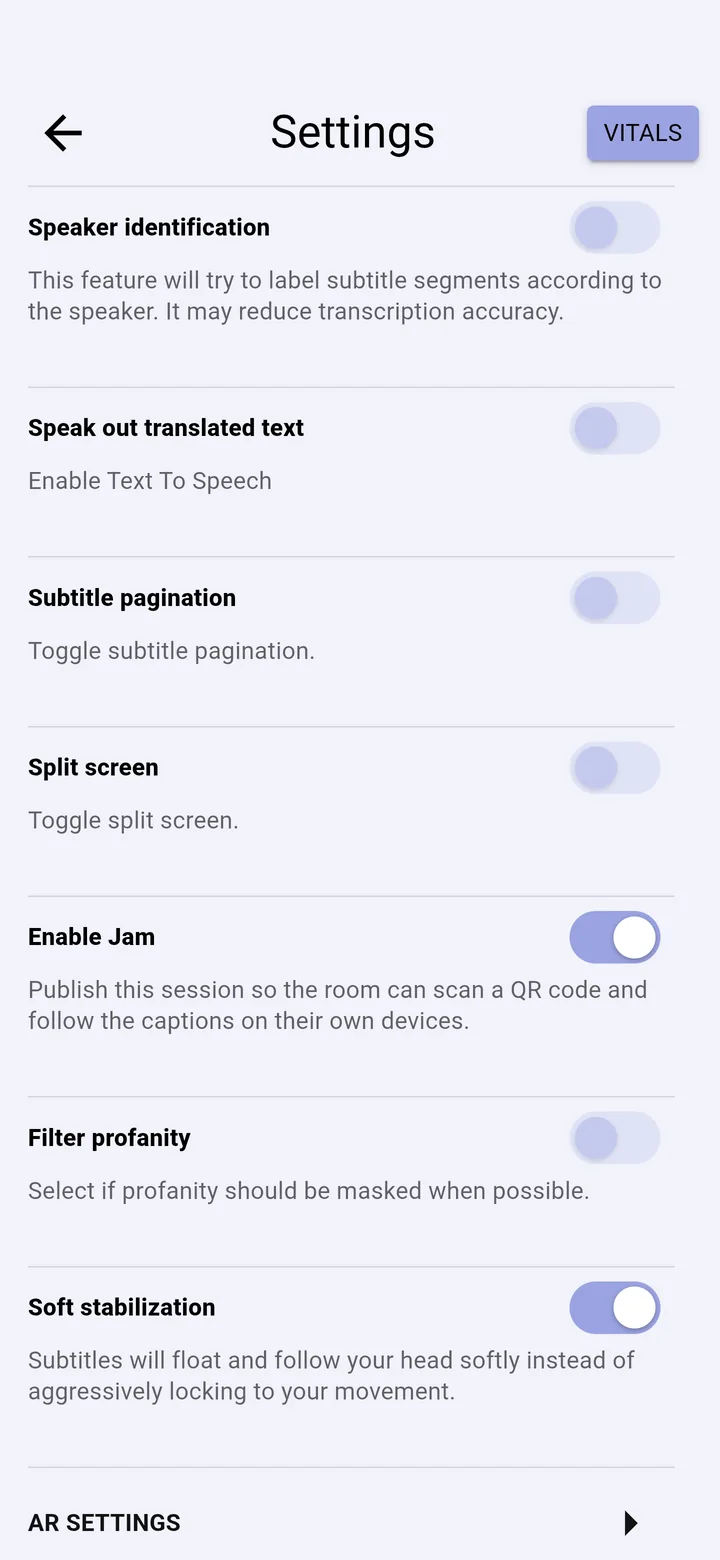
Enable Jam is also on the Settings page: tap your picture, then Settings.
Choose the languages
With Translate all favorites on, your guests can choose any of your favourite subtitle languages. To add one, tap the languages icon at the bottom left, open the TO tab and tap the heart next to the language. See Languages and translation.
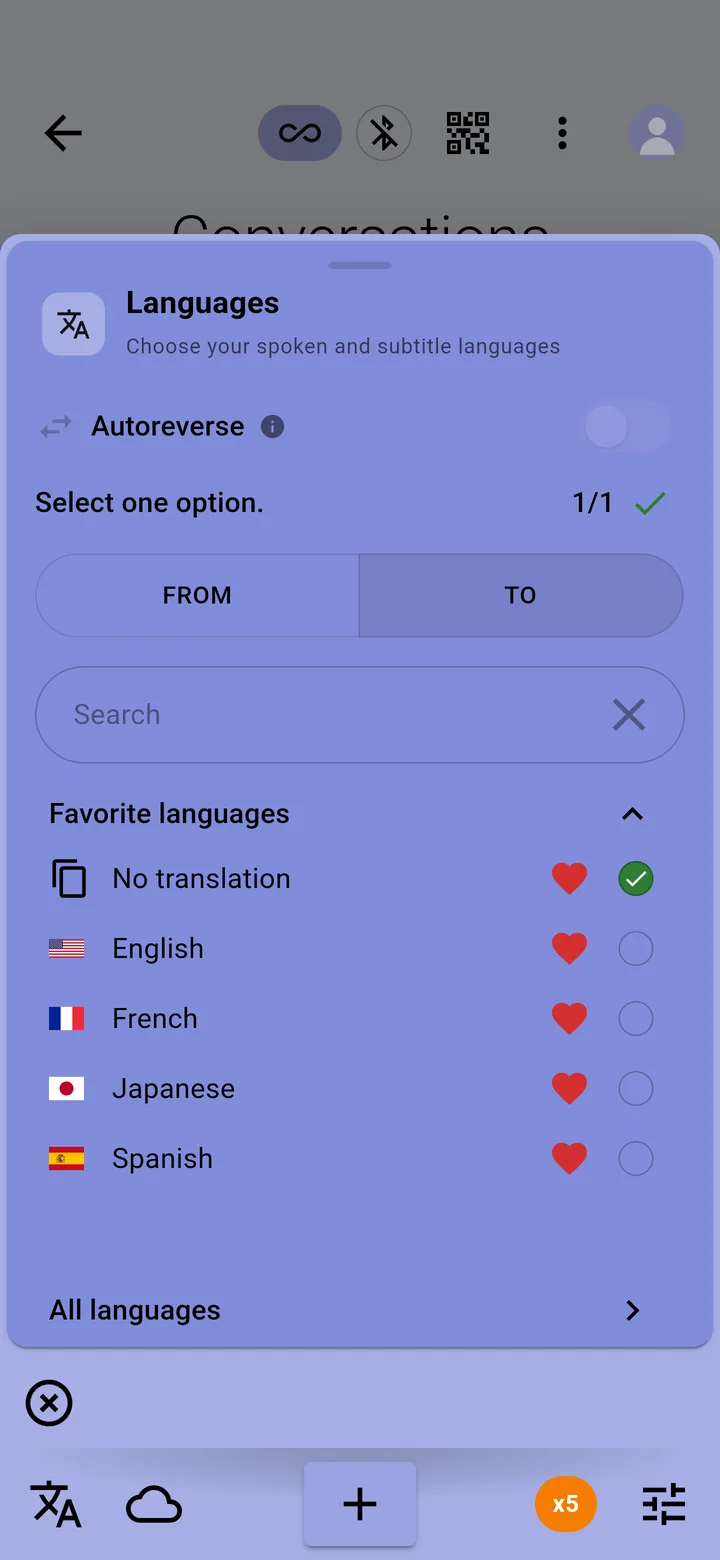
Your own screen still shows the language selected on the TO tab, or the language being spoken with No translation. Every favourite is translated while you caption, whether or not anyone chooses it, so keep to the languages your guests need.
With Translate all favorites off, guests can choose the language being spoken and the one language selected on your TO tab.
Show the QR code
- On the Conversations screen, tap the QR code button at the top.
- Your guests point their phone's camera at the code and open the link. The link is also shown under the code, so you can send it in a message.
- Tap Close, then tap + to start captioning.
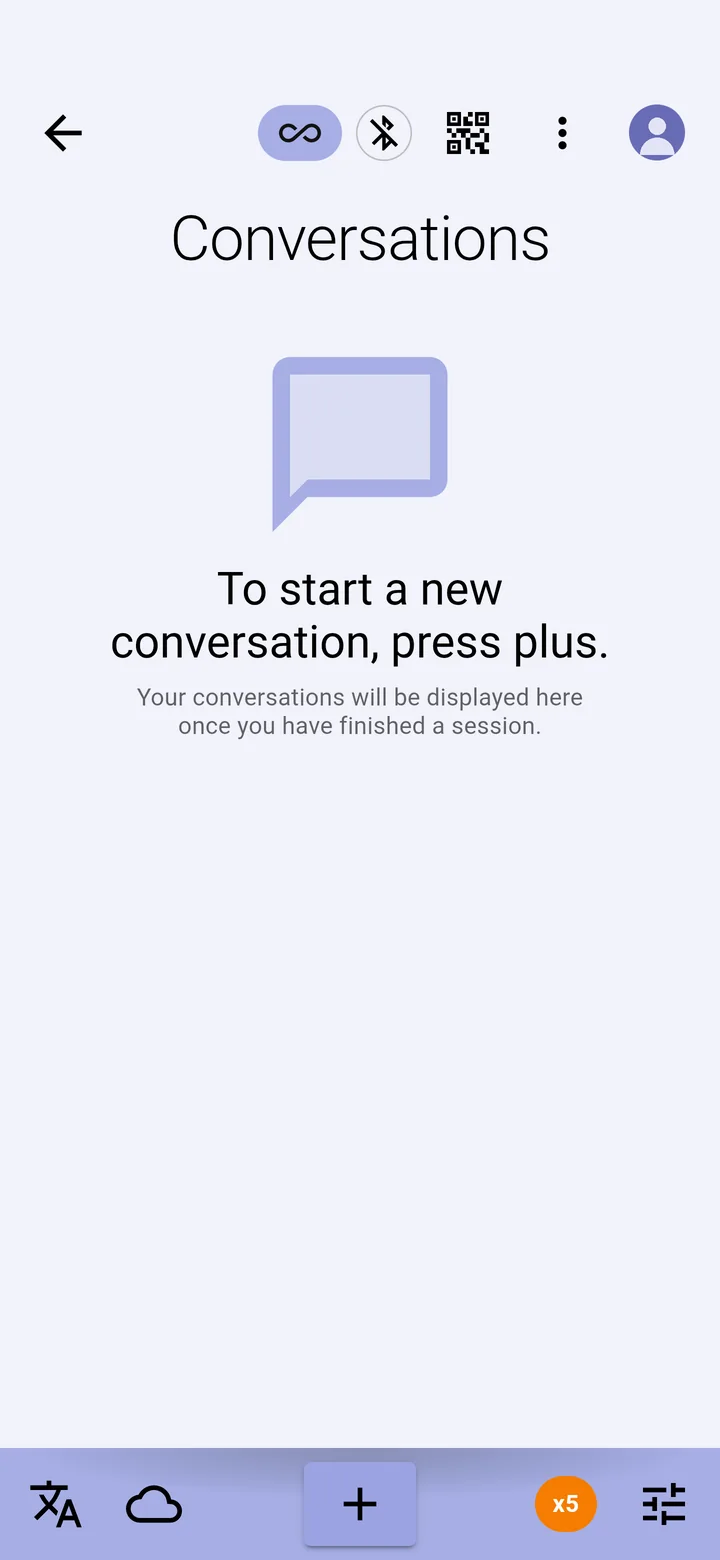
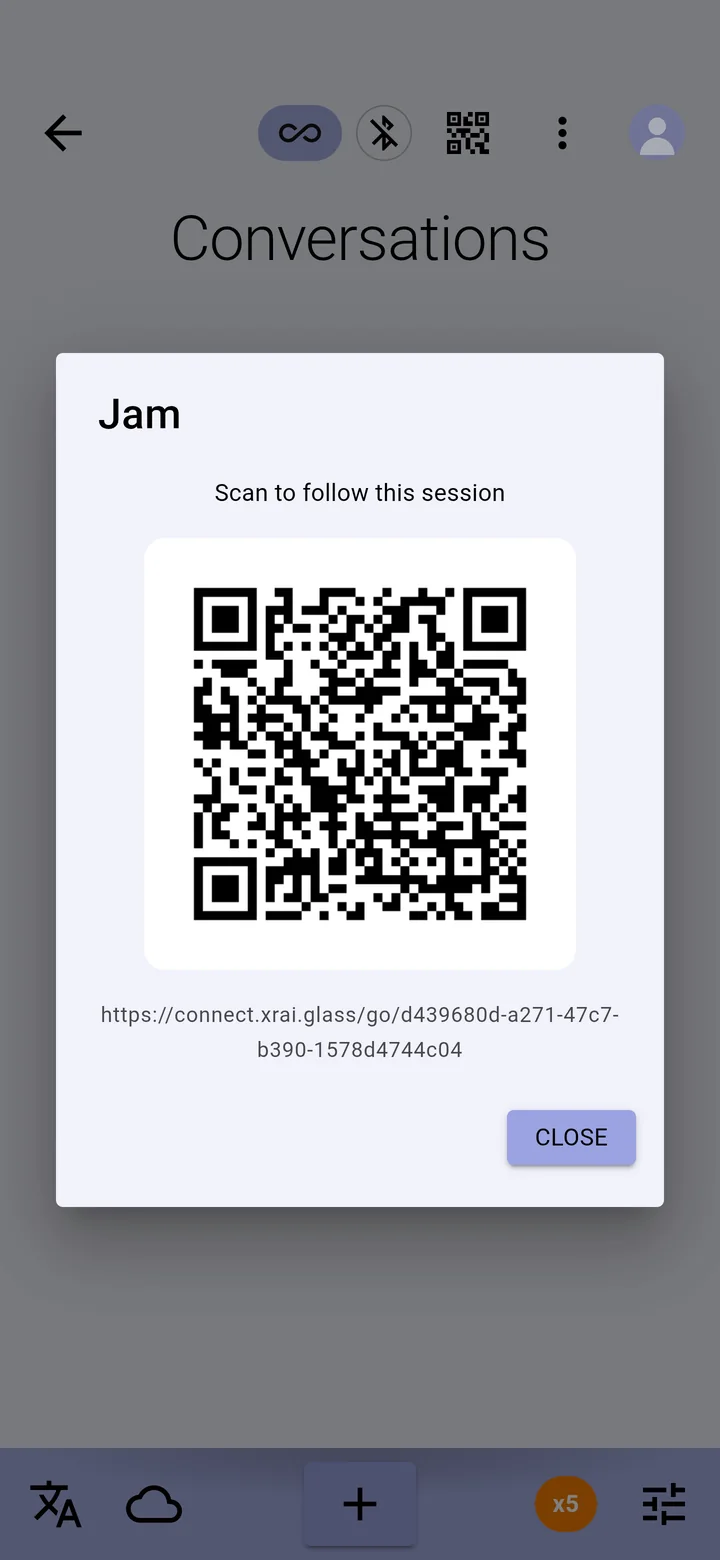
The QR code button isn't shown during a conversation, so show the code before you tap +, and send the link to anyone who arrives later. The code changes each time the app restarts: don't print it, and show it again after a restart.
What your guests see
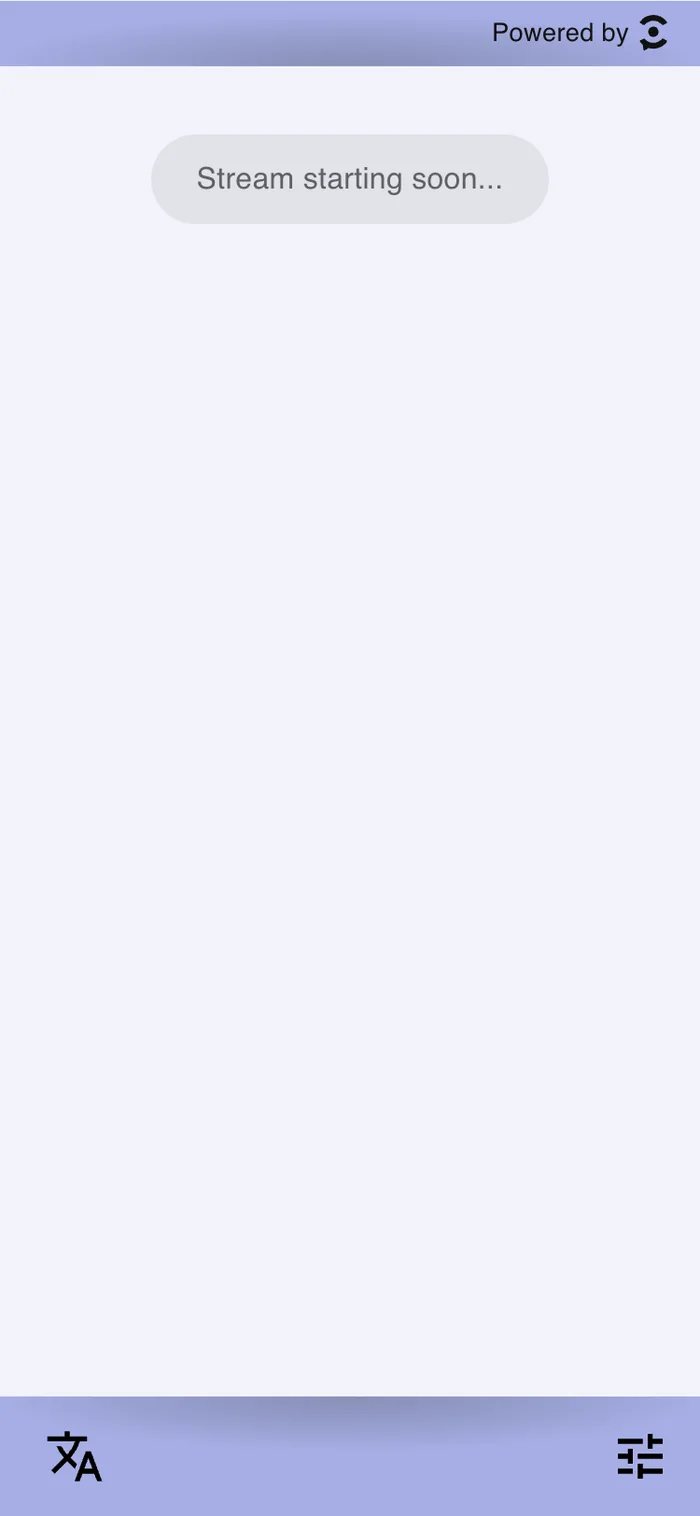
Before you start captioning, their page says Stream starting soon…. When you tap +, the Choose a language panel opens on their phone.
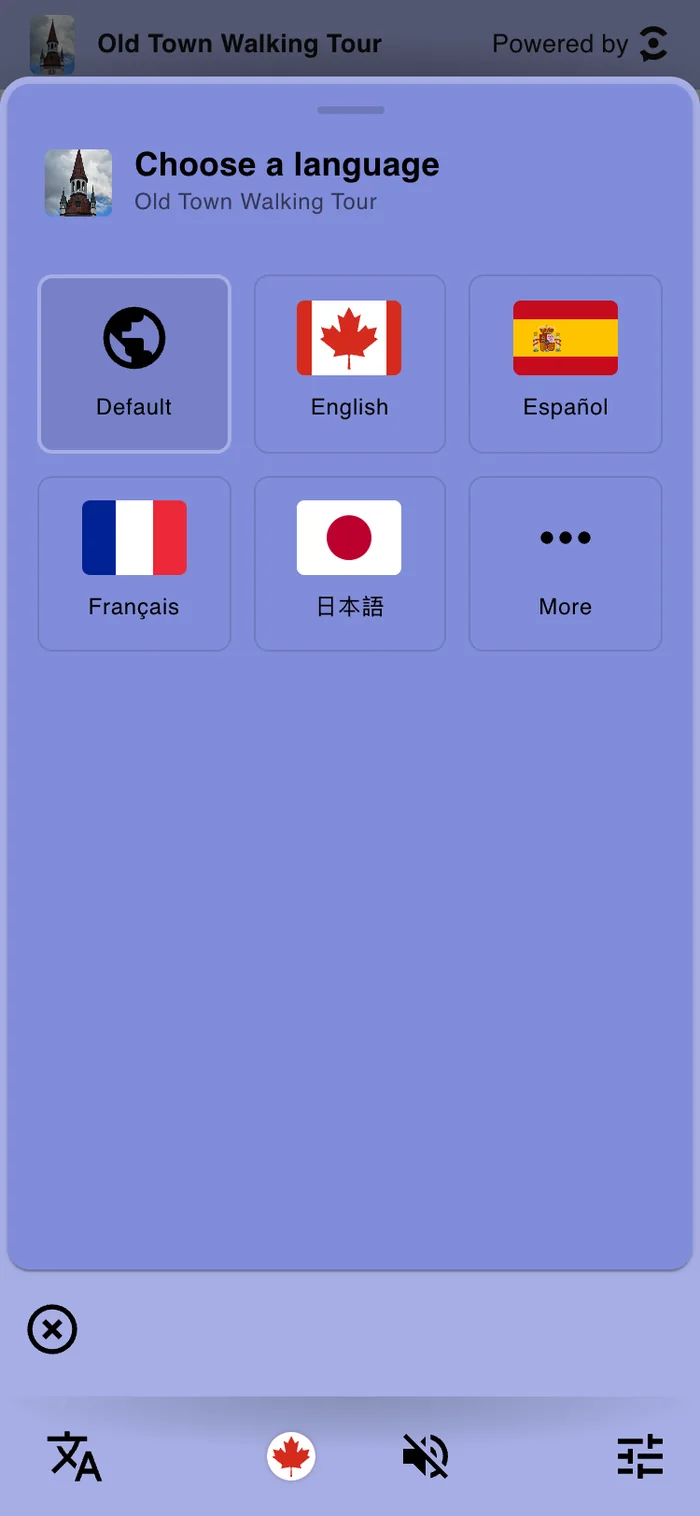
| Choice | What they get |
|---|---|
| Default | The captions in the language being spoken. |
| A language | One tile for each language you offer. The page's own buttons and labels change to it too. |
| More | Any other language: opens the captions in the XRAI app, which translates on their phone. That needs the app, an XRAI account and Pro minutes. |
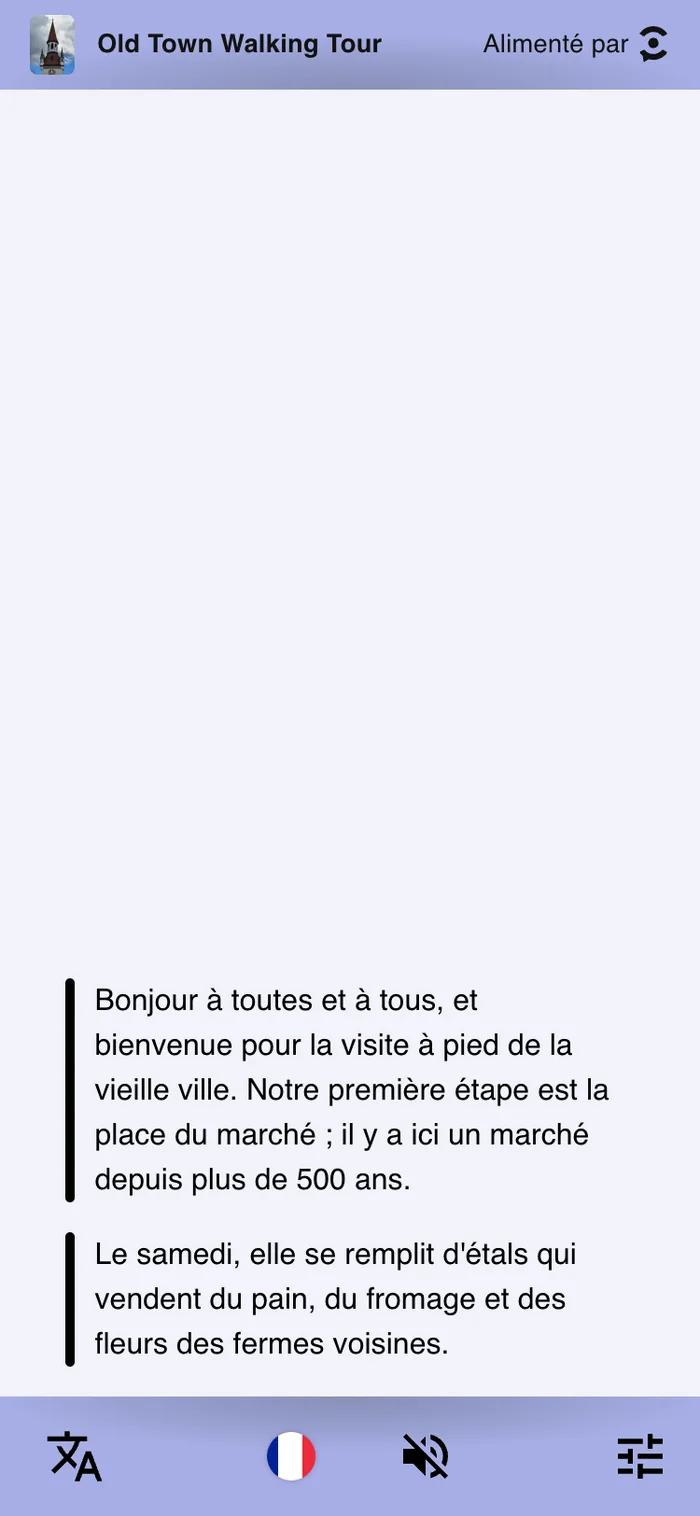
New lines arrive at the bottom of the page. To change language, guests tap the translate button at the bottom left. Lines already on screen stay in the language they arrived in, and everything after the change comes in the new one. If your stream has a name and picture, they show at the top of the page.
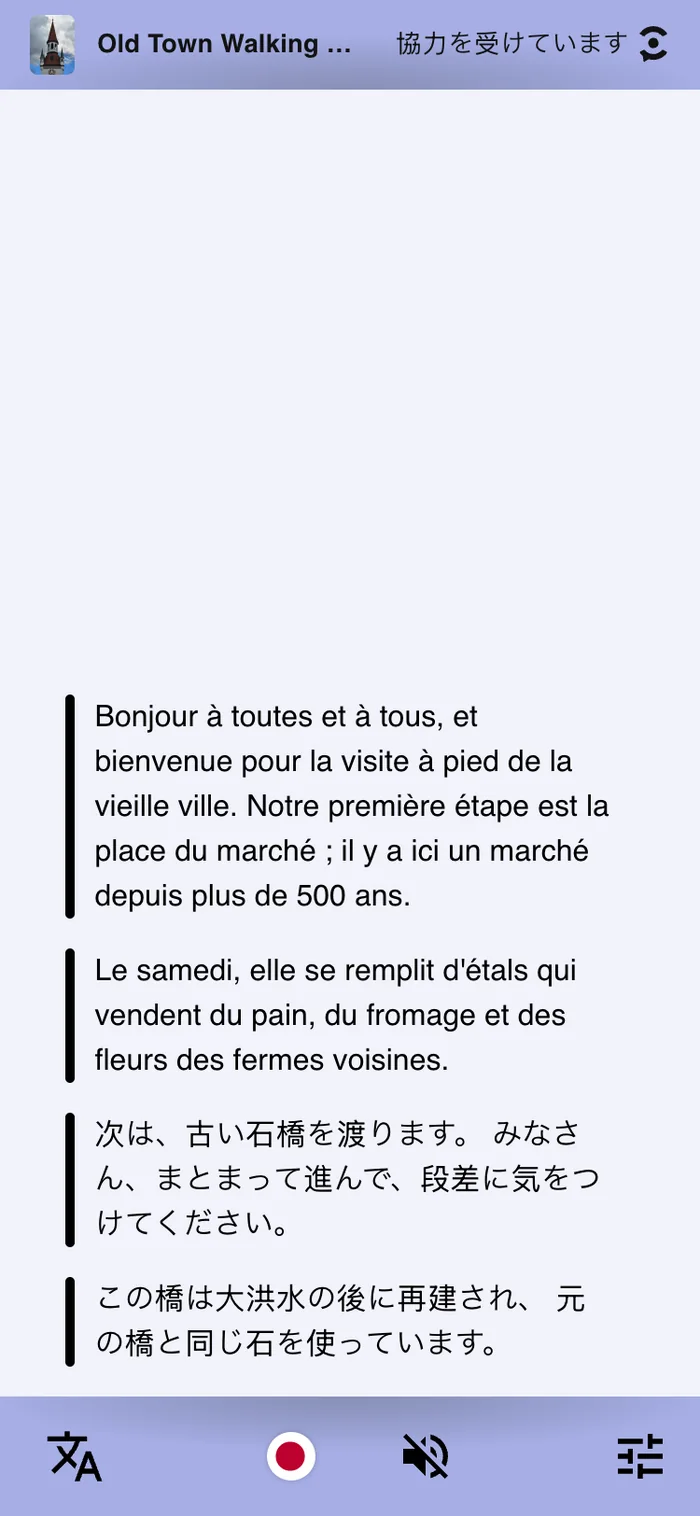
The settings button at the bottom right changes the text size, colours and layout on that guest's phone only. See Read live captions at a venue.
Listen on earbuds
With Speak out translated text on, guests can hear the captions read aloud in their language.
- Guests connect their earbuds or headphones to their own phone as they usually do, for example over Bluetooth.
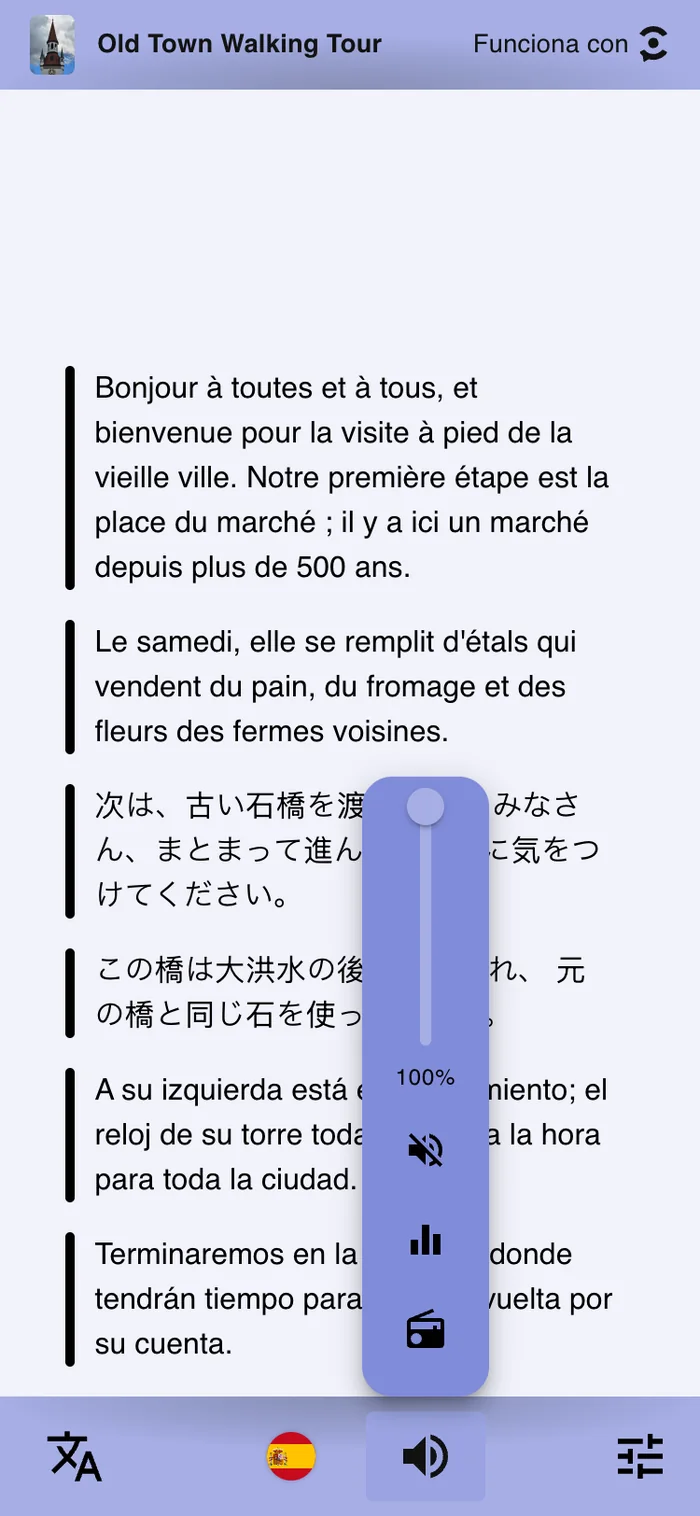
- They tap the speaker button at the bottom of the page. The flag beside it shows the language they will hear.
- A small panel opens with the volume, Mute, a pop-out player and the radio player. Open in radio player hands the sound to the phone's own player, so it carries on with the screen locked.
Ask guests to listen on earbuds or headphones. Speech played aloud near your phone is picked up by its microphone and captioned again.
Pro minutes
While Jam is on, the rate chip at the bottom right shows the rate for sharing: x5. Each favourite language you offer adds translation, and spoken translation adds a voice for each language, unless your plan includes those engines. See Pro minutes.
Stop sharing
Tap Stop to end the conversation: your guests' pages wait for the next one. To stop sharing altogether, turn off Enable Jam, and the QR code button disappears.
If it doesn't work
| What happens | What to do |
|---|---|
| Guests only see Stream starting soon… | Tap + to start captioning. If the app has restarted since they scanned the code, show them the new code. |
| A language is missing | Add it to your favourites on the TO tab and check that Translate all favorites is on. Guests then tap the translate button to choose it. |
| There is no speaker button | Turn on Speak out translated text. |
| Your captions repeat what a guest's phone is saying | Ask guests to use earbuds, or to turn their phone's volume down. |